
.png&w=1920&q=75)
목차

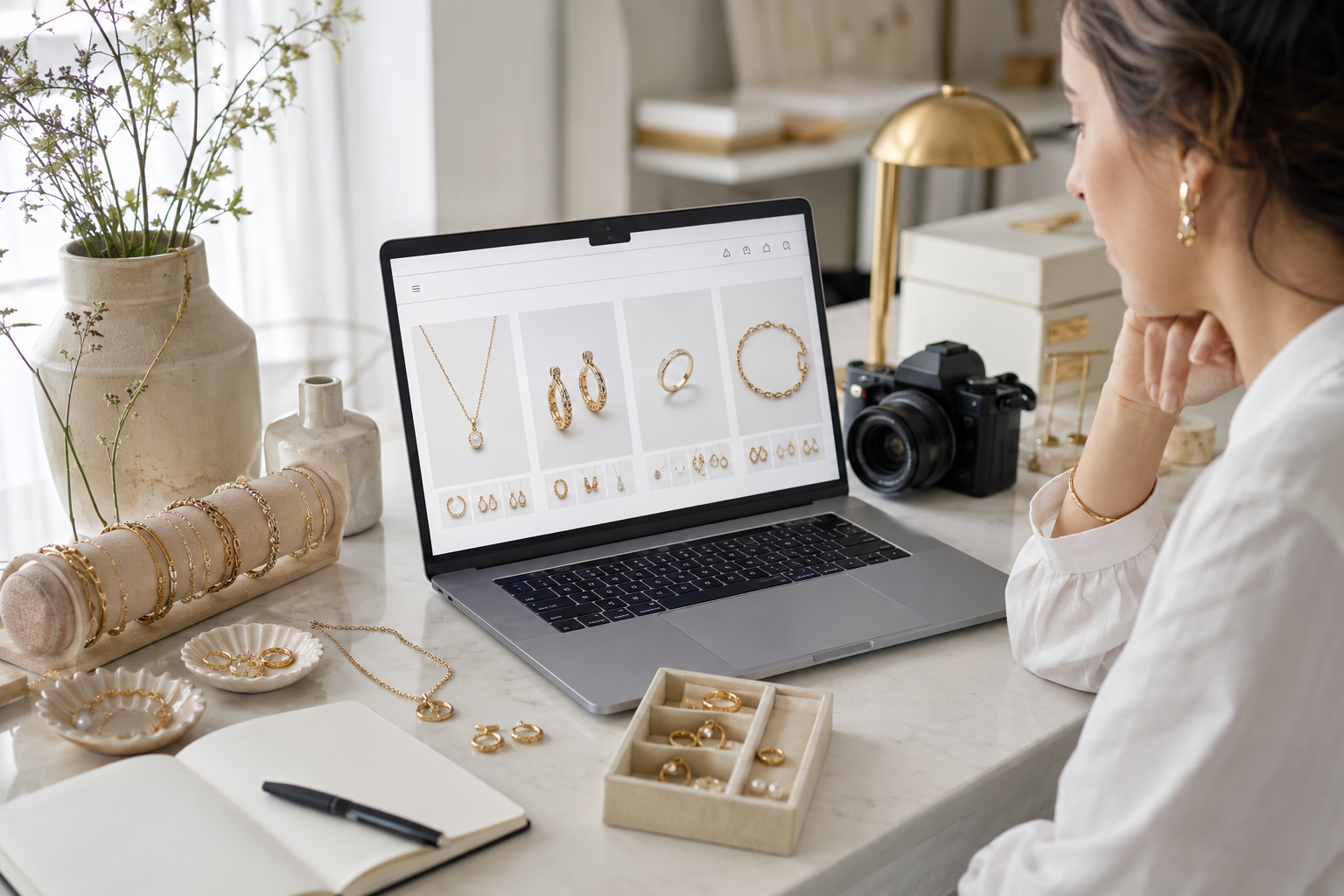
When selling jewelry in an online store, it's really important to organize product shots, model-wearing images, main images, and detail shots to fit your goals, rather than just showing photos of the product design. This is because small items like necklaces, earrings, rings, and bracelets might not show their details clearly depending on the lighting, background, and angles. Lately, you can make various styles of jewelry images by using automatic image generation or AI image creation based on your existing product photos.
Draph Art's AI person features let you create various clothing product images by choosing your desired model, image direction, and size using just a single existing clothing photo. Also, Draph Art is an AI that automatically generates online store detail pages, so you can expand them into a completed fashion detail page structure. Also, the latest e-commerce design trends are reflected in fashion detail page templates to automatically arrange your content. Clothing sellers don't have to separately prepare model shoots, scene creation, and page design, allowing them to quickly create clothing detail pages equipped with brand style, fashion sense, and information completeness all at once. In this post, we will walk through the steps from generating clothing images with Draph Art to using the finished images for sales content and detail pages. In this post, we'll take a look at know-how and usage methods for making jewelry images that are great for actual sales.
💡 3-Line Summary for Busy People (TLDR)
|
1. 4 Practical Tips for Making Great Jewelry Product Images

Tip 1. Show the Materials and Small Details in Product Shots
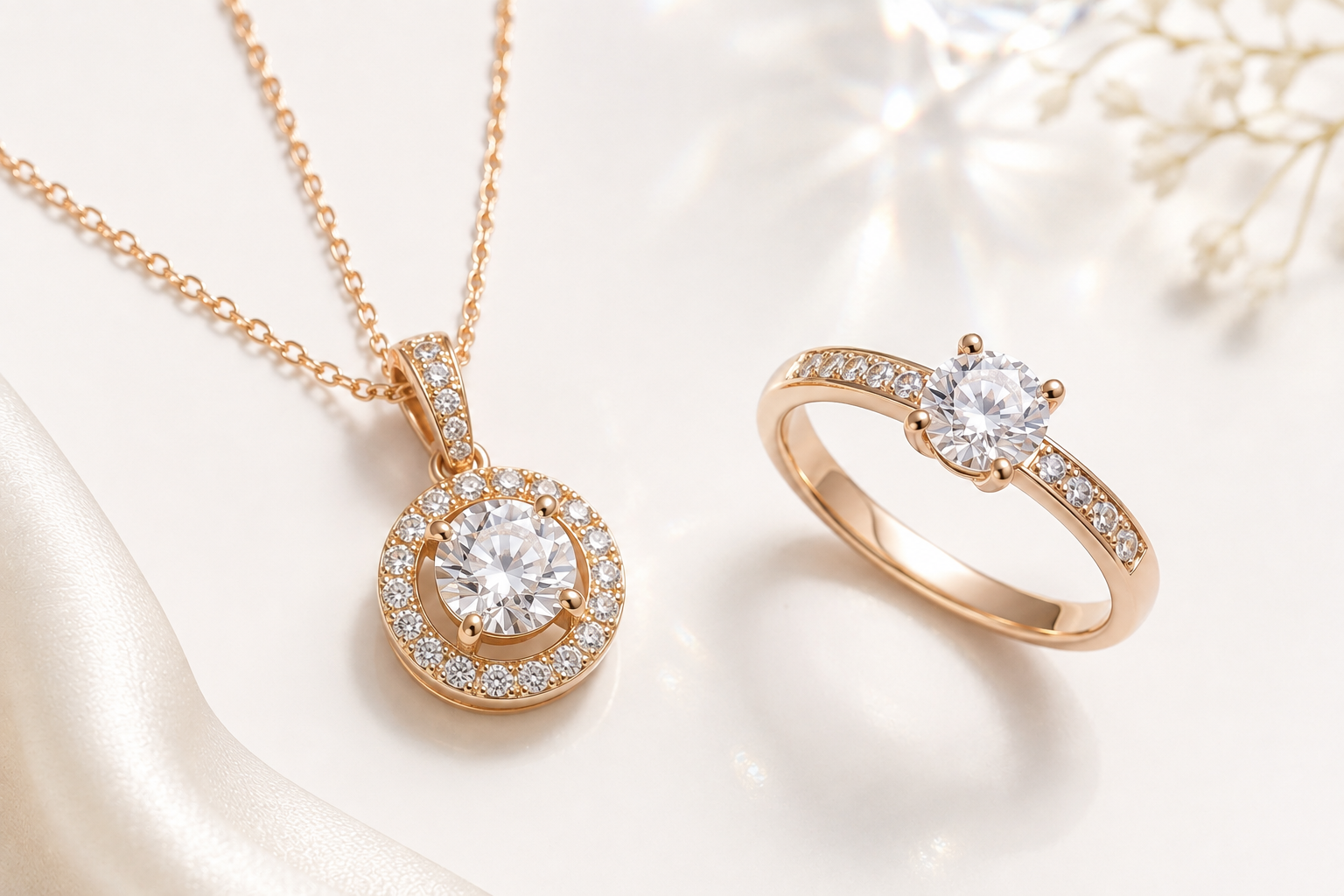
Jewelry standalone images don't just stop at placing the product on a white background. Since the product is small, consumers should be able to clearly understand its shape and material, just like seeing the real item up close. For metal products, it's best to adjust the lighting so the surface shine isn't overly glossy or muddy and dark, and for items with stones, it's important to set them up so the sparkles and cuts look natural.
For necklaces, it's great to have images showing not only the pendant but also the chain thickness and connection structure together, and rings should let you check the stone setting and ring thickness. Earrings help with actual purchase decisions if they show the backing structure as well as the front design, and bracelets also boost product understanding when the chain and clasp are shown separately. Especially since products are small, having too much blank space on the screen can make the actual item feel even smaller, so it's a good idea to adjust the product's proportion within the image.
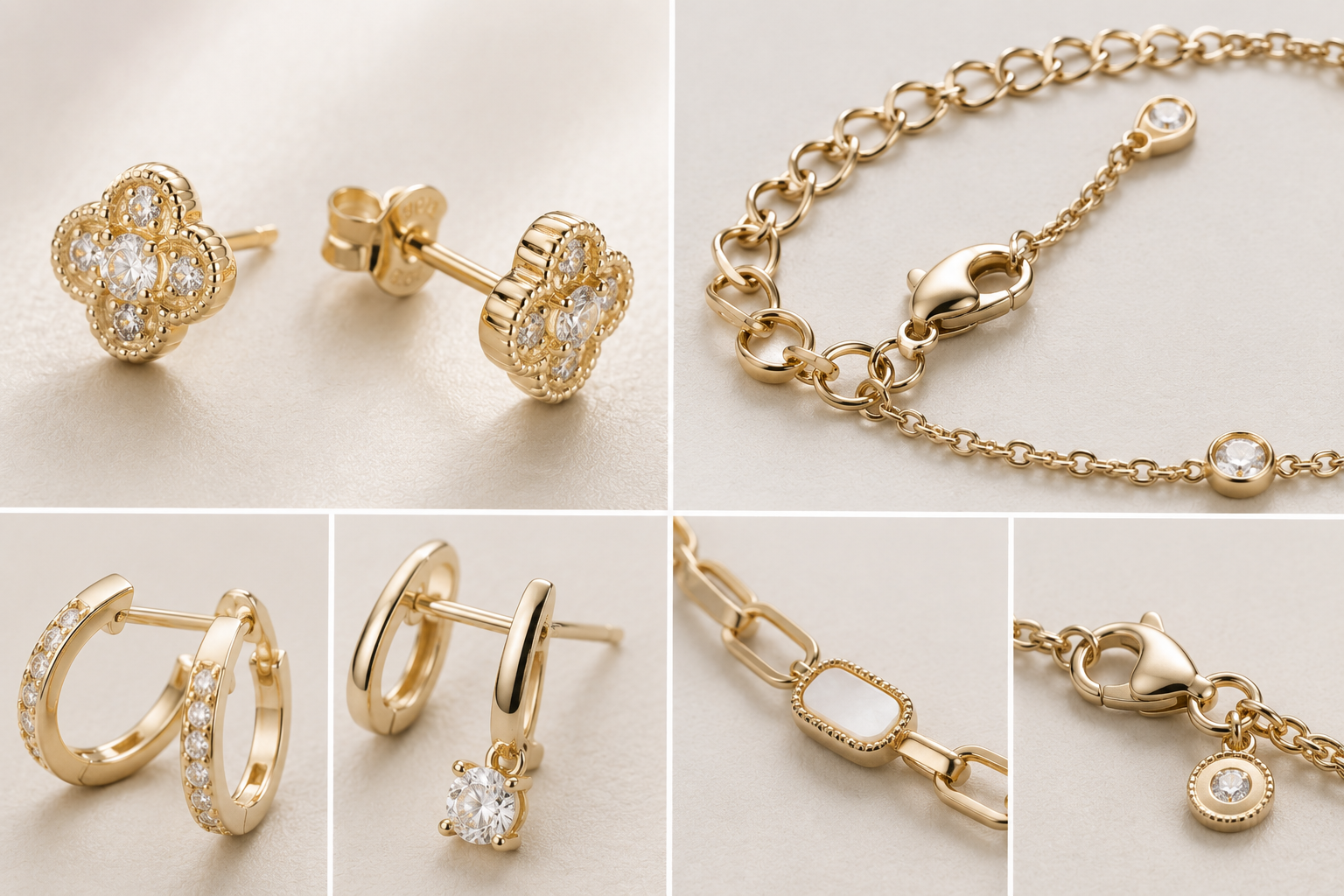
In other words, the goal of a product shot is to show the product itself accurately rather than creating a mood. It's more effective to make up for the mood or styling later in model-wearing images or styled shots.
Tip 2. Make Size and Placement Clear at a Glance in Model-Wearing Images
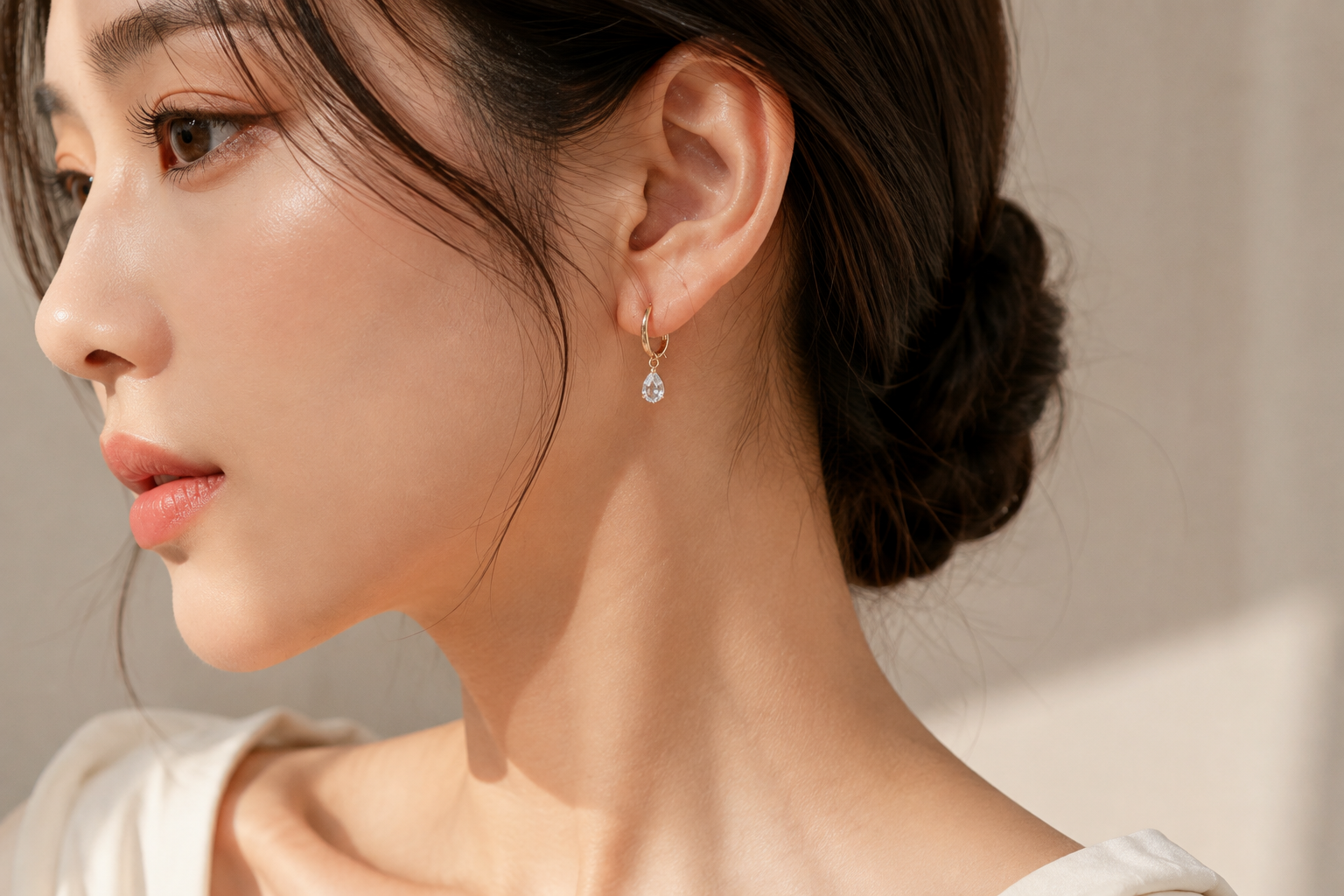
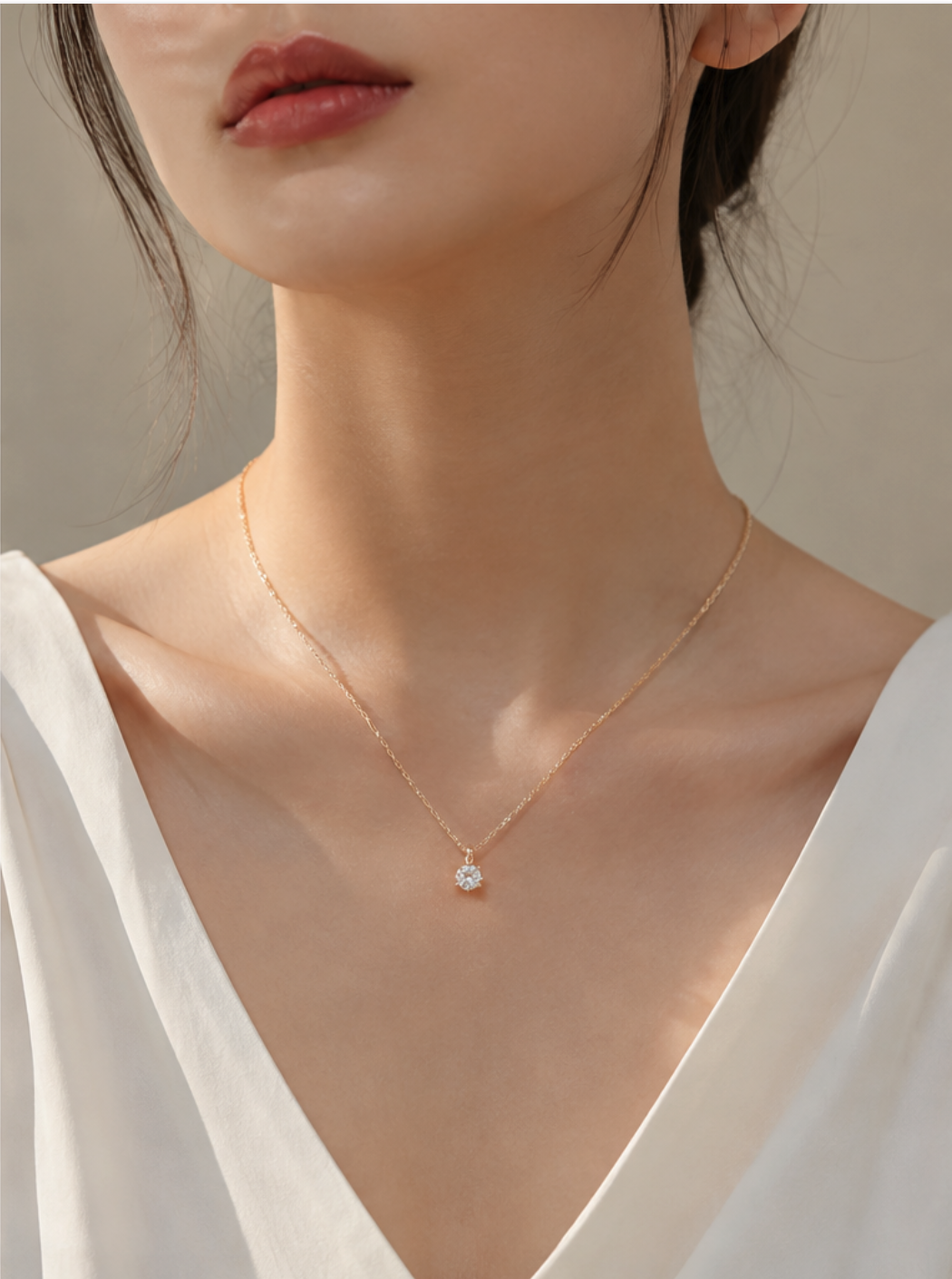
In jewelry, model-wearing images aren't just photos to create a vibe. While seeing the model actually wearing the items, consumers judge the product's size, placement, presence, and how it feels within the overall styling. For example, the vibe changes depending on whether a necklace pendant sits on the collarbone or drops a bit lower, and for earrings, how big they look compared to the earlobe is important. For rings, how big the stone looks on the finger, and for bracelets, where they sit on the wrist, can influence purchase decisions.
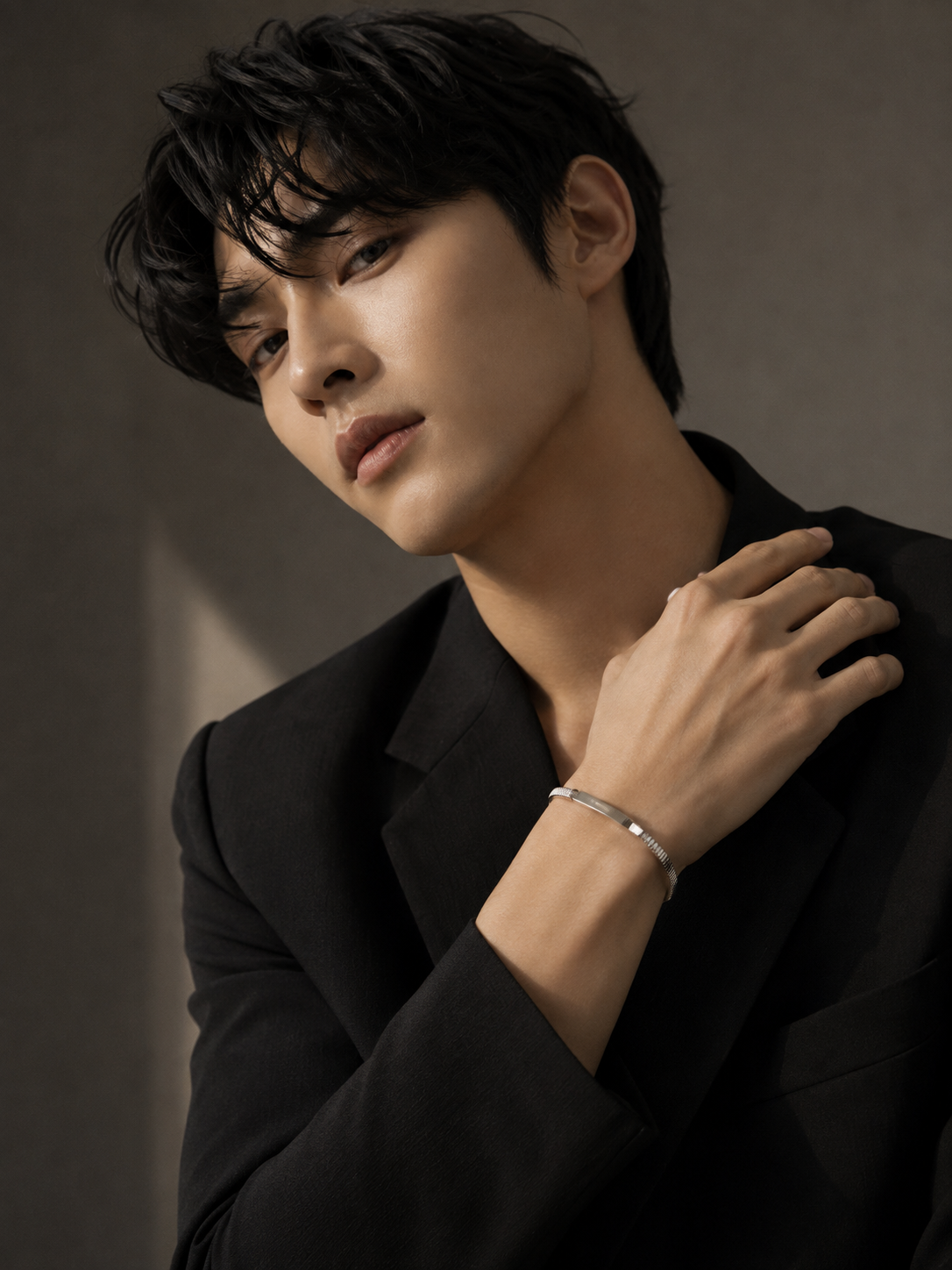

Because of this, the composition of model-wearing images should vary depending on the product type. For earrings, it's effective to focus on the ear and the side of the face rather than the whole face, and for necklaces, a composition where the area from under the chin to the collarbone is clearly visible works best. For rings, showing the natural movement of the fingers and hand is good, and for bracelets, images showing the wrist and arm lines together can showcase the product better.
Even when choosing models, target age groups, skin tones, hairstyles, and clothing styles can make the exact same jewelry look completely different. For instance, small gold earrings are hard to see if they get hidden by hair, so a hairstyle that exposes the ears is better, and delicate necklaces are best styled with outfits that show a clean neckline rather than clothes with busy patterns.
Also, when making multiple model-wearing images for the same product, dividing them by occasions like daily look, office look, and date look instead of just changing the model lets you showcase the same product in even more diverse ways.
Tip 3. Decide on the Jewelry's Target and Styling First Before Choosing a Background
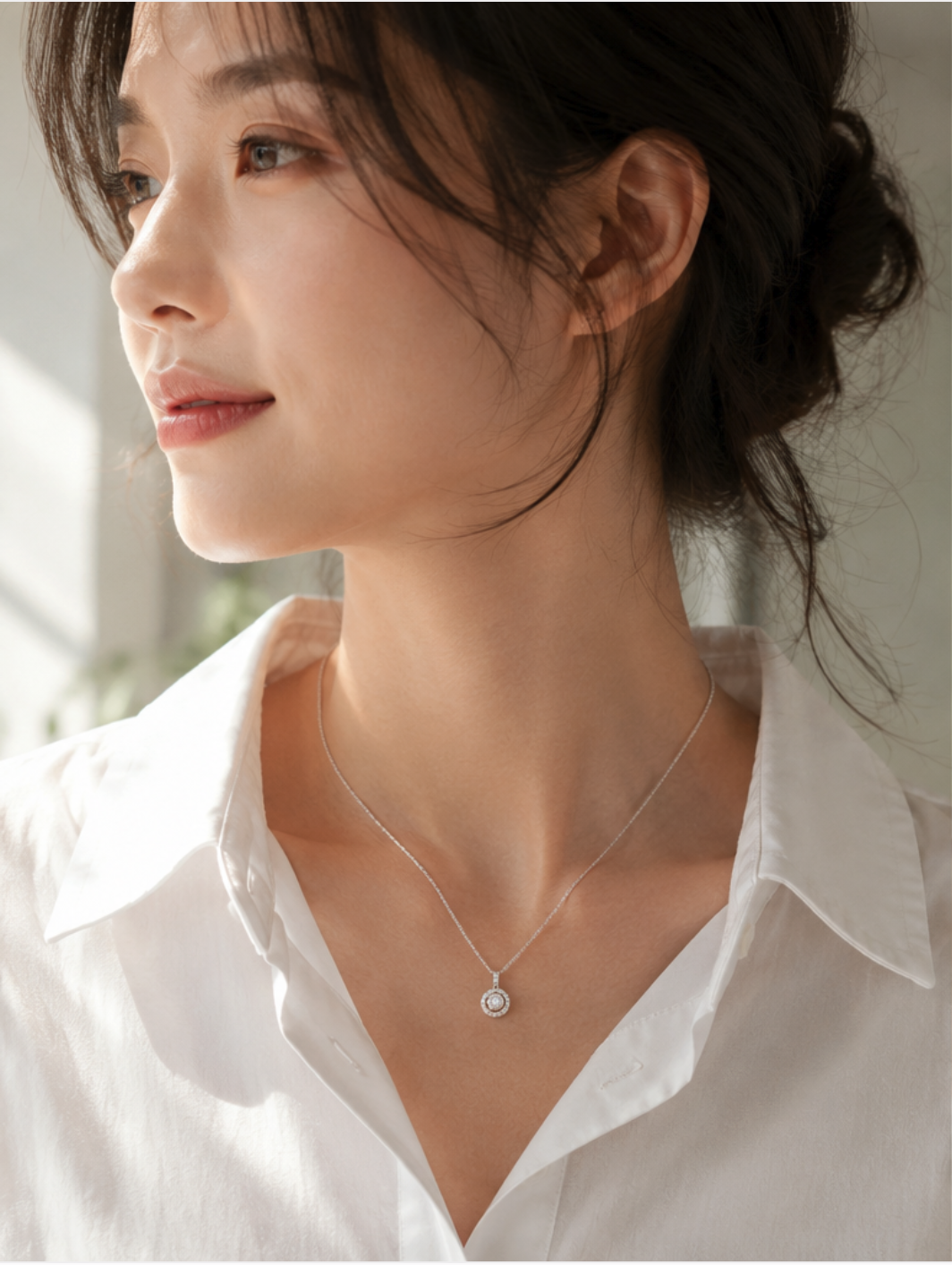
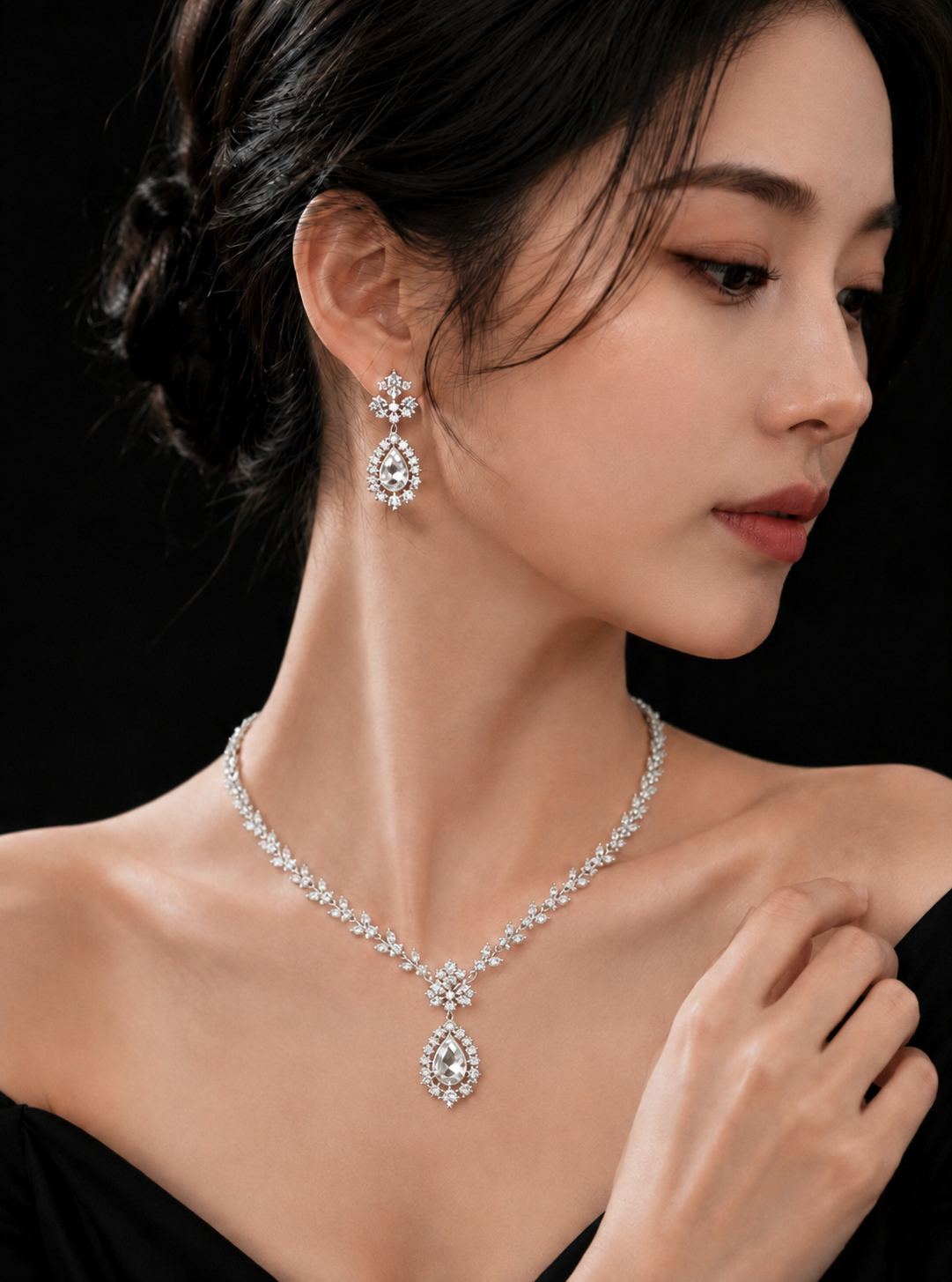
People often pick the background first when making jewelry images, but in reality, it's much more natural to decide who will wear this product and in what situation first, and then choose the background and styling. For example, if a simple silver necklace is daily jewelry, bright natural light and everyday styling like a white shirt or beige knit go really well with it. Conversely, for stone earrings with a strong presence or a statement necklace, you can emphasize a more luxurious and formal vibe through a dark background, a dress, and strong lighting.
Especially if the jewelry and clothing colors are too similar, the product might blend into the background. When showing silver jewelry with grey clothes or styling a bright pearl necklace with a white top, it's important to check whether the edges of the product get blurry. The best approach is to create contrast so the product and styling blend naturally while the consumer's eyes go to the jewelry first.
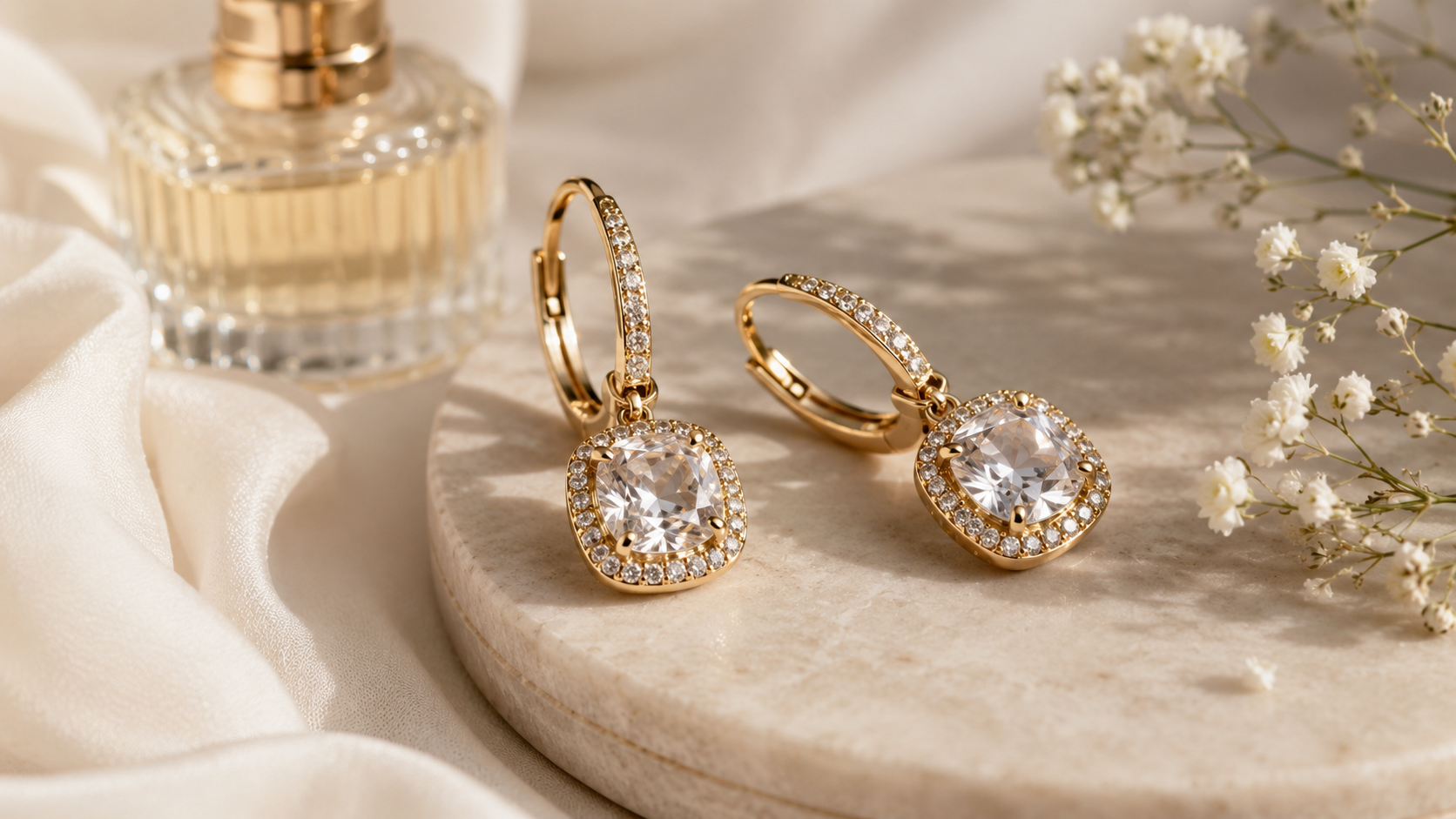
Props are the same. Perfume bottles, flowers, fabric, and books can help set a mood, but if props catch the eye before the jewelry, it can actually hurt how well the product is communicated. Ultimately, a jewelry image should be a photo where the jewelry looks its most attractive rather than "a photo with pretty props."
Tip 4. Quickly Show One Charm in Main Images for the Main Screen
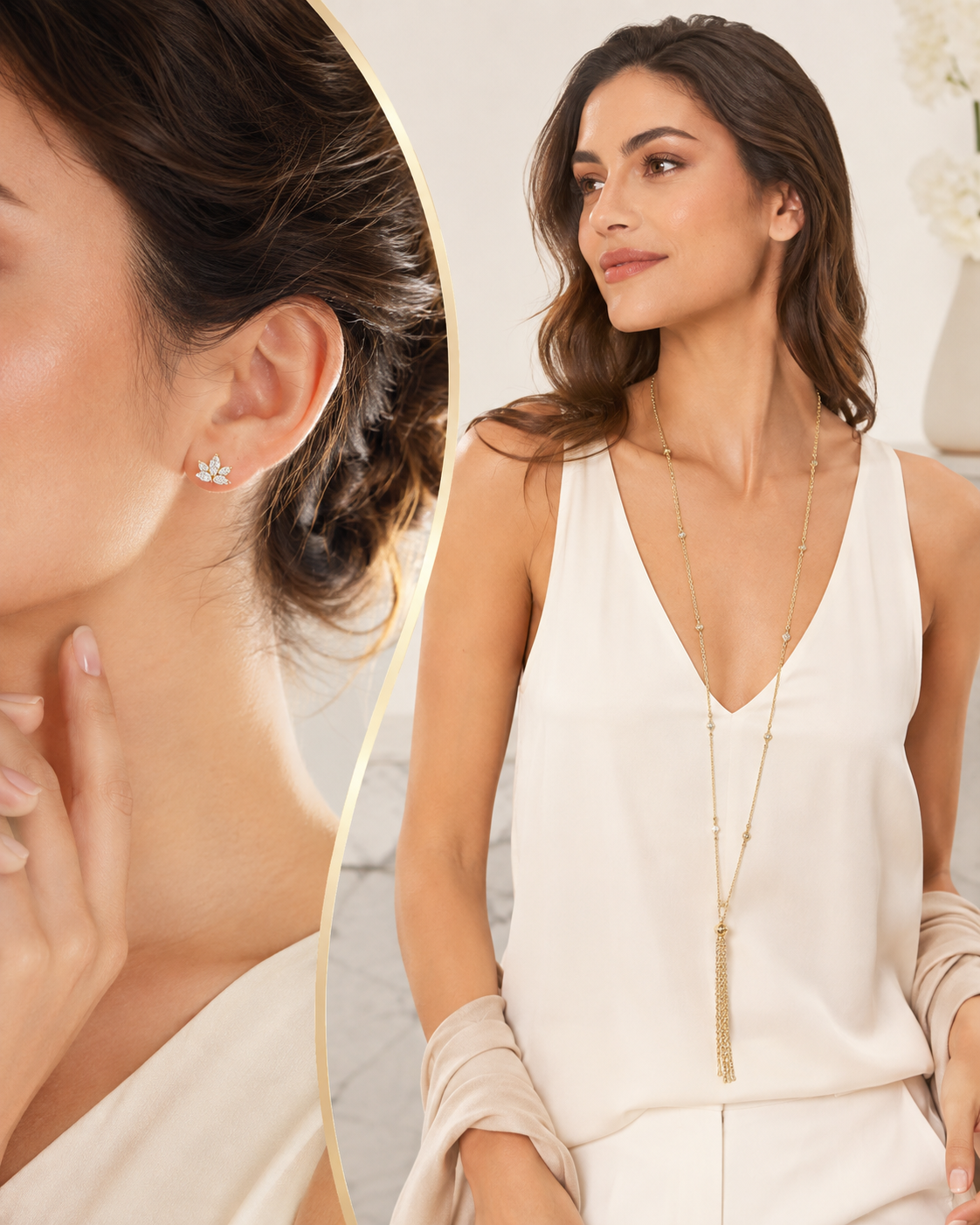
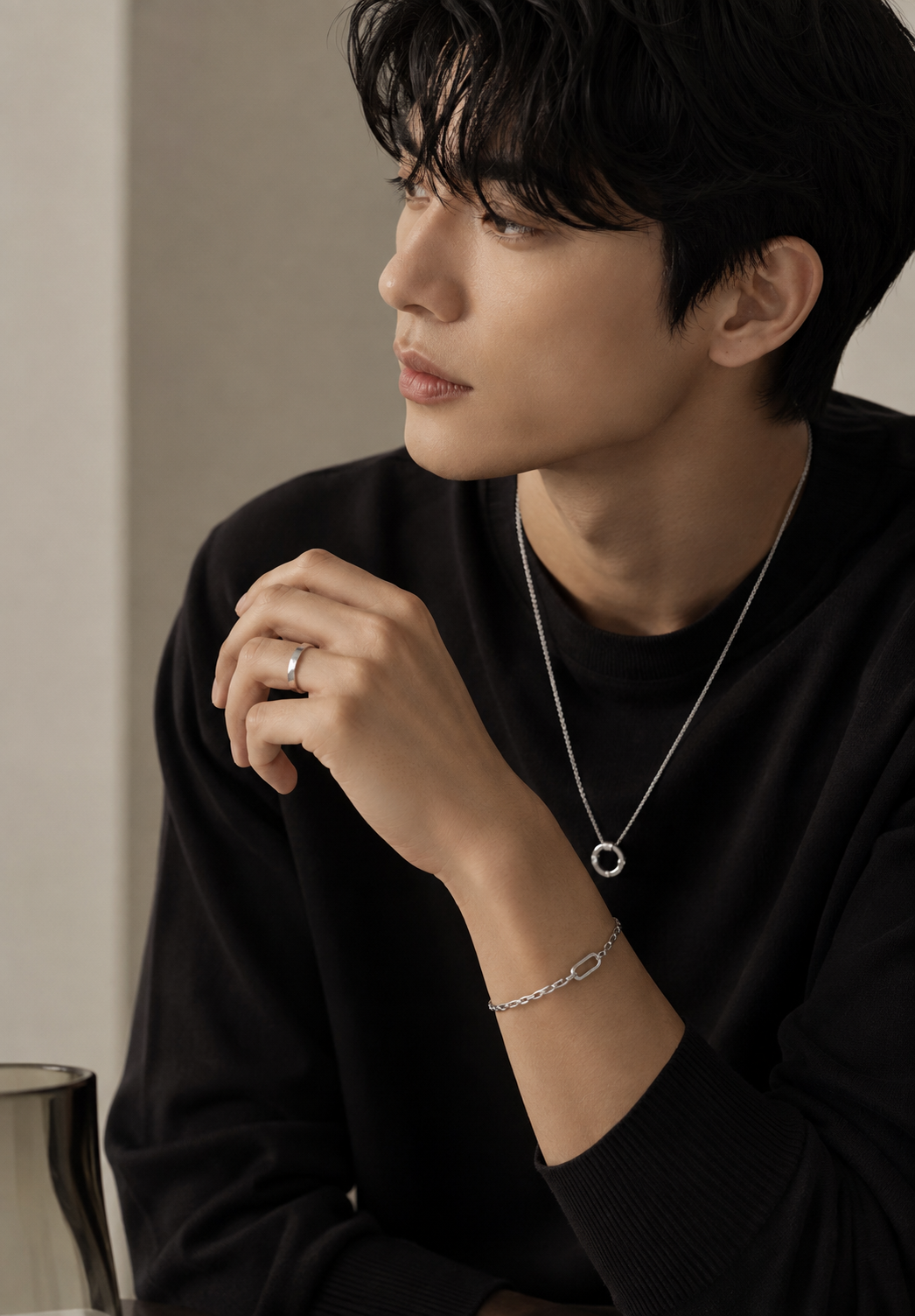
The image that shows up first on the online store main screen or product list needs to have a clearer role than other images. Since consumers compare multiple products in a short time, it's more effective to quickly convey one representative charm of the product rather than cramming a lot of information into a single image.
For example, for small earrings, a close-up centered around the ear might be better than a full-body image, and for long necklaces, showing the upper body makes it easy to understand the actual length. For rings too, a composition where the product looks big enough on the finger can be more advantageous as a main image than an image showing the whole face.
When making main images, it's a good idea to check together whether the product looks big enough on the screen, whether the background or props aren't overpowering the product, and whether the design is easily recognized even on mobile screens. Also, since images for online store main screens and social media have different purposes, preparing multiple versions of the same product will increase your actual usability.
2. Points You Need to Show Change Depending on the Type of Jewelry
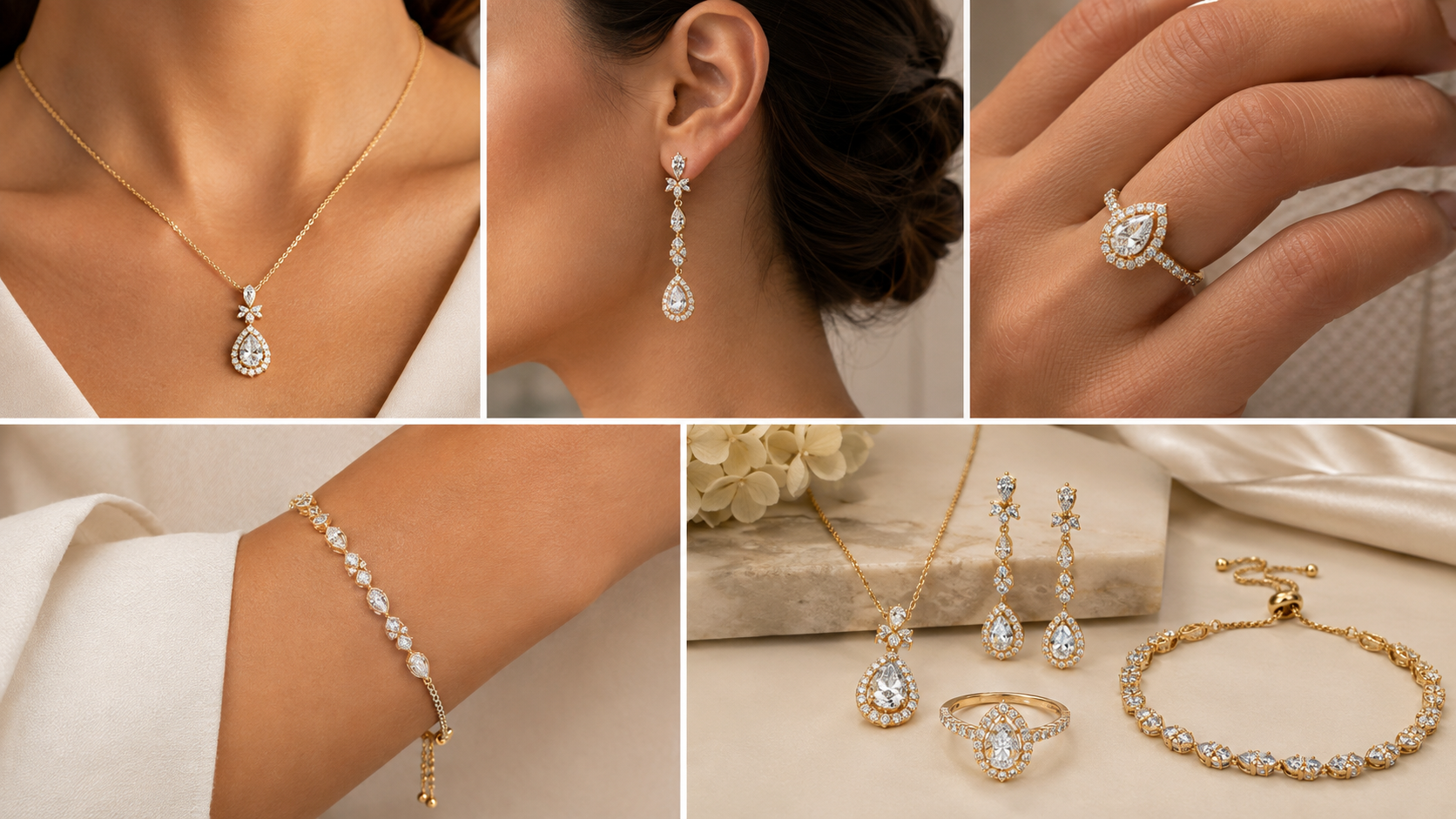
| Jewelry Type | Points to Show Well |
| Necklace | In product shots, show the pendant and chain connection, and in model-wearing images, organize it so the actual length and placement are clear, centered around the neck and collarbone. For long necklaces, showing a slightly wider upper body view is better. |
| Earrings | Show the front of the product and the clasp mechanism clearly. For modeled shots, use close-ups that show the ears and the side of the face well. If they are long drop earrings, showing them down to the jawline makes it easy to understand their actual length. |
| Ring | Show the gemstone and setting up close. For on-finger shots, frame the product large enough alongside natural hand poses. |
| Bracelet | Show the chain, charms, and clasp mechanism in a standalone shot. For on-wrist shots, show where the bracelet sits and its overall thickness. |
| Jewelry Set | Show the details of individual items first, and then add a shot of a model wearing the full set together so people can easily grasp both the individual pieces and the overall style. |
Ultimately, the key is not to show every piece of jewelry in the exact same way. By varying the composition based on where the product is actually worn and the information consumers are most curious about, even small pieces of jewelry can be communicated much more clearly.
Now, expanding these basic principles to actual production methods, there is a growing trend recently of creating various versions of images not just through traditional photography, but also through automatic image generation and AI image creation. Here are some useful tips to keep in mind when creating jewelry images using AI.
3. Helpful Tips for Creating Jewelry Images with AI
When selling jewelry products, you first need images that catch consumers' attention. Main images that quickly convey a first impression are important on the main screen or product list, while product detail pages use model-worn images to show the product vibe and actual fit, along with product introduction images that explain the product features.
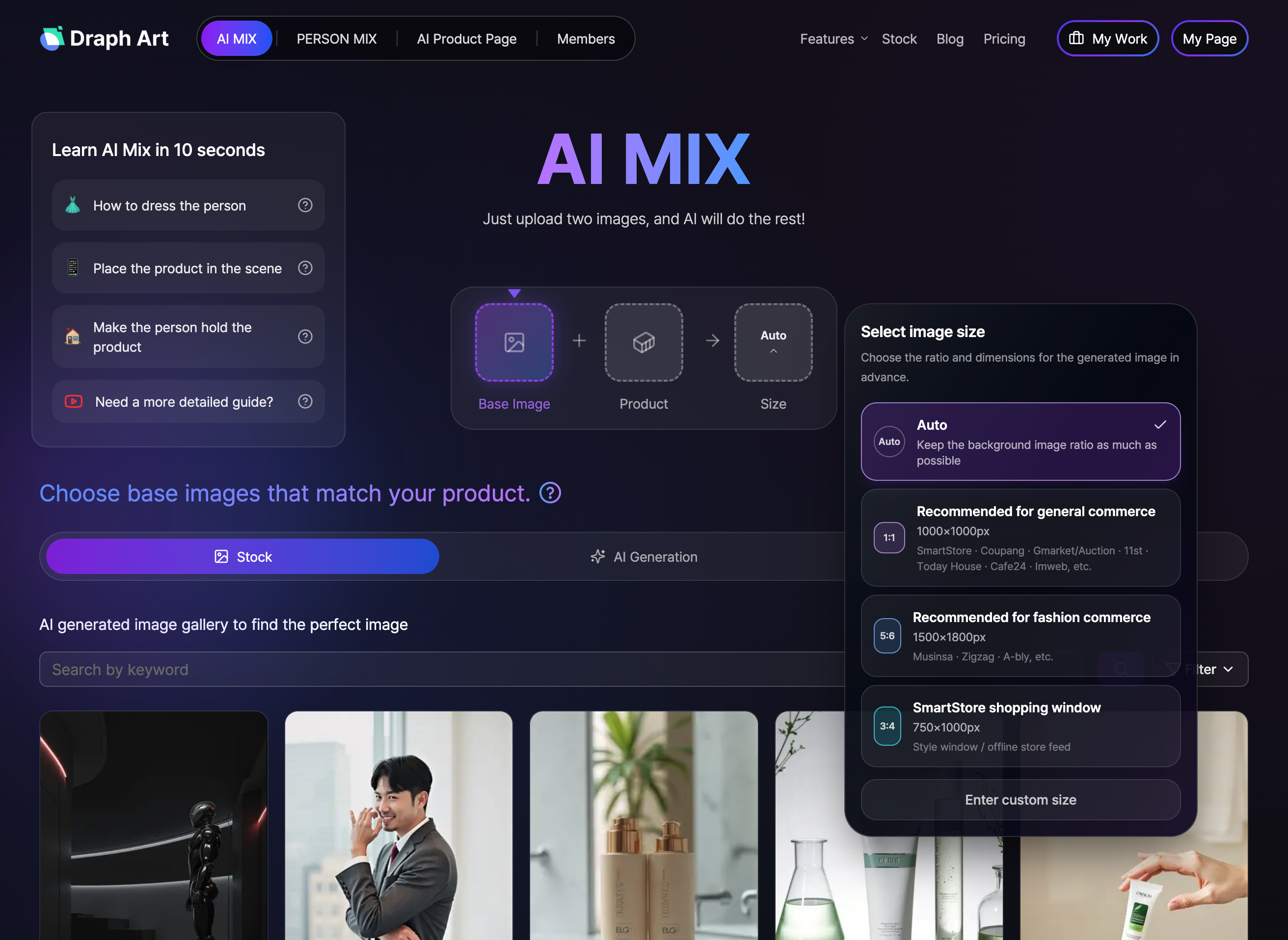
With Draph Art, you can efficiently create various images needed for your jewelry products using the AI MIX and Person MIX features. First, in AI MIX, you can choose a background image you like or upload your own, register your jewelry product, and set the image size to naturally blend your existing product photos with a new background, creating jewelry main images, product styling images, and shopping mall images. Since you can apply various backgrounds that match the product's vibe, the same piece of jewelry can be styled differently depending on the sales channel or brand concept.
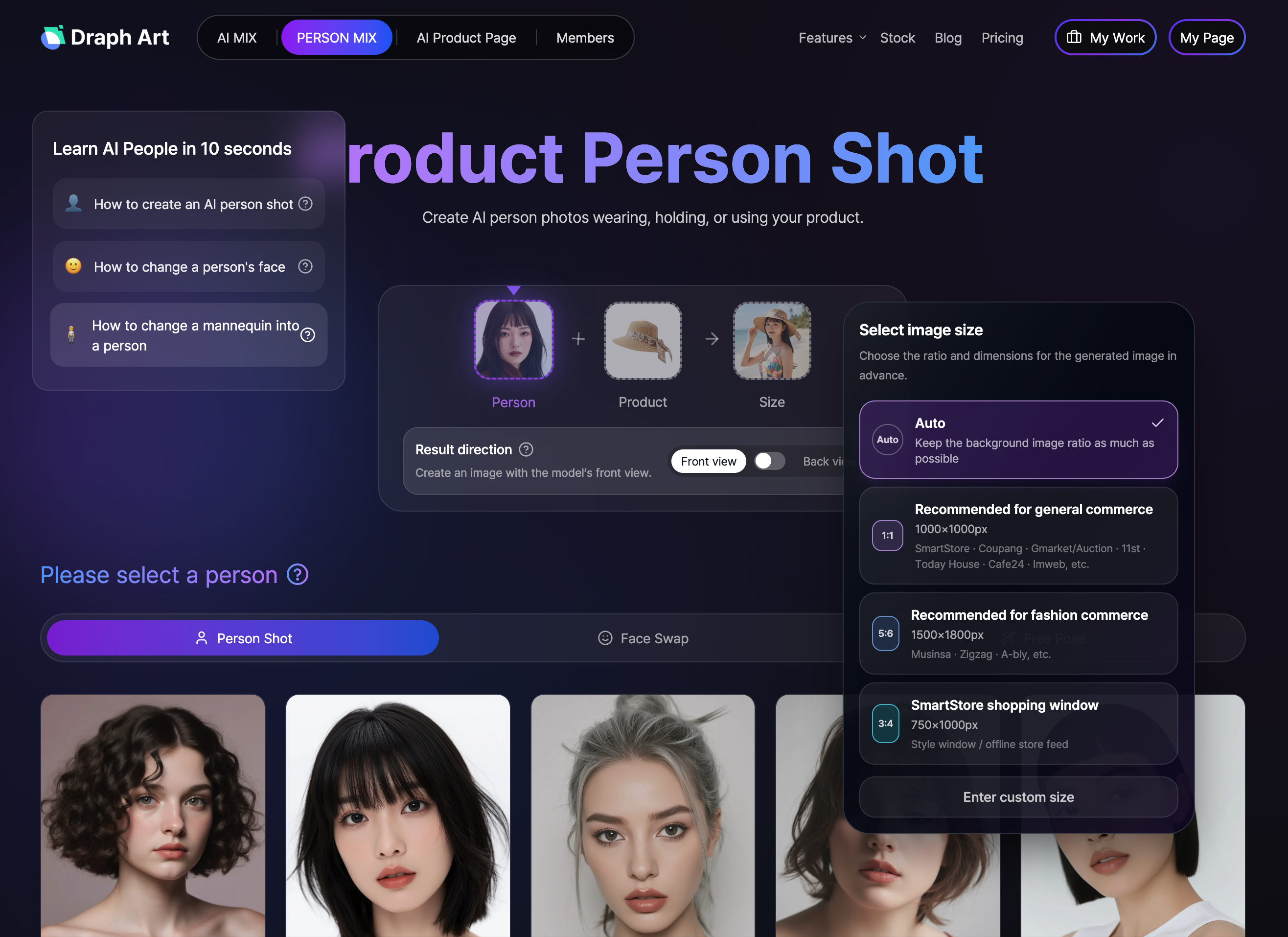
If you need model-worn images, you can use the Person MIX feature. Select your desired model for the Person shot, upload your jewelry product image, and set your preferred direction (front, back, etc.) and image size to generate various versions such as jewelry model-worn images, main images, and product introduction images. Because you can set different models, ratios, and compositions for the same product, you can use them flexibly across various sales channels such as the shopping mall main screen, product lists, and detail pages.
4. Completing AI-Generated Jewelry Images Right Up to the Detail Page in One Go
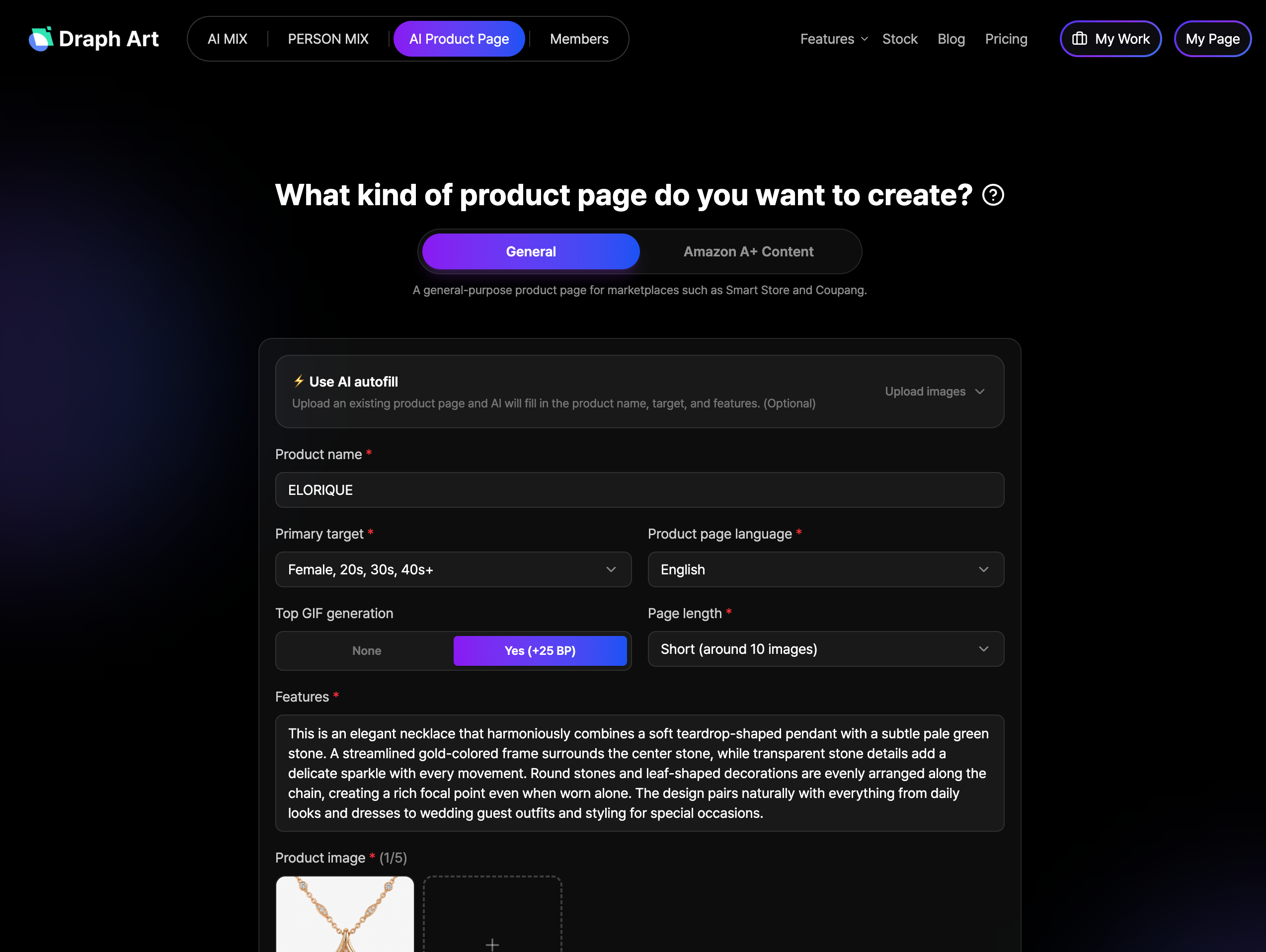
After finishing your jewelry images, you can move straight on to AI-powered product detail page automation using Draph Art without switching to another program. By entering the product name, target audience, detail page language, page length, product features, and product images, you can instantly generate sales copy, image layouts, content order, and detail page design structures.
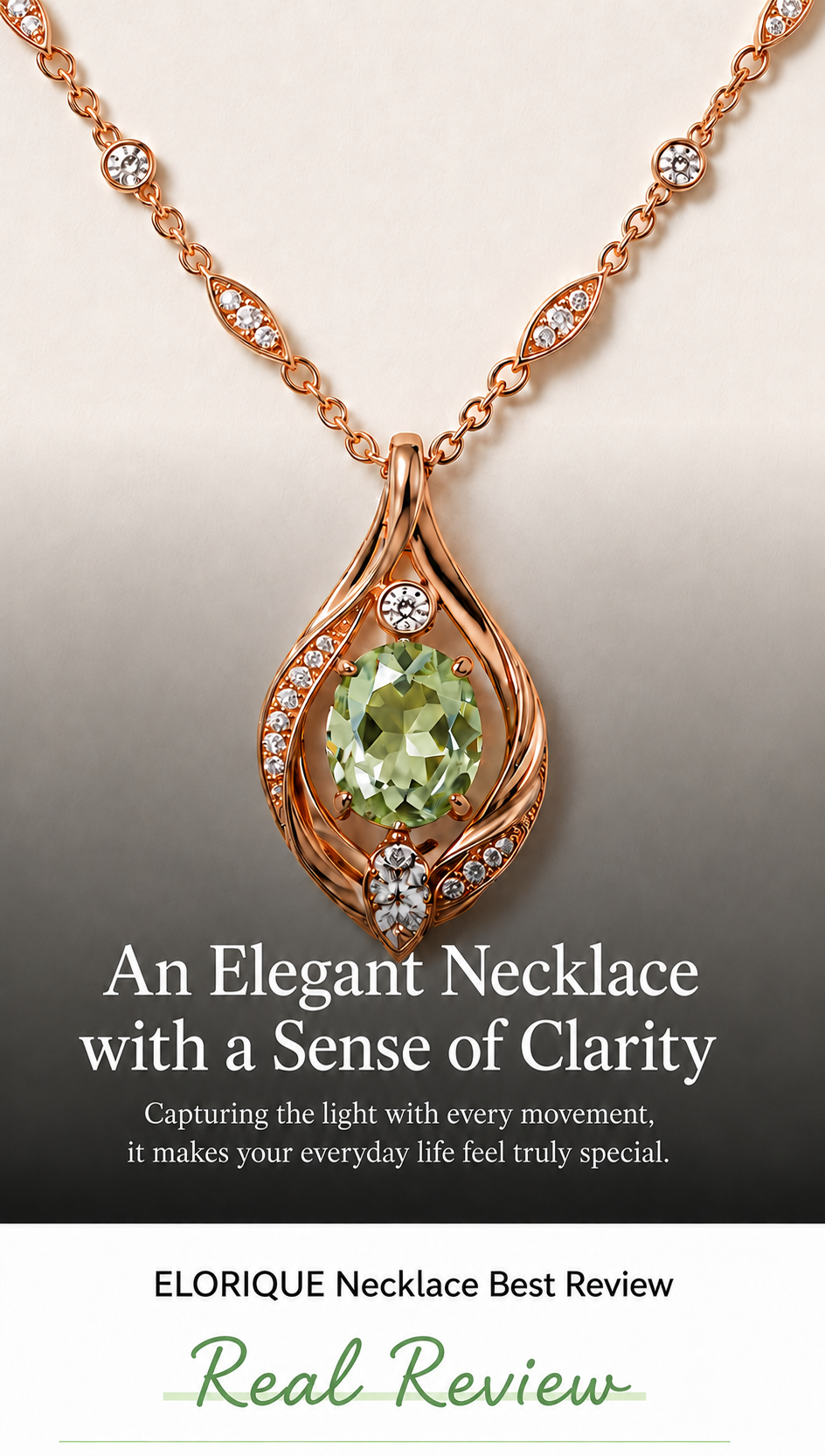
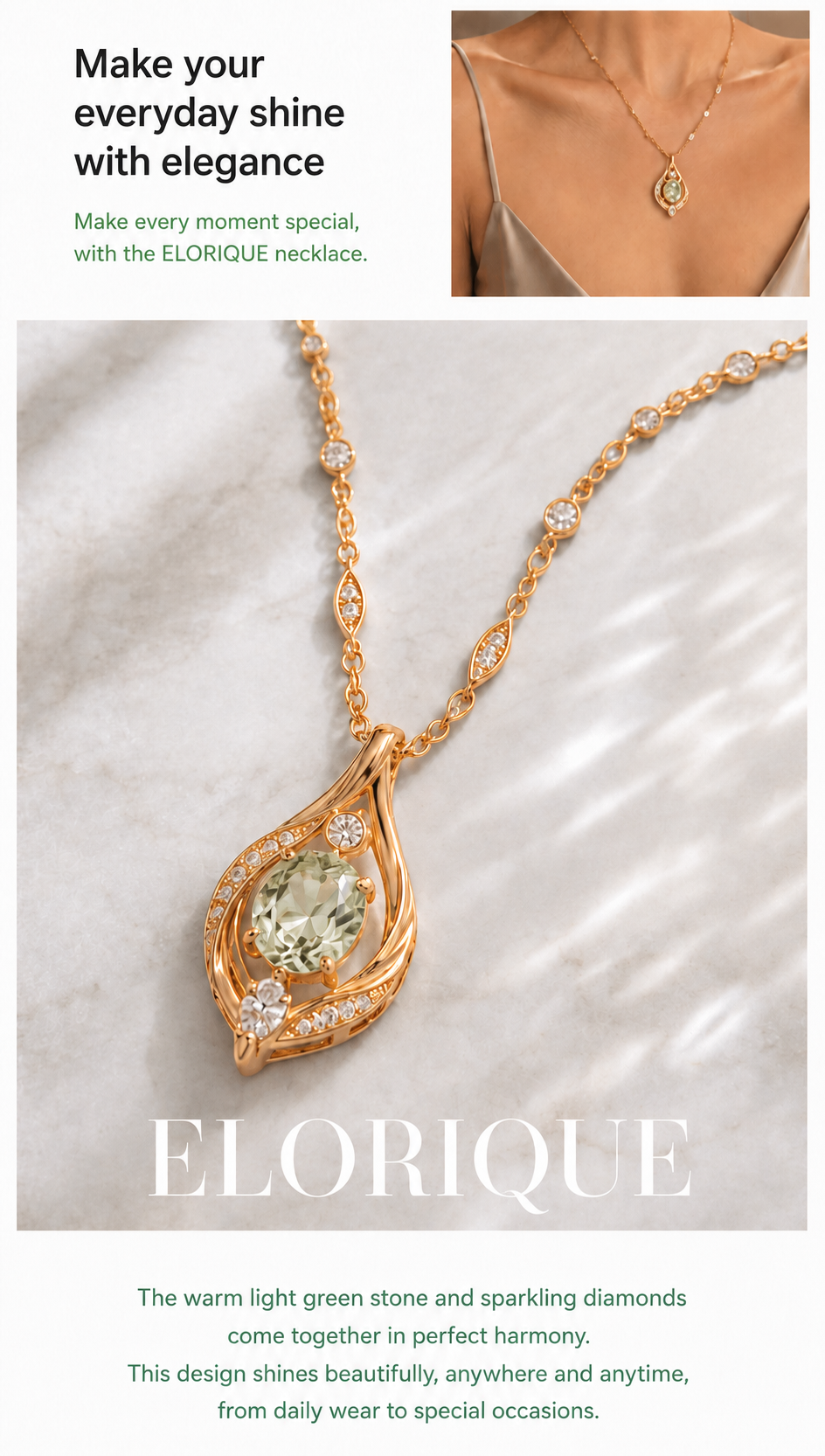
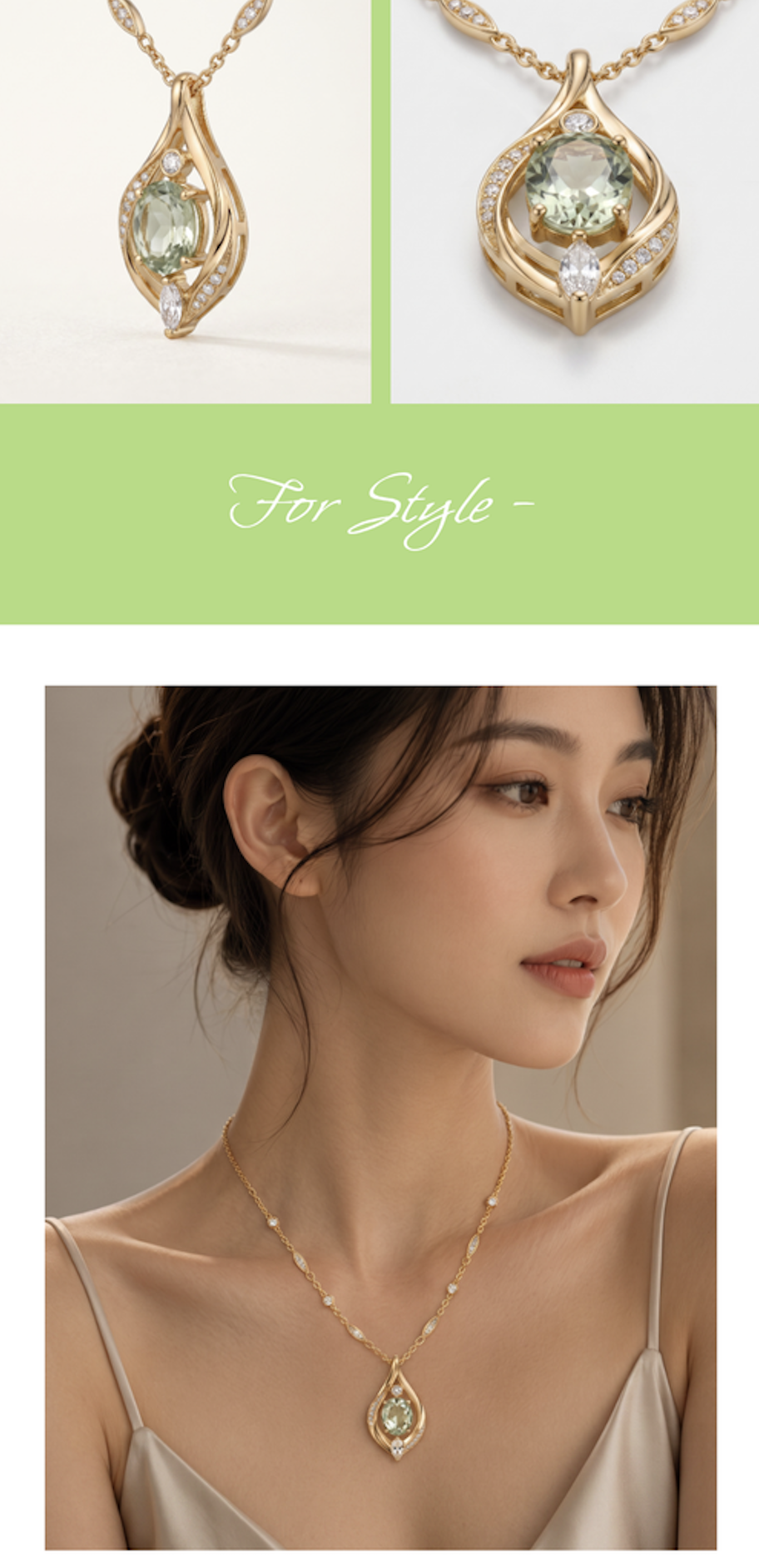
The jewelry main images, model-worn images, and product introduction images you created earlier can be seamlessly linked and used in your detail page content, and you can edit specific images or copy if needed. You can also choose whether to generate a top GIF, adding moving content alongside static product introductions. In short, the biggest advantage is that you don't have to handle jewelry photography, AI model image creation, sales content, and completed detail pages separately—you can create them all in one continuous workflow.
💡 Frequently Asked Questions (FAQ)
Q1. Can I create various product images with just a single photo of a jewelry item?
A1. Yes, you can. Using your existing jewelry photos, you can create main images and product styling images naturally blended with backgrounds using AI MIX, and you can expand the same product into multiple styles by setting different backgrounds and image sizes.
Q2. Can I get jewelry model-worn images without doing a direct model photoshoot?
A2. Yes, you can. In the Person MIX feature, select your desired model, upload your jewelry product image, and set the angle and image size to create multiple versions of model-worn images for necklaces, earrings, rings, and bracelets.
Q3. Can I use AI-created jewelry images directly on my detail pages?
A3. Yes. You can directly link the jewelry main images, model-worn images, and product introduction images you created earlier into your detail page content. By entering product info and images, you can generate sales copy, image layouts, content order, and detail page structures all at once, and add GIF content if needed.
.png&w=1920&q=75)
.png&w=1920&q=75)