
.png&w=1920&q=75)
목차

When selling clothes online, how the images are put together is just as important as the product itself. The vibe you get from an outfit totally changes depending on the model wearing it and the overall mood of the shoot. That's why clothing stores need more than just basic product shots—they need a good mix of model-worn pics, main hero images, and product intros to cover all their bases.
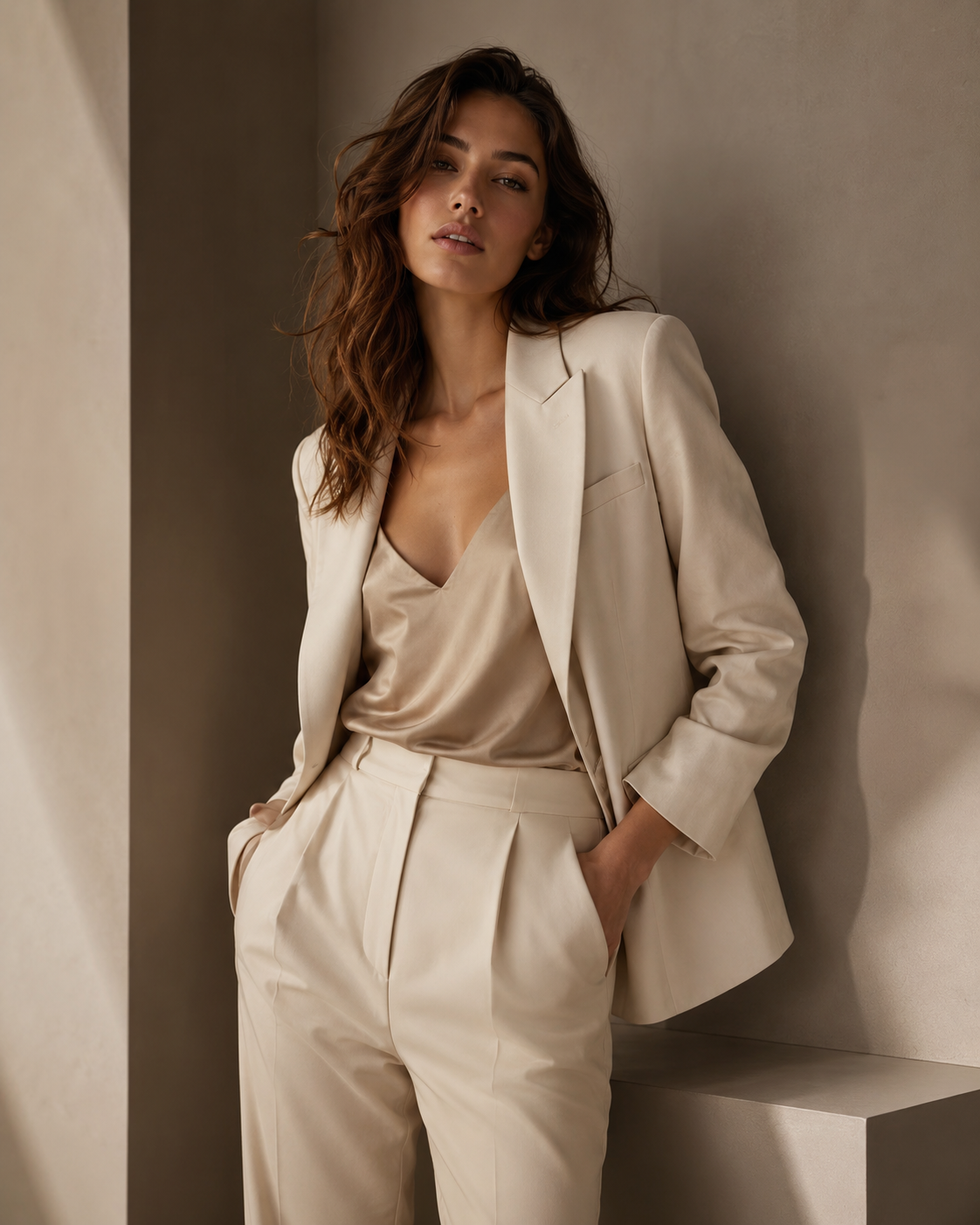
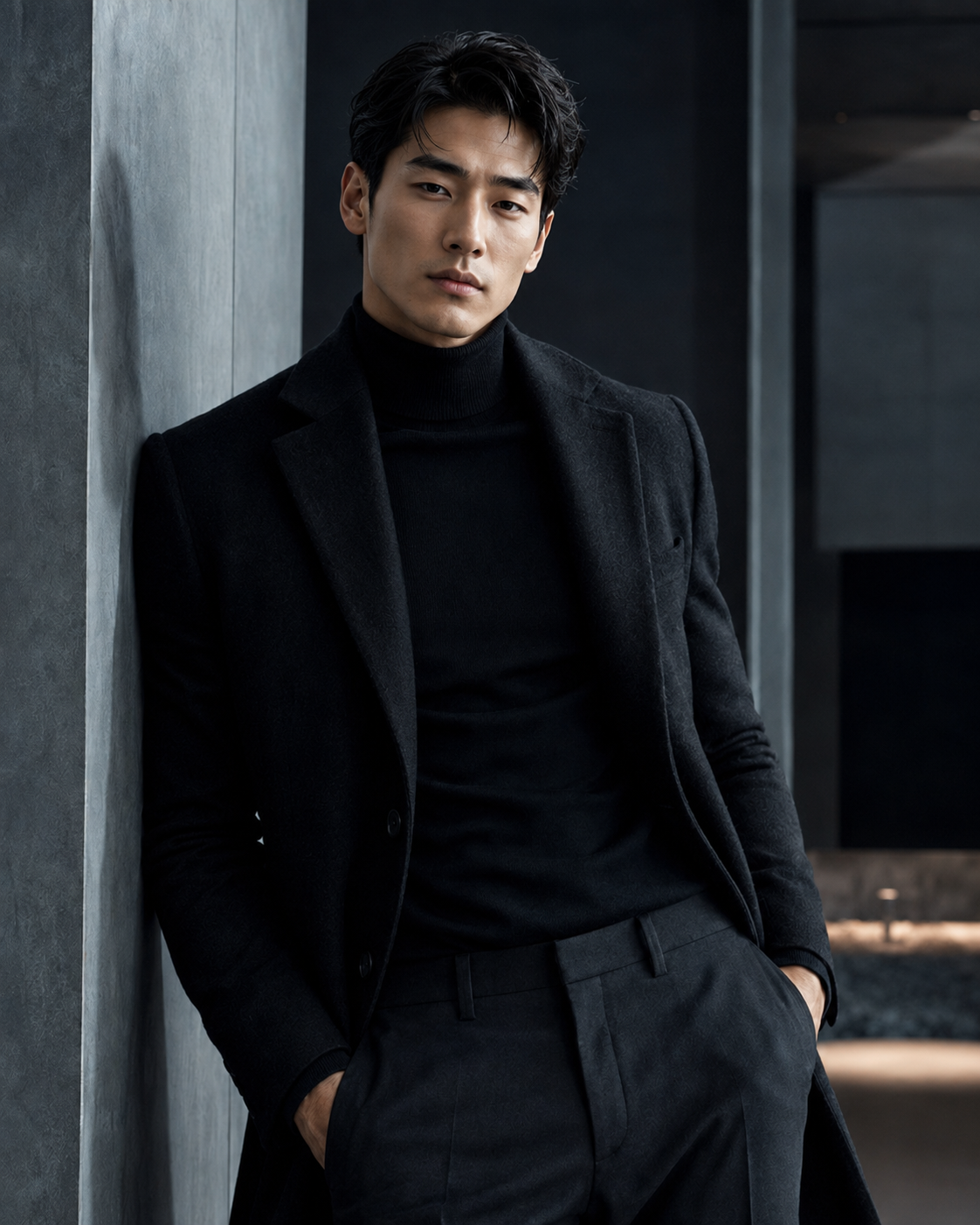
Draph Art's AI Person feature makes it super easy to create awesome clothing product images just by using a single photo of your clothes, letting you pick the exact model, angle, and size you want. Plus, Draph Art is an AI-powered tool that automatically generates full fashion detail pages. It also drops in content using the latest e-commerce design trends for fashion product pages. Clothing sellers can quickly spin up gorgeous detail pages packed with brand style, fashion sense, and clear info without having to worry about separate model shoots, scene setups, or page layouts. In this post, we'll walk you through everything from how to generate clothing images in Draph Art to using your finished pics in sales content and detail pages.
💡 TLDR (Too Long, Didn't Read) for busy peeps
|
1. Why use AI for clothing product images?
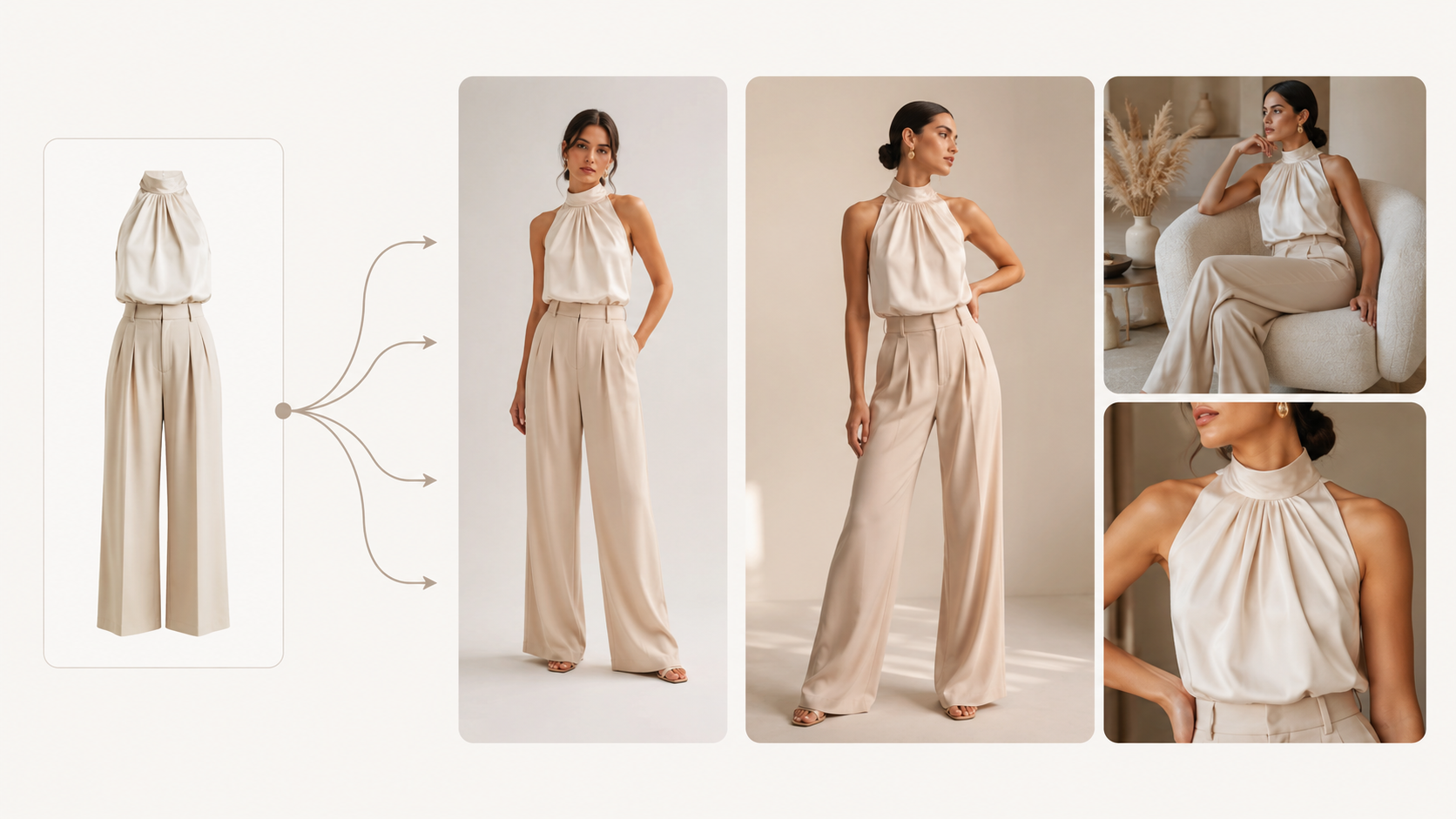
When selling clothes online, you need more than just basic product shots—you also need Person shots, main images, and different styled lookbook photos. But hiring models and booking studio shoots every single time you add a new item can cost you a crazy amount of time and money.
Lately, you can keep things super simple by generating clothing images with AI using your existing product photos. Especially when you use image tools like AI image generation sites, you can take a single clothing shot and swap out models, change angles, and adjust sizes to create a whole bunch of awesome product images.
Best of all, you can create multiple styled Person shots using the exact same product, meaning your original photo isn't stuck doing just one job—you can repurpose it across product lists, Banner Ads, social media, and anywhere else you need it.
2. How to create clothing product images with Draph Art
STEP 1. Pick your model
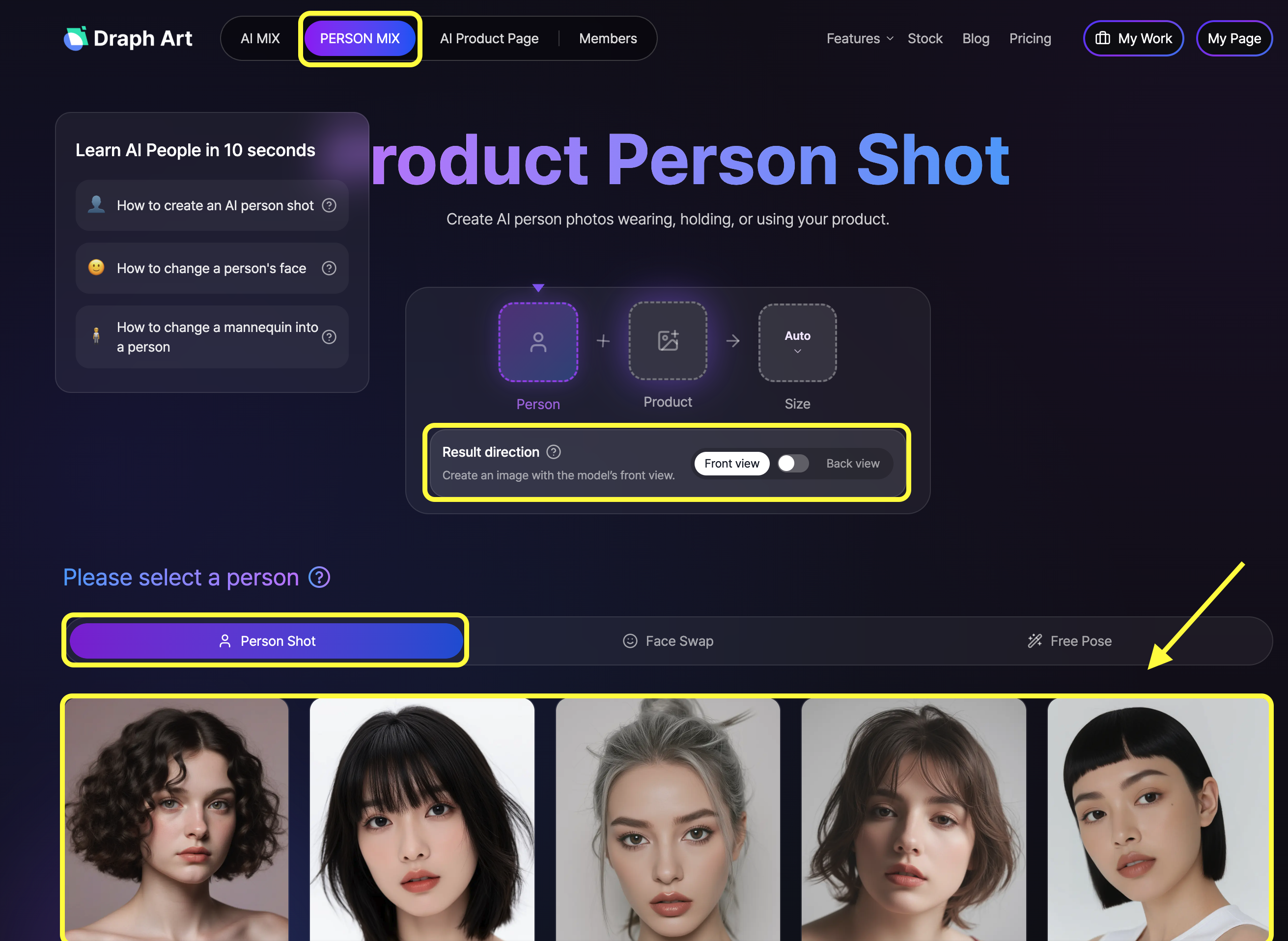
First, head over to AI MIX in the top menu of Draph Art and select Person MIX (Person shot). You'll see a bunch of AI models in different styles ready to go, so just pick the one that fits your clothing item best.
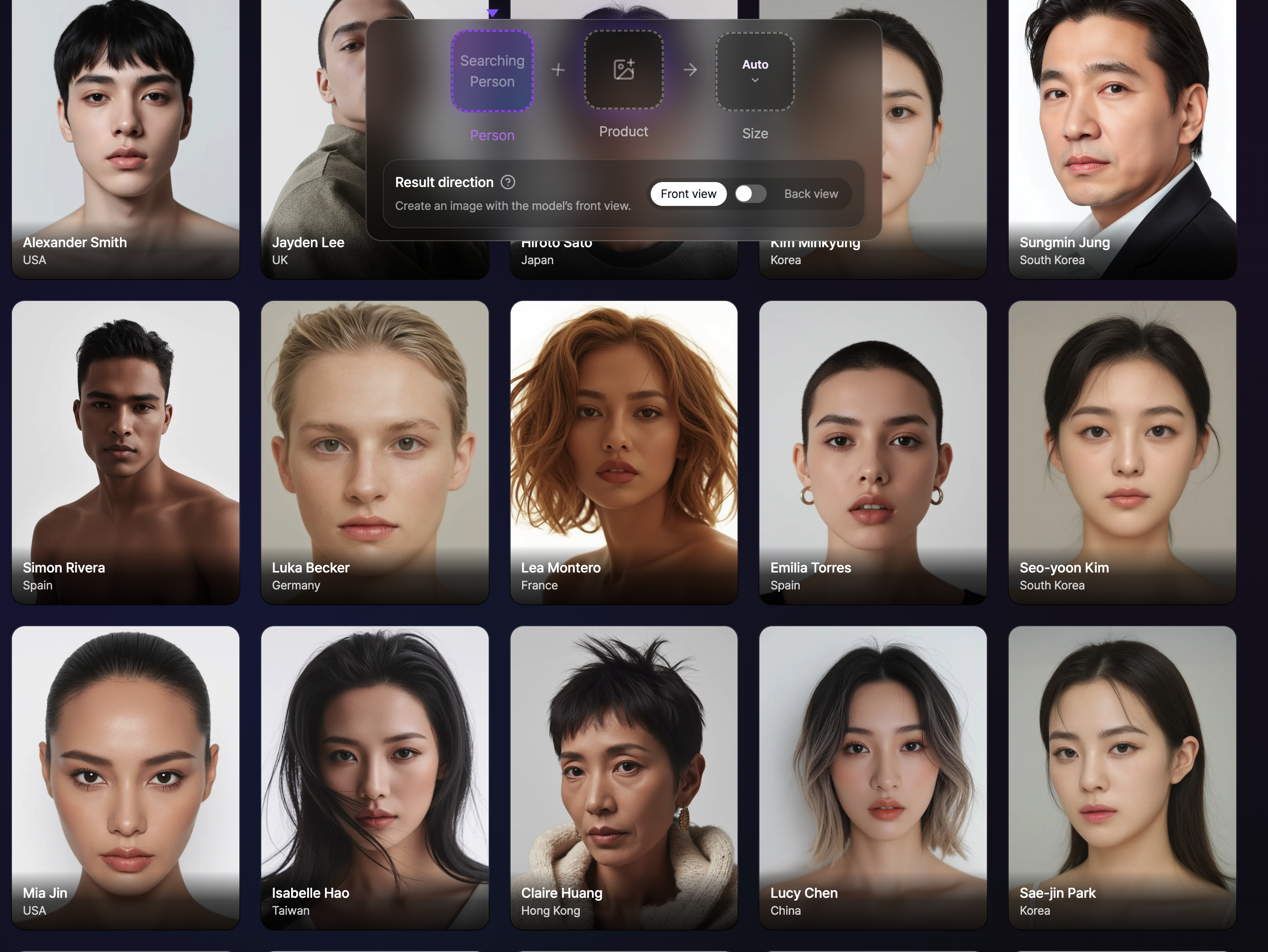
When choosing a model, you can filter by gender, skin tone, nationality, and other conditions to find someone who really brings out the best in your product. The vibe of the whole image can totally change based on the model you pick, so it's a good idea to choose someone who matches your target audience and brand vibe.
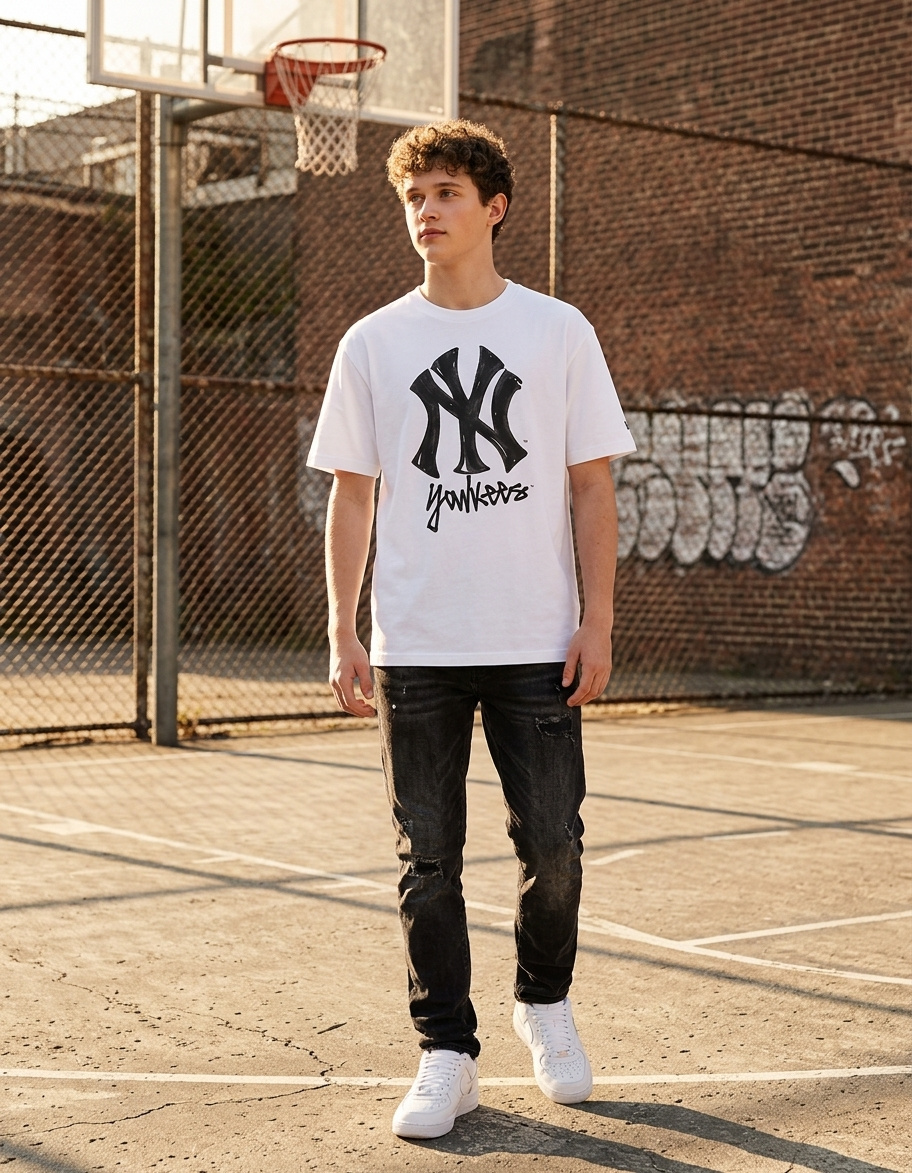
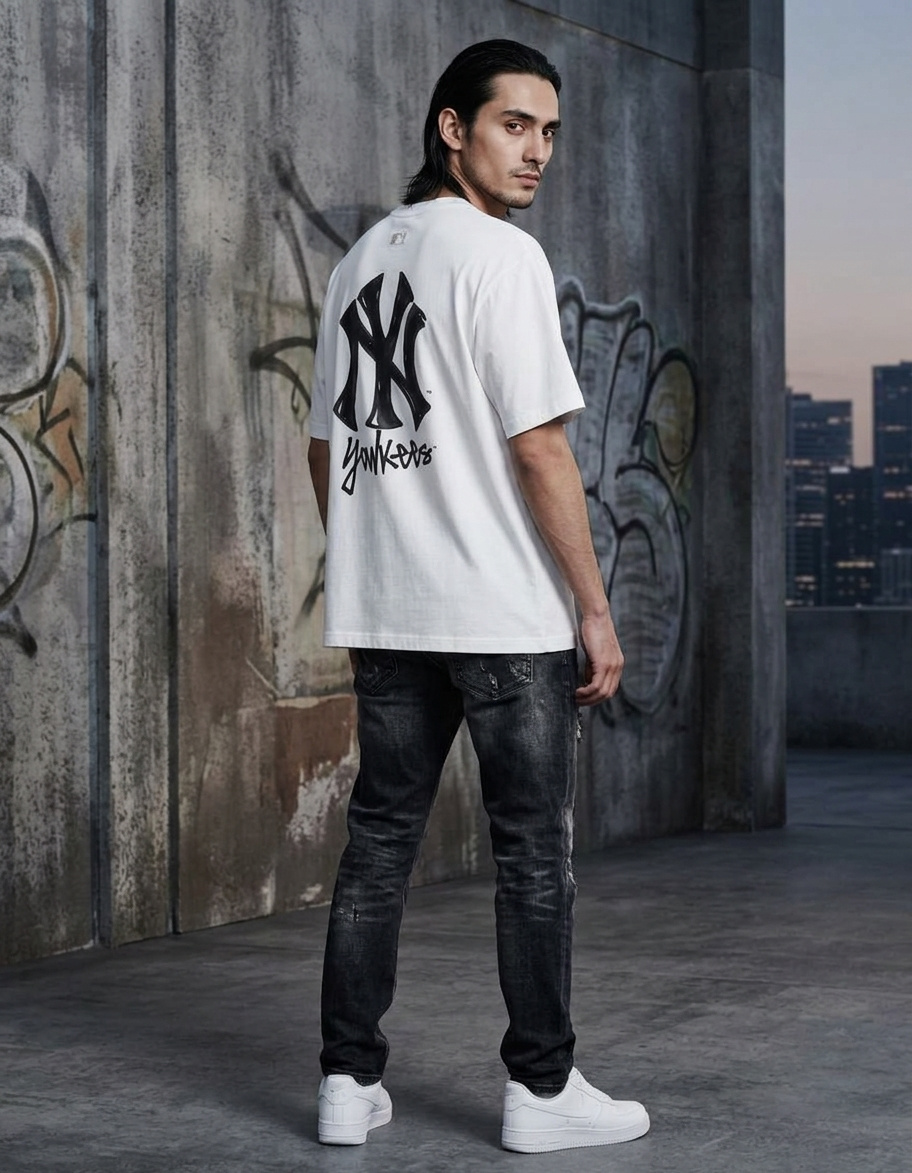
After picking your model, you can also set the angle for the image you want to generate. Pick between the front view and back view to show off the front design or the back details of your clothes. If you need to, you can switch angles on the exact same product to make multiple Person shots.
STEP 2. Upload your clothing product
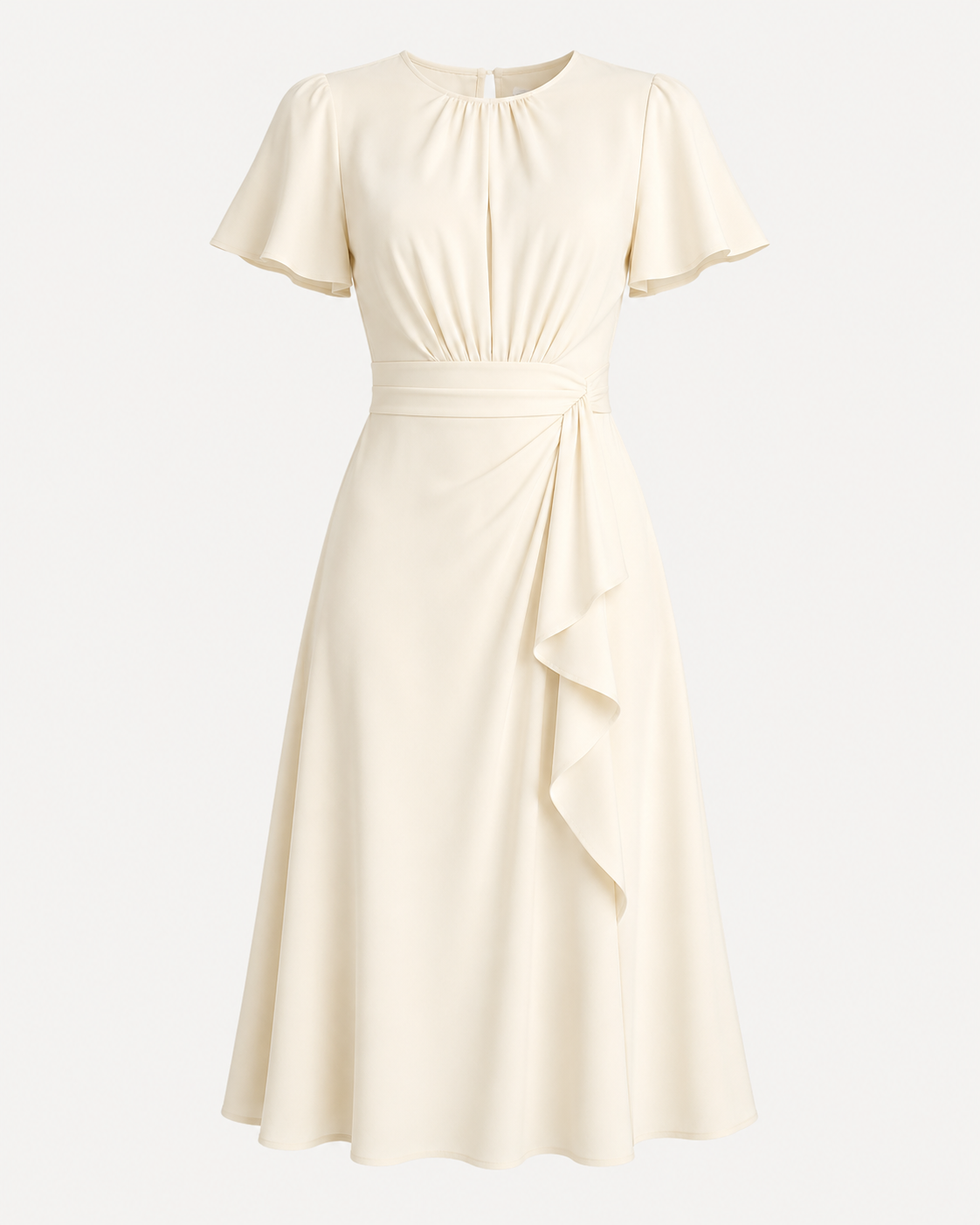
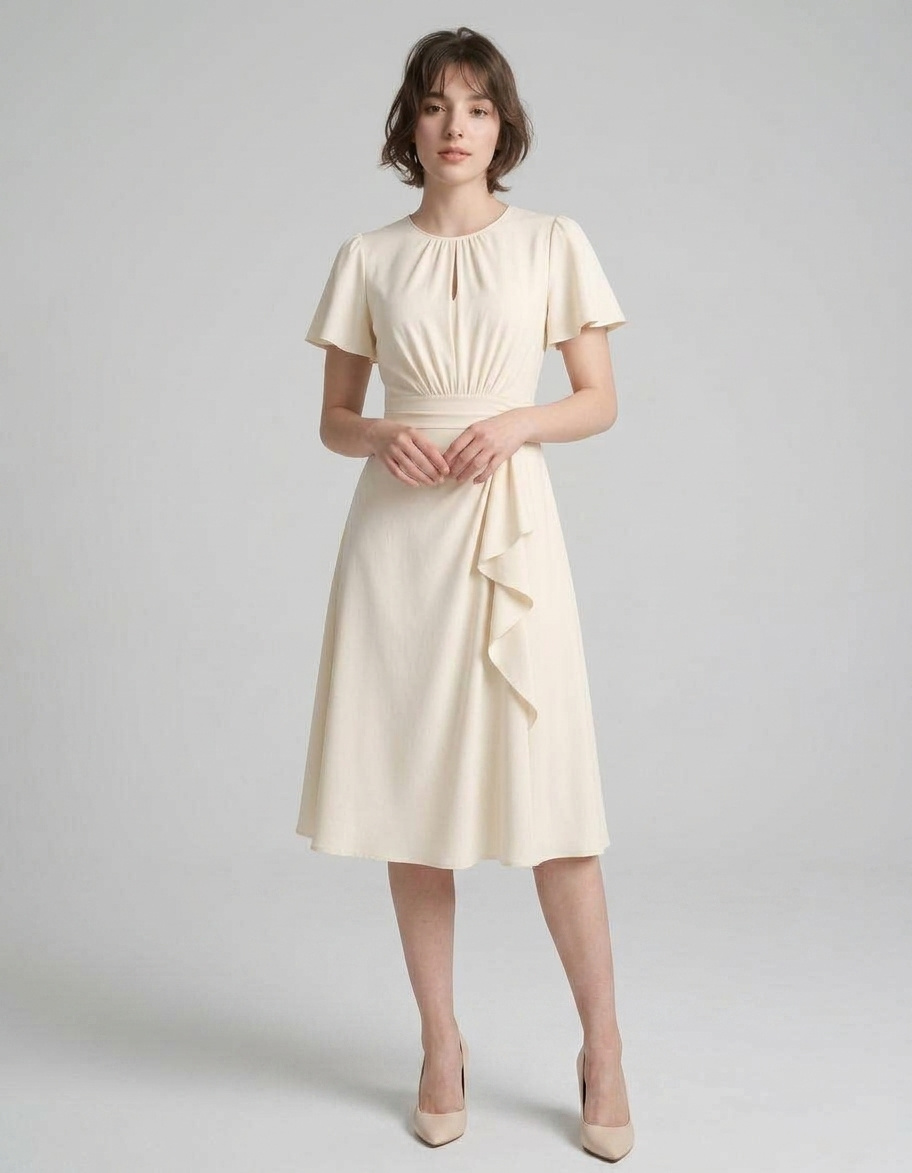
Once you've picked your model, it's time to upload the advertising material or product photo you want them to wear. Just upload an image of the shirt, t-shirt, knitwear, jacket, dress, or pants you want to put on the model.
For the best BG Generation or clothing image creation, it's best to use a clear photo where the whole shape of the product stands out. Photos where the clothes and background are super easy to separate—like product shots with a white or simple background, BG Removal (transparent background) images, or flat lays—are way easier to work with. Make sure key design features like the neckline, sleeves, hem, buttons, pockets, prints, and patterns are super clear. If your original image is blurry or parts of the clothes are hidden, the AI might generate details that don't quite match your actual product.
So, before you upload your product, it's always a good idea to grab an original photo that shows off the true colors and design as accurately as possible.
STEP 3. Choose your image size
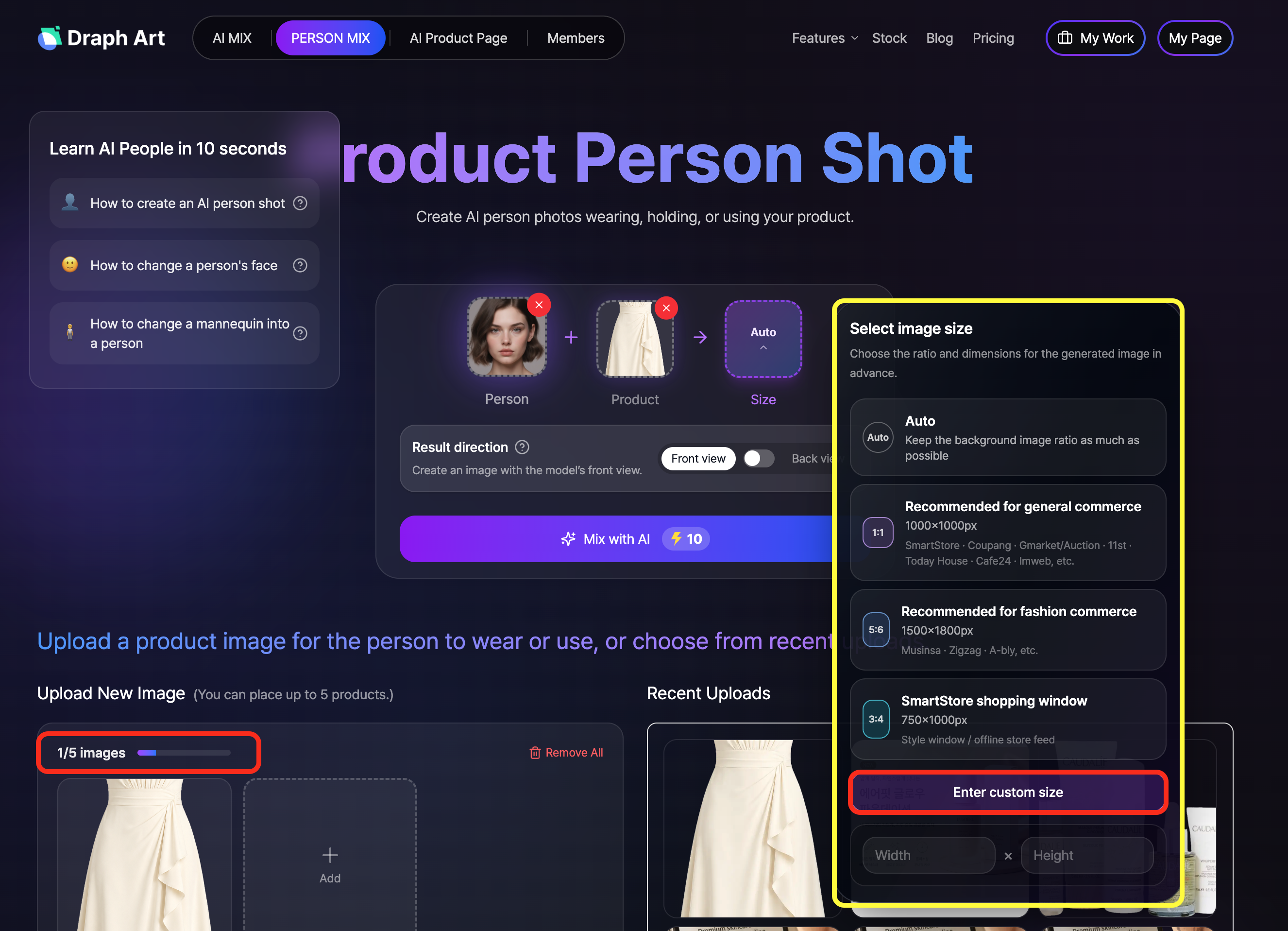
Once you've got your model and product images locked in, the last step is to set your image size. In AI MIX, you can pick from pre-set aspect ratios based on where you plan to use them, or just type in your own custom dimensions.
If you don't need a specific size, just hit Auto to keep the original image ratio as close as possible. For standard online shop products, you can go with 1:1 (1000×1000px); for fashion stores, 5:6 (1500×1800px) works great; and for vertical product shots, you can choose the 3:4 (750×1000px) ratio.
If your shopping mall needs a specific layout, you can also use Free Pose / Custom Size to punch in your own width and height. Just pick the size that fits your sales channel or image spot, and you're ready to let the AI work its magic.
STEP 4. Check and tweak your generated images
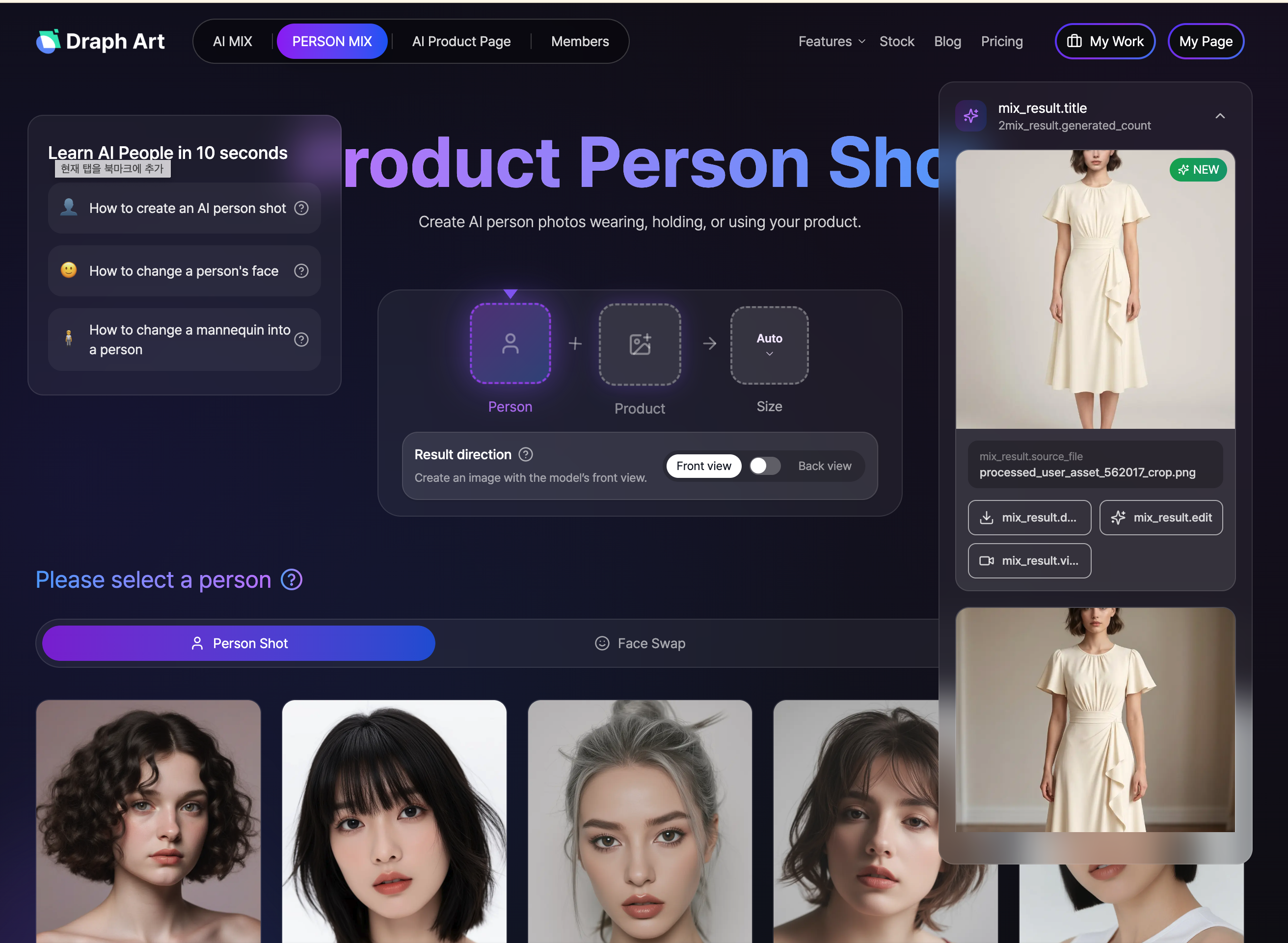
Once you've set your model, product, and image size and hit generate, you'll see your brand new Person shot pop up right on the right side of the screen. If it spits out a few different options, just compare them, pick your fave, and save it or jump straight into editing.
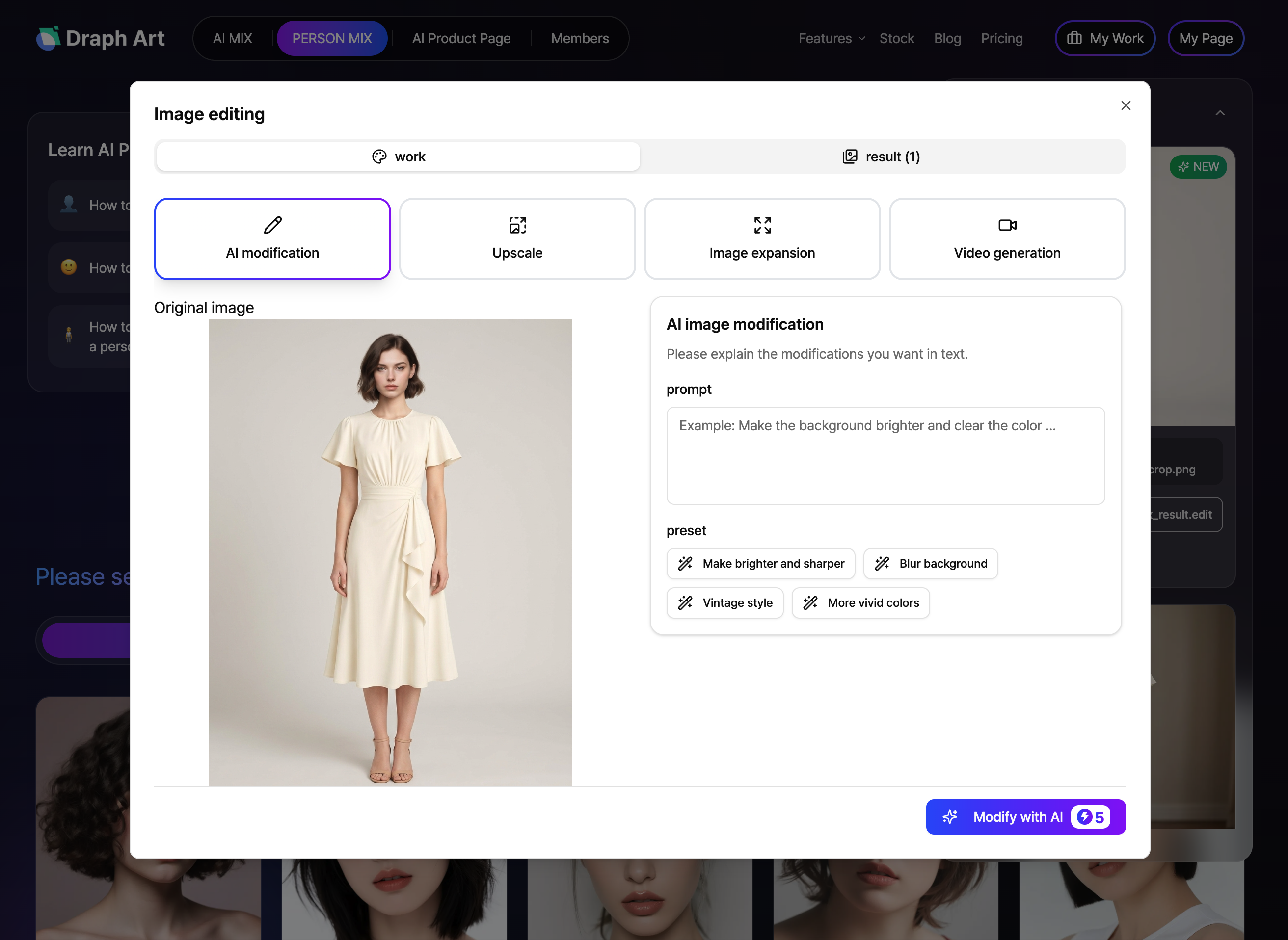
If there's anything you want to tweak on the generated image, you can use the editing tools. The edit screen lets you jump into AI Mix, upscaling, BG Extender, or video generation, meaning you don't have to start from scratch if you want to polish up the final result.
With AI editing, you can just type what you want to change using text prompts. For example, you can tell it to brighten up the background or make the colors pop, or use quick selection tools for super fast edits.
Want to boost the image quality? Hit upscaling. Need a wider framing than your original shot? Use the BG Extender feature. Just pick the extra editing tools you need based on where you're dropping your new Person shot and what size you need.
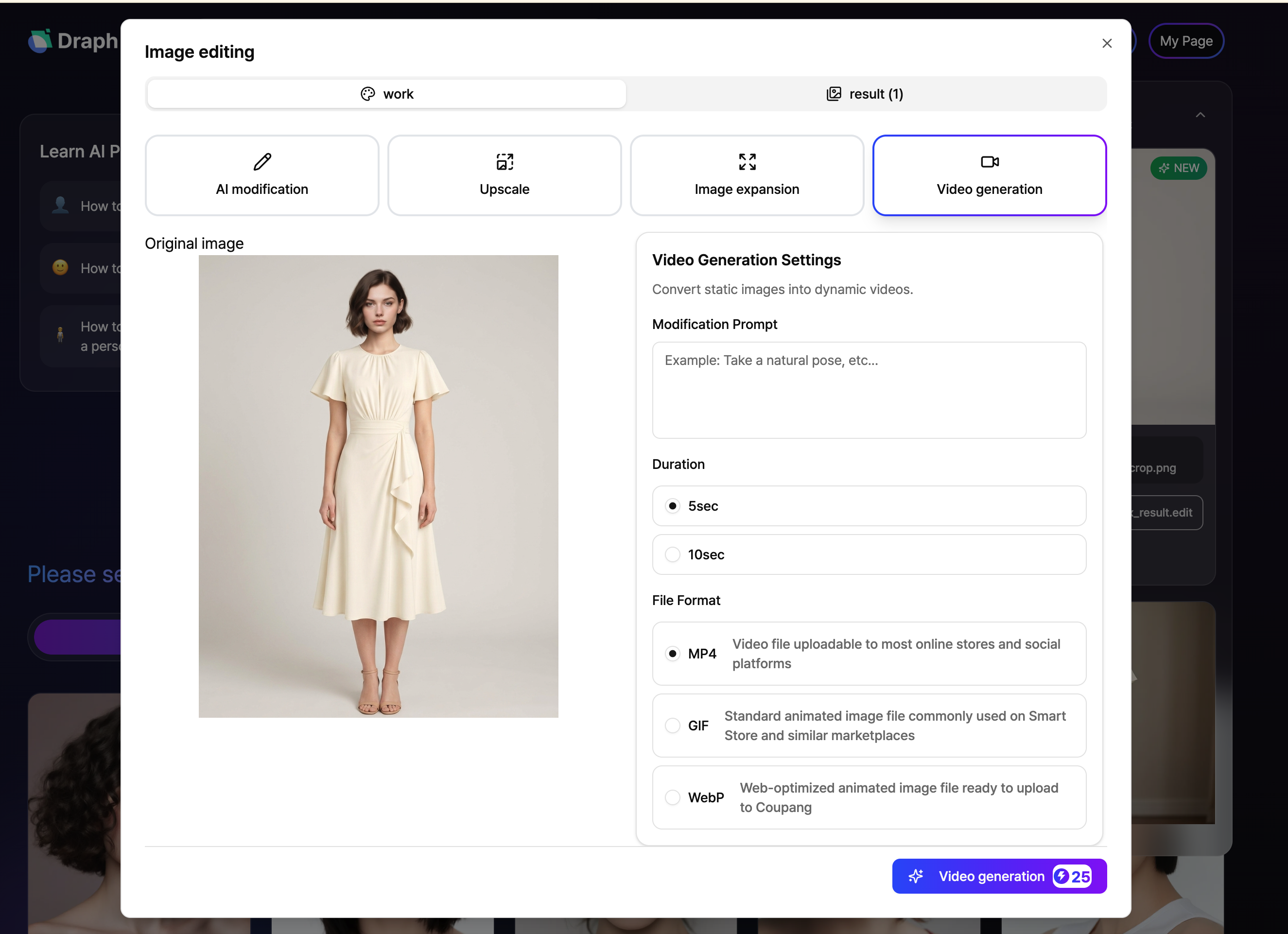
If you want to turn your still image into moving content, you can even use video generation. Just type in the motion you want as a prompt, pick a video length of 5 or 10 seconds, and export it as an MP4, GIF, or WebP depending on where you're posting it.
Not only can you use these freshly minted AI images straight out of the box, but you can also tweak details, bump up the quality, and make extra images and videos to turn a single product photo into a whole bunch of awesome blog content and marketing materials.
3. Use Your Generated Images Right Away for Selling
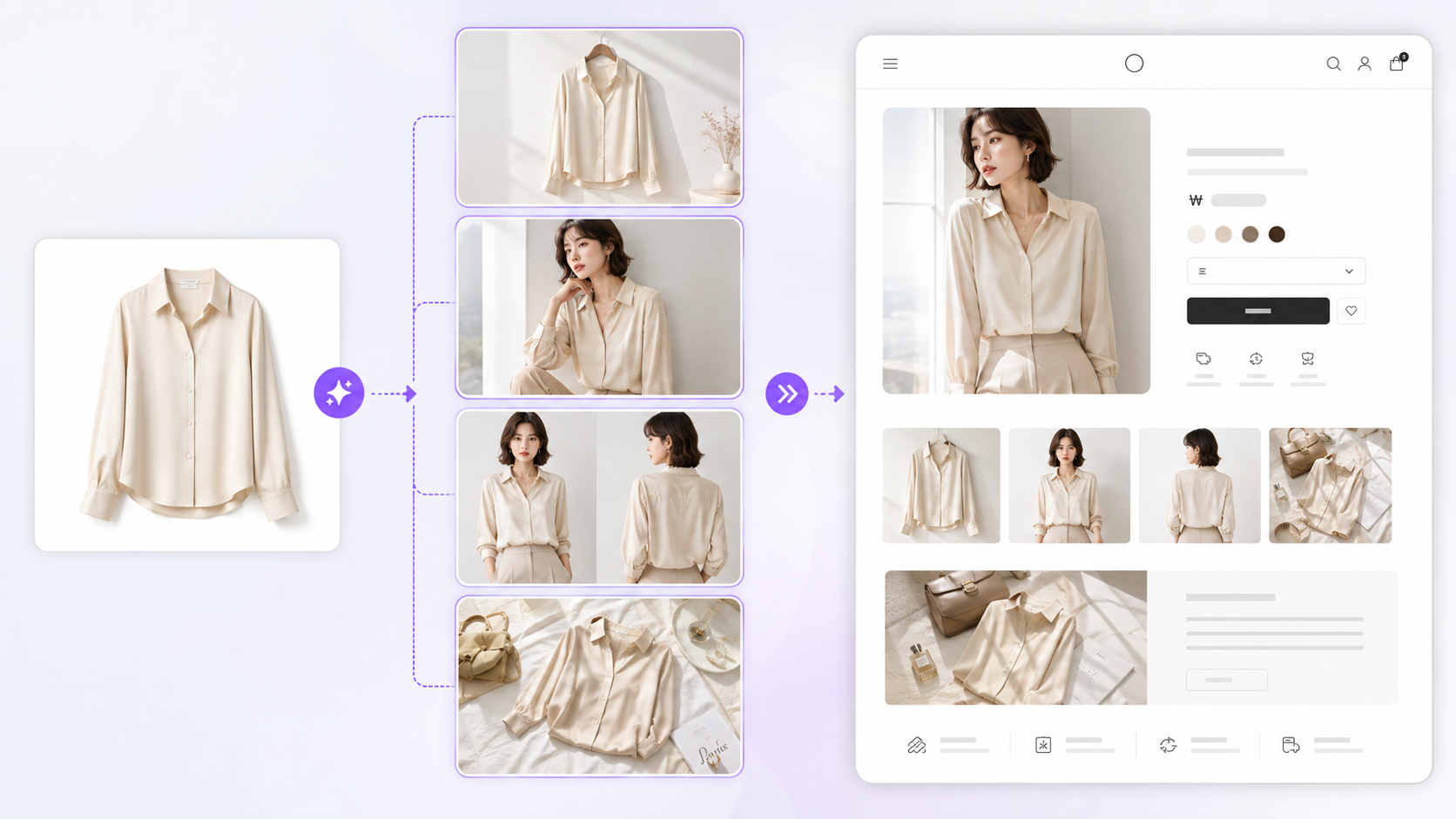
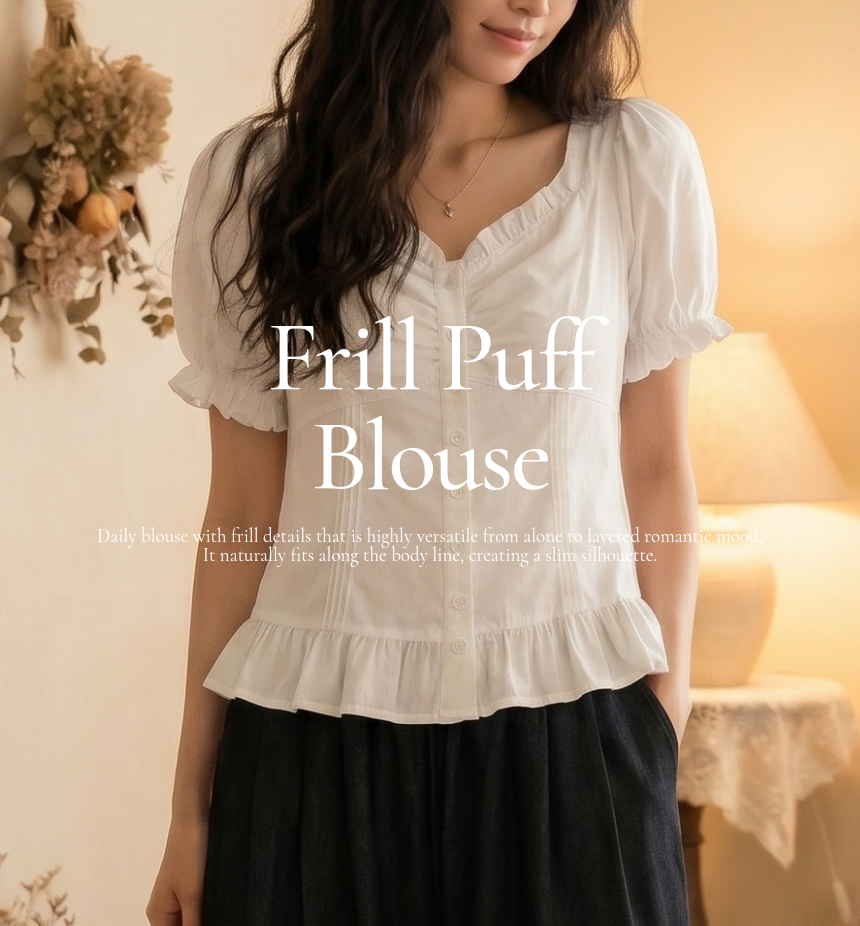
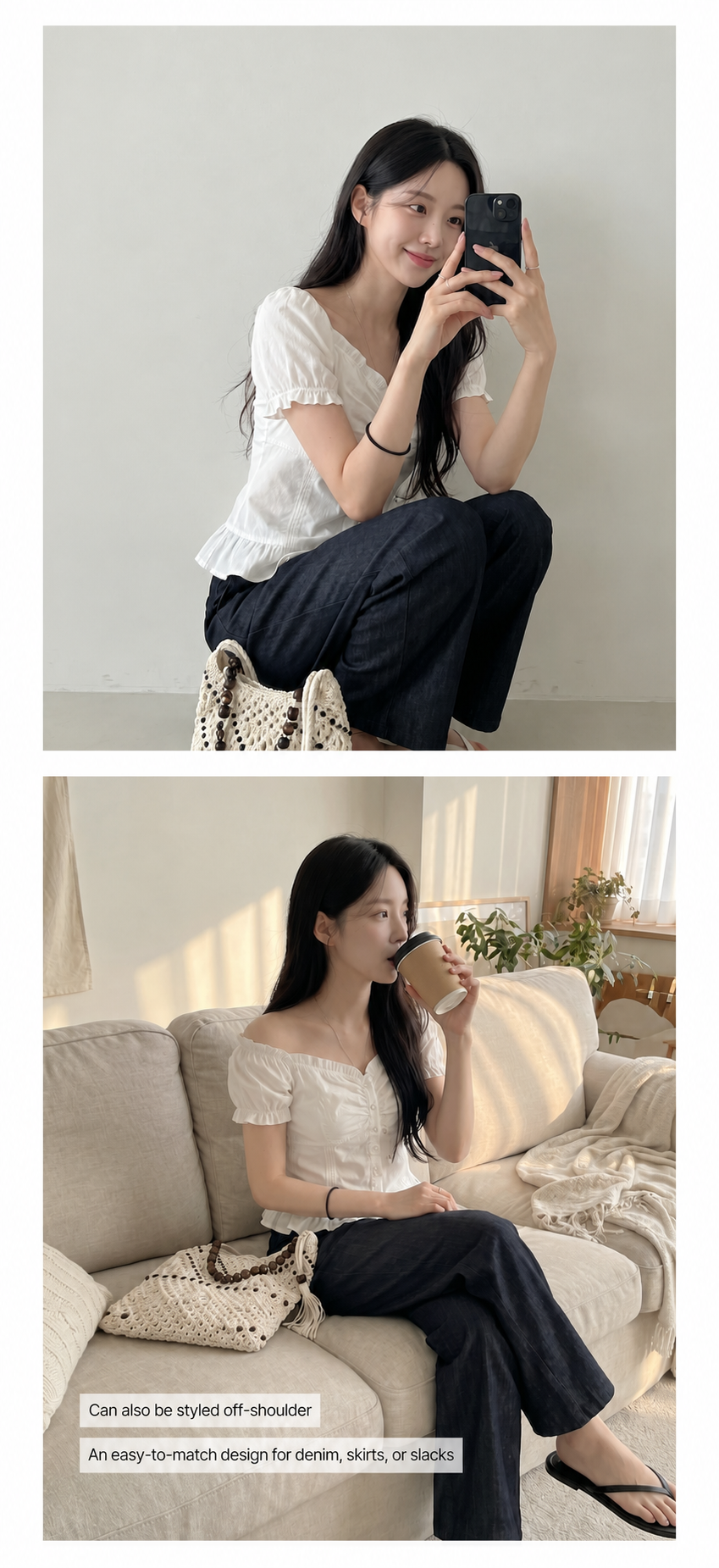
You can use the clothing images made with AI straightaway for your online store's main images, model shots, product intros, and more, without needing a separate photoshoot or extra editing. By tweaking the model, angle, and image size using the same clothing photo, you can easily create several styles from just one item. You can use these pictures not only as standalone product shots but also seamlessly inside your product detail page. For example, you can put a main vibe-setting image on top, followed by model shots or front-and-back views, to fit whatever you need.
Basically, once you generate your clothing images with AI, you don't have to waste time getting separate pictures ready for your detail page—you can just roll right into the next step using what you've already made.
How to Use AI-Generated Clothing Images
| Image Type | Where to Use It | How to Use |
| Main Image | Online store product lists, featured images | Pick a clear shot where the product and model stand out to make a great first impression |
| Model Shot | Product detail pages, product intros | Mix up the models and poses to show how the clothes look and fit in real life |
| Front & Back Shots | Product description section on detail pages | Show off both the front design and back details to give customers a clear idea of the product |
| Vertical Image | Social media, ads, mobile content | Generate images in sizes like 3:4 or 5:6 that fit the platform you are posting on |
| High-Res Product Image | Main and detail areas of product pages | Use upscaling to boost image quality and make product details super crisp |
| Video & GIF Content | Social media, ads, product pages | Turn your model shots into videos or GIFs to show movement and real-life vibes |
As you can see, AI clothing images aren't just for one single use. You can use them everywhere—from your store's main page to detail pages, ads, social media, and video content. If you want to use your generated images straight in your actual sales pages, you can also use the detail page maker tool together.
4. Go Straight from Making Images to Building Detail Pages Without Switching Apps
After finishing your clothing product images, you usually need product descriptions, catchy sales copy, key features, and a full page layout to actually start selling. Normally, people make images and then have to jump over to a design program or a separate detail page tool to keep working.
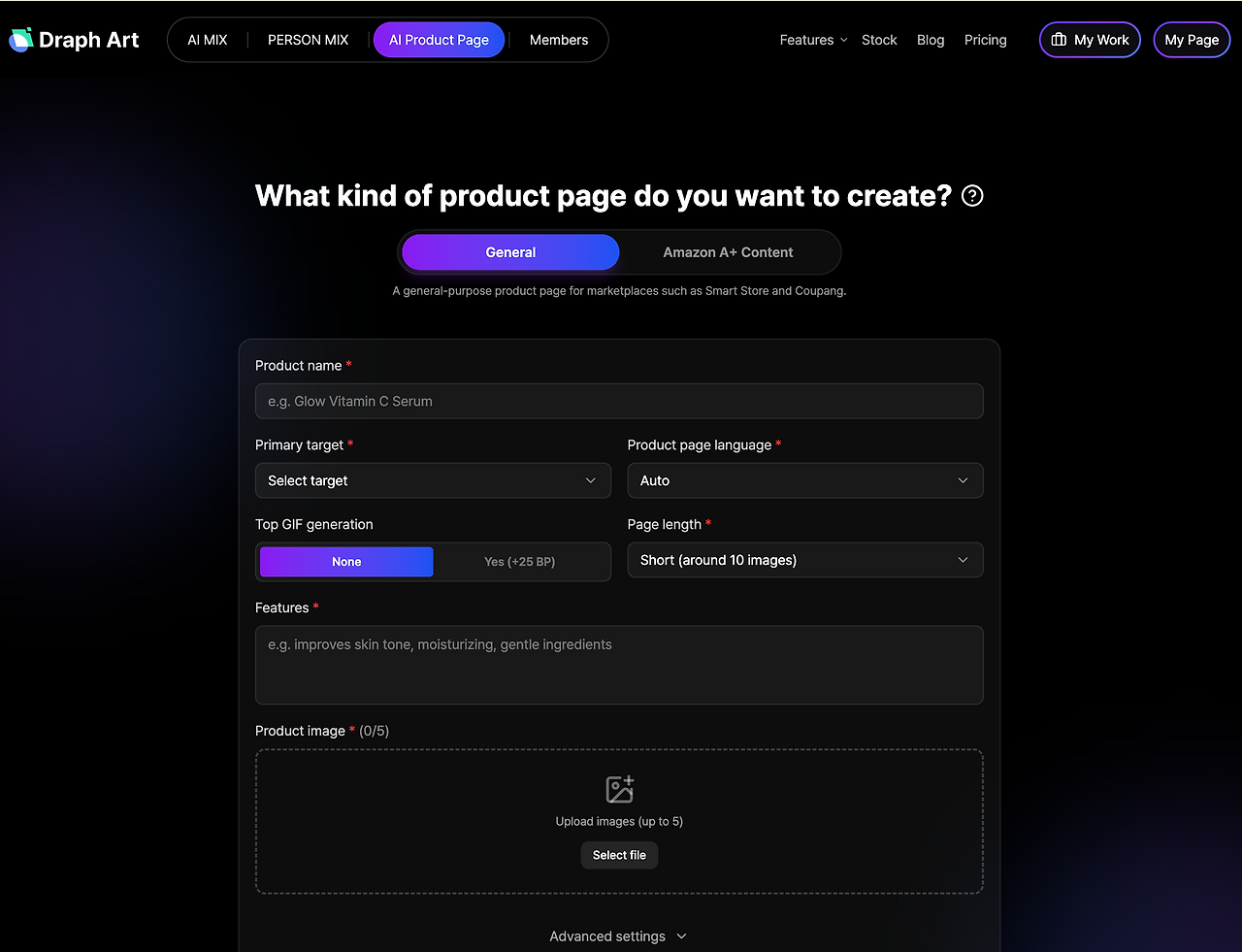
With Draph Art, you get not just AI image generation, but also AI detail page creation, meaning you can jump right into making your detail page using the product images you just made without switching to another app. Just drop in your product photos and basic info to get product images, sales copy, and page content all at once, and tweak whatever you need from the results. You can also hook up the model shots or AI product images you made earlier right into your sales content.
Depending on where you sell, how you set up your images and info on your detail page might change. If you're planning to sell clothes on Naver Smart Store as well as Coupang, check out the recommended image layouts and content creation tips so you can make the most of your AI clothing images for your actual product pages.
💡 Frequently Asked Questions (FAQ)
Q1. Can I create AI model-worn images with just one clothing product photo?
A1. Yes. As long as the photo clearly shows the overall shape, color, and key details of the garment, such as the neckline, sleeves, and hem, you can create AI model-worn images from a single clothing product photo.
Q2. Where can I use the generated clothing images?
A2. The generated images can be used for a wide range of purposes, including ecommerce main images, model-worn images, apparel product detail pages, social media, ads, GIFs, and video content. You can also create multiple versions of the same product by changing the model, image direction, and image size to suit different sales channels.
Q3. Can I use AI-generated clothing images directly when creating a product detail page?
A3. Yes. With Draph Art, you can use AI-generated model-worn images and product images directly and continue seamlessly into AI product detail page creation. By entering the product photo and basic information, you can generate product images, sales copy, and the content needed for the page layout together, allowing you to complete the workflow without switching to another program.
.png&w=1920&q=75)
