
.png&w=1920&q=75)
목차
- 1. 4 Tips to Keep in Mind When Creating Furniture Product Images
- 2. Break It Down by Role: Main Images, Room Shots, and Detail Images
- 3. Furniture Image Generation - Make the Product Images You Need More Efficiently with Draph Art AI MIX
- 4. Connecting Everything from Furniture Image Generation to AI Detail Page Creation at Once
- 💡 Frequently Asked Questions (FAQ)

When creating furniture product images, there are actually a lot of things to look out for. Even if you've got the product photos ready, a single shot with a white background just doesn't cut it when you want to show the size of a sofa, dining table, or bed, or the vibe of the space. On the other hand, setting up a room and moving heavy furniture around every time you need a new photo can be a huge hassle.
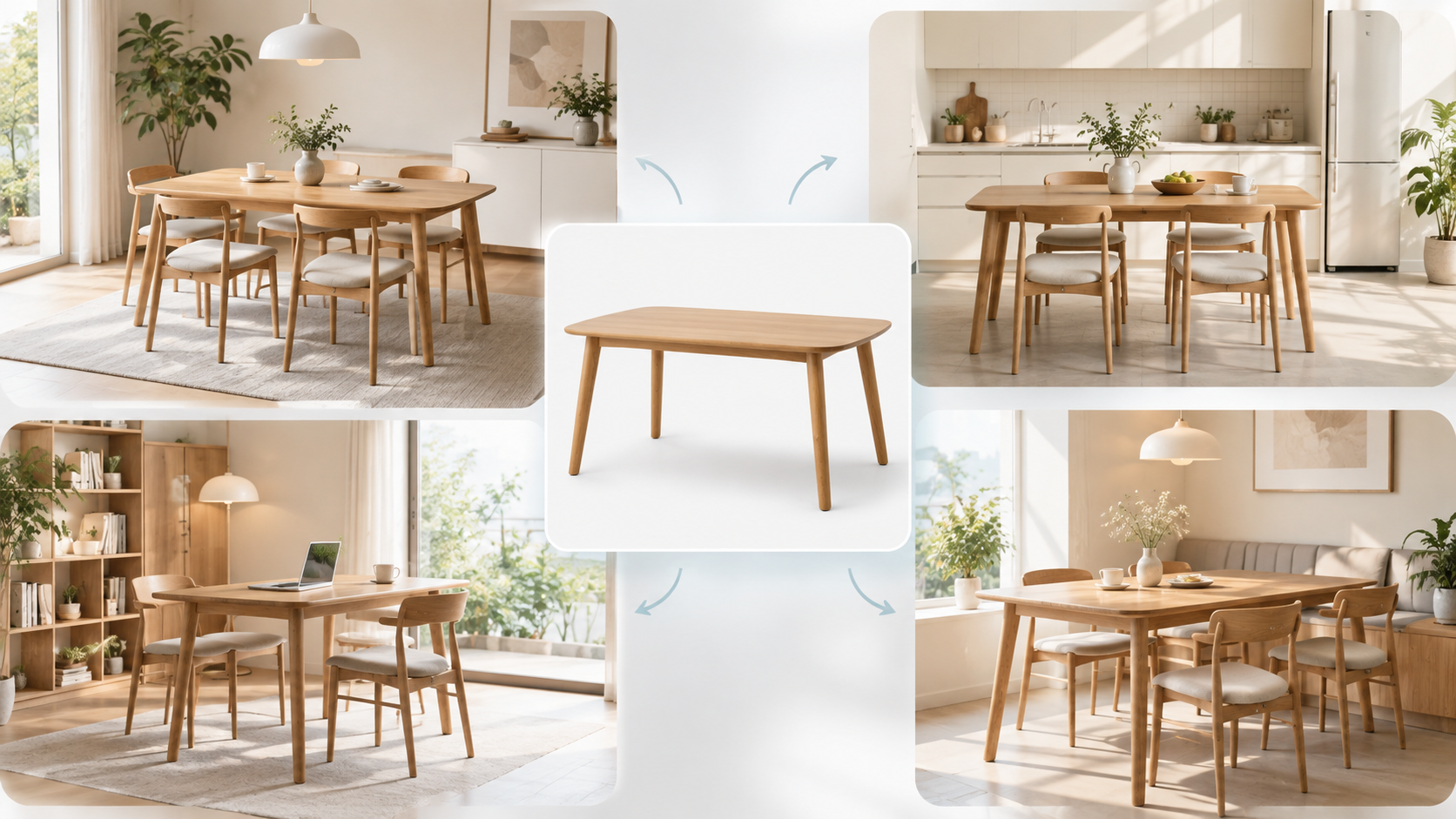
Draph Art's AI MIX lets you create all kinds of interior and product shots using your existing furniture photos. Plus, with the AI-powered detail page generator, you can instantly turn your product photos and basic info into a complete layout, sales copy, and a fully designed furniture detail page. You can even use templates inspired by the latest e-commerce design trends. In this post, we'll walk you through some easy tips for generating natural-looking furniture images, how to use AI MIX, and how to build furniture detail pages step by step.
💡 3-Line Summary for Busy People (TLDR)
|
1. 4 Tips to Keep in Mind When Creating Furniture Product Images
Tip 1. Your Main Image Should Show the Product First, Not the Background

Since the main product image is the very first thing shoppers see, it's super important to clearly show the product's overall shape and design right away. While adding lots of props like rugs, plants, tables, lighting, and frames can make the space look cozy, it might actually make your product hard to spot in a tiny shopping mall thumbnail. So, it's best to stick to a relatively simple background like white, ivory, or light gray, and make sure key features—like sofa armrests, table edges, and chair legs—aren't cut off.
Tip 2. For Room Shots, Decide on the Actual Living Space Before the Style
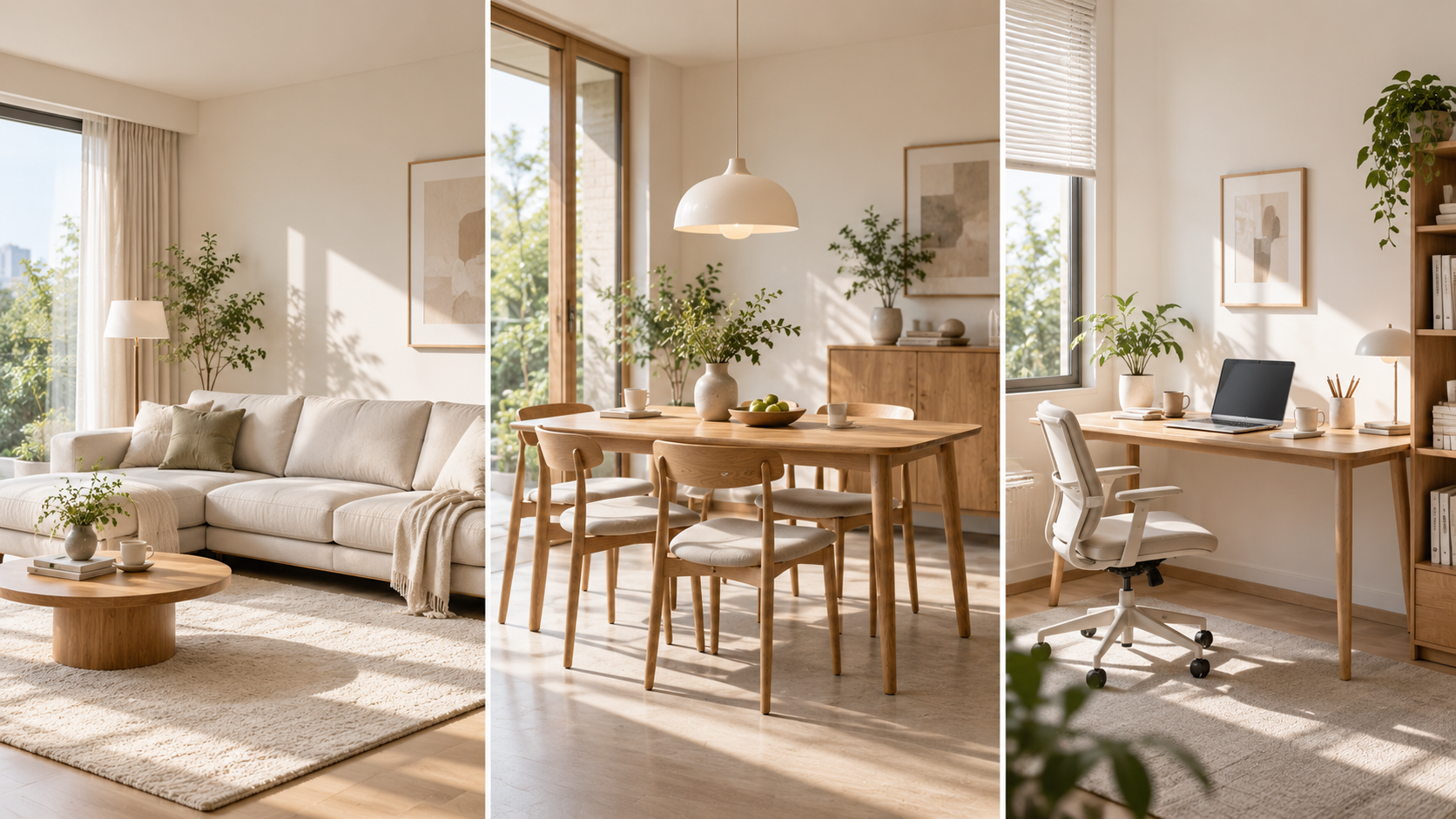
Room shots shouldn't just be pretty backgrounds—they need to help shoppers imagine what the product will actually look like in their own homes. That's why you should first decide where the item belongs in real life, like a living room for a sofa, a dining room or open kitchen for a dining table, or a home office for a desk. Once you've got the room down, adding specific styles like modern, Nordic, cream-tone, or natural wood makes it way easier to create a space that fits your product perfectly.
Tip 3. Space Proportions, Perspective, and Grounding for Natural Furniture Generation
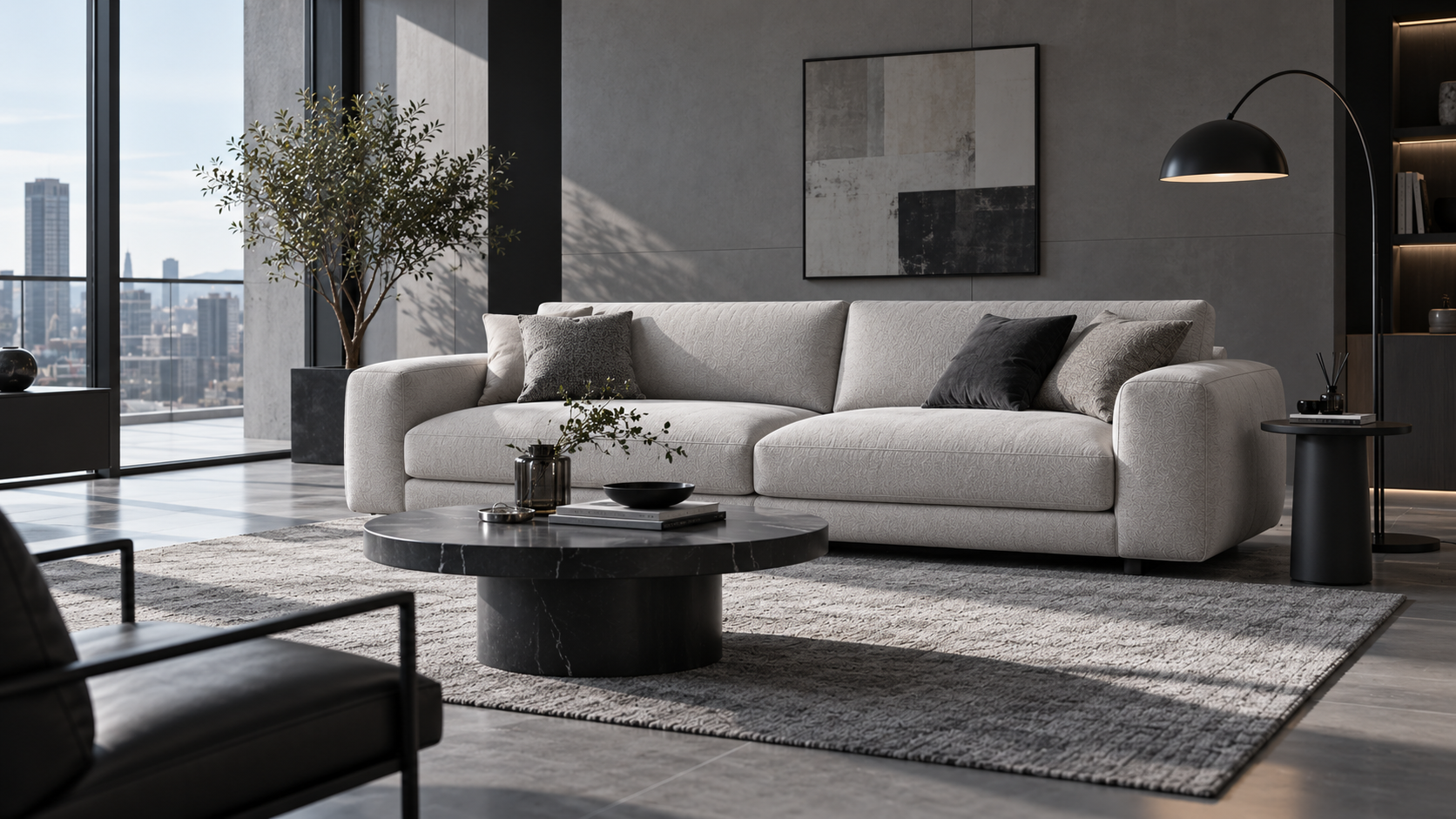
Furniture room shots can look totally awkward if the product size and camera angle don't match the space. If a 3-seater sofa looks way too small, or if the perspective between the furniture and the floor is off, it'll instantly look like a bad photoshop job. Including familiar items like side tables, floor lamps, or dining chairs helps you nail the right proportions. Also, adding a natural contact shadow underneath the product is key to making the furniture look like it's resting solidly on the floor.
Tip 4. Different Materials Call for Different Lighting Styles
Once you've got the overall shape, space, and proportions sorted out, you need to check if the materials look accurate. In furniture imagery, making the material pop is super important. For fabric, soft side lighting works best to highlight the weave and soft texture. For wood, you'll want to tone down any excessive yellow tints so the natural grain and color look realistic. Leather benefits from the right amount of highlights to bring out the surface texture, while metal or glass needs a bit of surrounding reflection to look like the real deal. At the end of the day, the goal isn't just to make the image look fancy—it's about thinking first about what specific features the customer needs to see.
2. Break It Down by Role: Main Images, Room Shots, and Detail Images
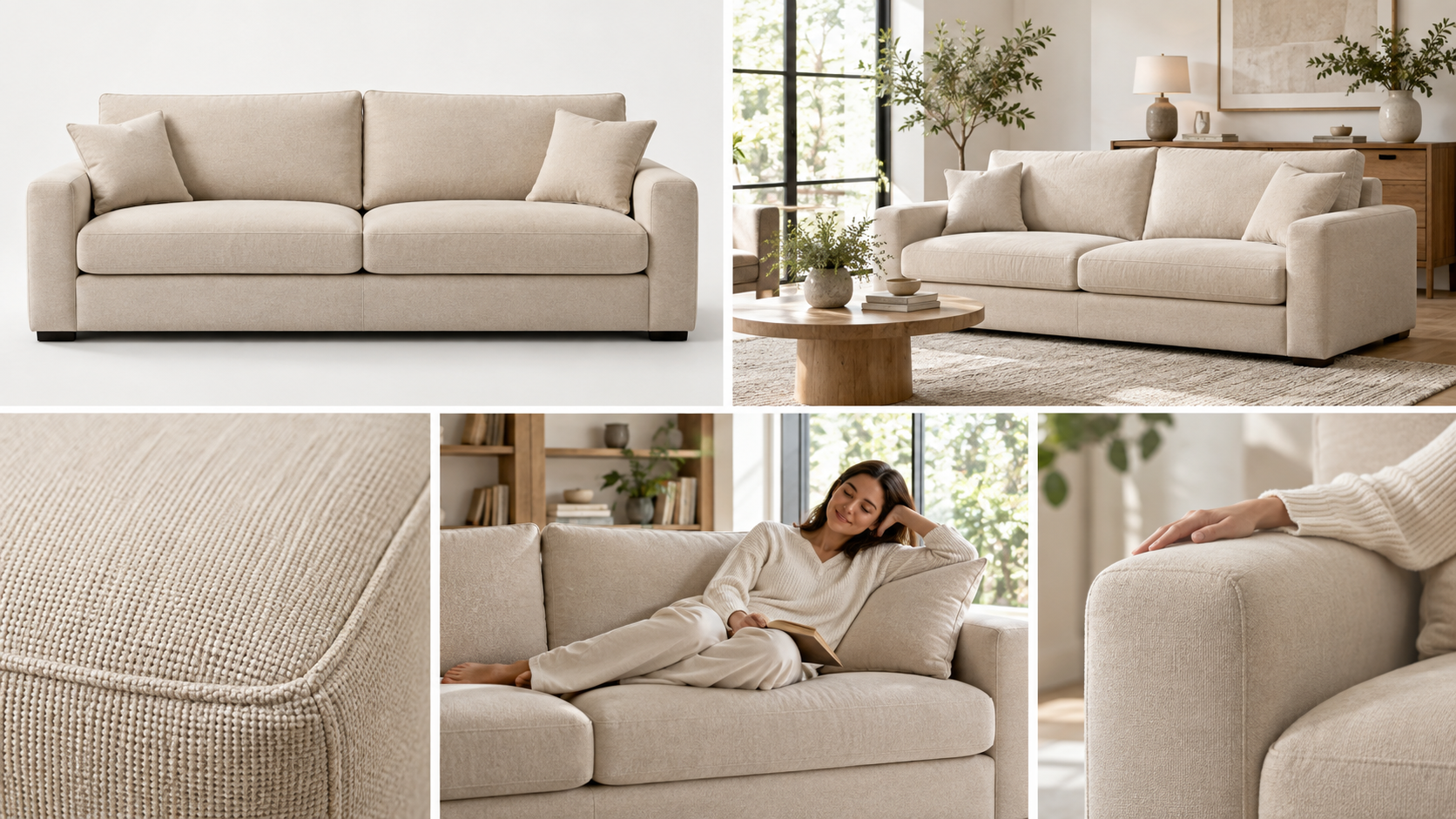
Even for the exact same sofa, the main image, room shot, and detail shot all need to highlight completely different things. If you just keep posting similar photos with different backgrounds, you'll end up with a ton of images, but shoppers won't actually get any new information out of them.
That's why when generating furniture images, it's crucial to first decide, "What do I want this image to show?" Depending on whether you want to highlight the whole product, its size in a real room, or its materials and finishes, your composition and direction should change accordingly.
| Image Type | Key Focus | Sofa Example |
| Main Image | Overall Design | Silhouette, Color, Shape |
| Room Shot | Real Placement | Size and Fit in the Living Room |
| Detail Shot | Materials & Finishes | Fabric, Stitching, Armrest |
| Used Image | Real-world Use | Sitting, Lying & Relaxing |
| Feature Image | Feature Changes | Expand, Adjust & Store |
If you divide the roles of each image beforehand, instead of repeatedly creating similar scenes, you can build an image layout that shows different information even for a single product. This makes it much clearer which images need to be added when using auto-image generation later.
3. Furniture Image Generation - Make the Product Images You Need More Efficiently with Draph Art AI MIX
Furniture products require various types of images besides the main image, such as spatial images and usage images. However, shooting each scene directly means moving the furniture and setting up the space again, which can increase the production burden. In times like this, you can use Draph Art's AI MIX to easily expand the product images you need based on your existing product photos. Especially if you want to keep the real product while naturally combining it with a new space, using AI Photo Composition can also help reduce the burden of image production.
Step 1. Choose Your Background Image

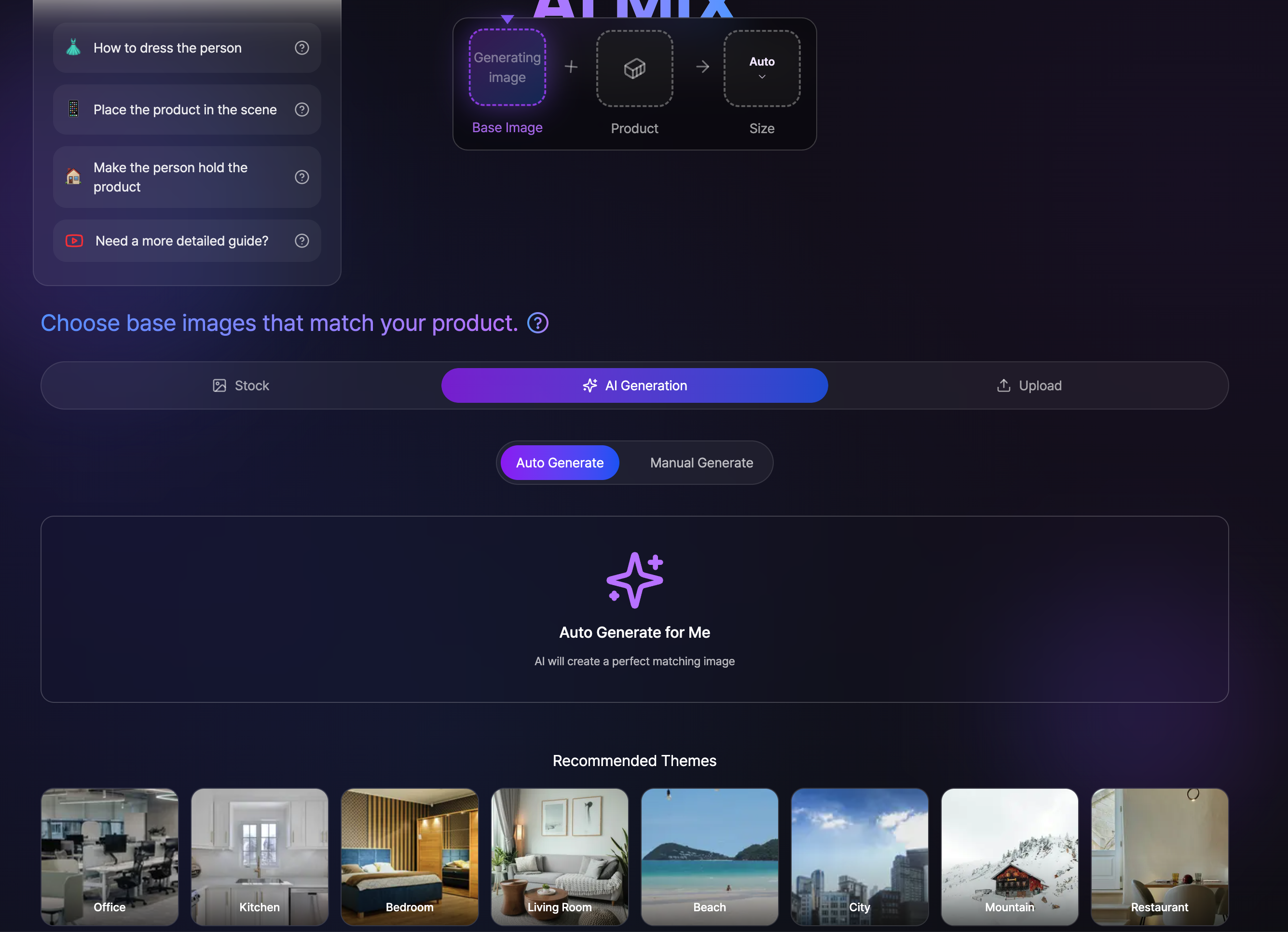
You can find the space you want from stock images, create a new background with AI, or upload images you prepared yourself.
Step 2. Add Your Furniture Product Image

After setting the background, you can upload a new furniture product image or choose from your recently uploaded images.
Step 3. Pick the Image Size That Fits Your Purpose

Finally, you can choose the size you need from auto-ratio, 1:1, 5:6, 3:4 or custom-entered sizes. Just set it according to where you will actually use it, such as main images, vertical product images, or detail pages.
| Options | Size | Recommended Use |
| Auto | Auto | Keep the ratio of the original background image as much as possible |
| 1:1 | 1000 × 1000px | General shopping mall product images, main images |
| 5:6 | 1500 × 1800px | Fashion and e-commerce product images |
| 3:4 | 750 × 1000px | Vertical shopping mall images |
| Enter size manually | Custom | Set directly to fit platform or detail page specs |
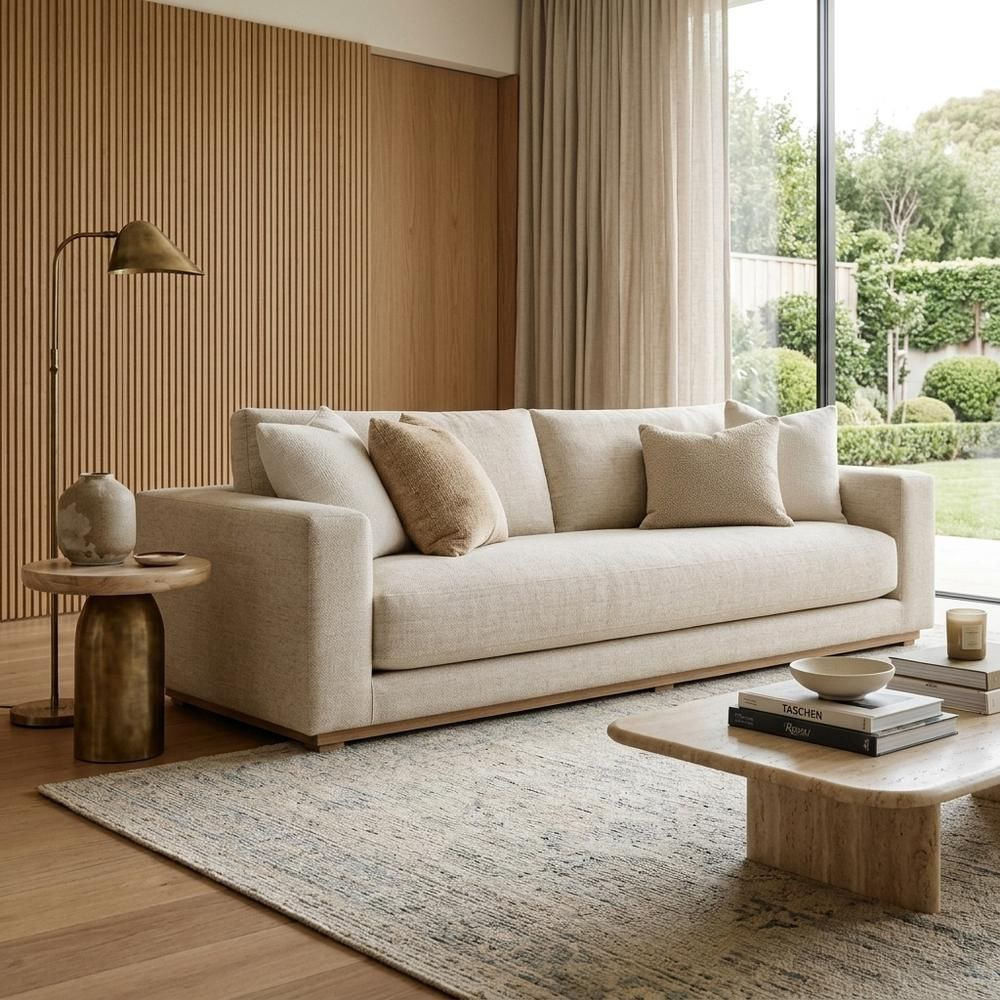
4. Connecting Everything from Furniture Image Generation to AI Detail Page Creation at Once
Creating a furniture detail page doesn't mean you need to prepare all the main images, spatial images, and detail shots beforehand. You can start making your AI detail page right away just by having your existing product photos and basic product info ready. This cuts down the stress of having to make every needed image one by one from scratch and figure out the page layout separately.
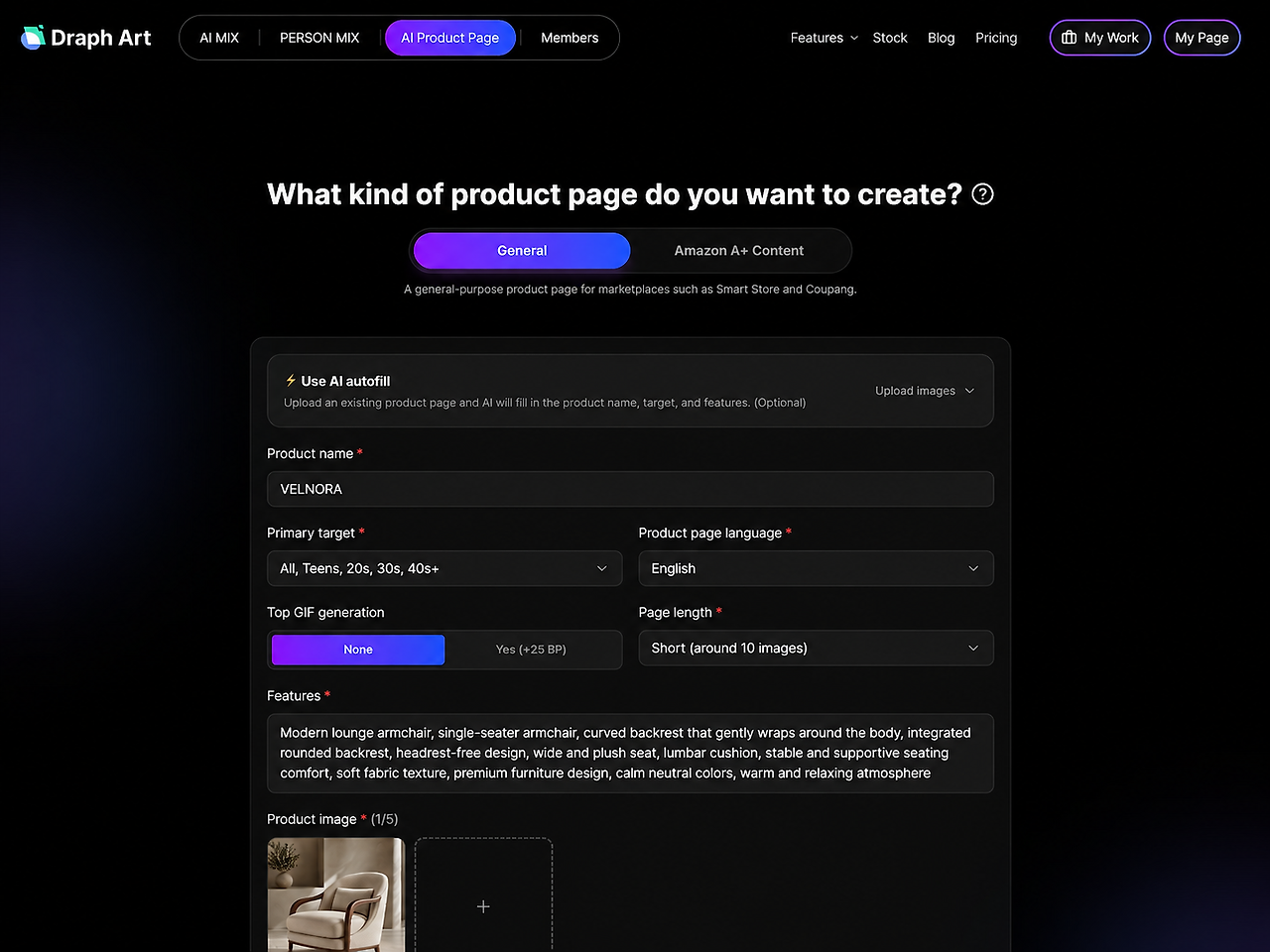
With Draph Art, you can quickly put together a first draft based on your product photos and info, including the image layout, sales copy, and overall detail page structure needed for your detail page. Afterwards, you can review the finished result, swap out any images or text as needed, and tweak the layout to polish your detail page.
If you need extra images while making your product page, just use the handy tools right then. For example, if you want clean product shots, use BG Removal and editing features. If you need new lifestyle shots like a living room or bedroom, you can use AI MIX image generation. This means you don't have to prep every single image ahead of time. Instead, you can build your product page first and just add whatever is missing as you go.
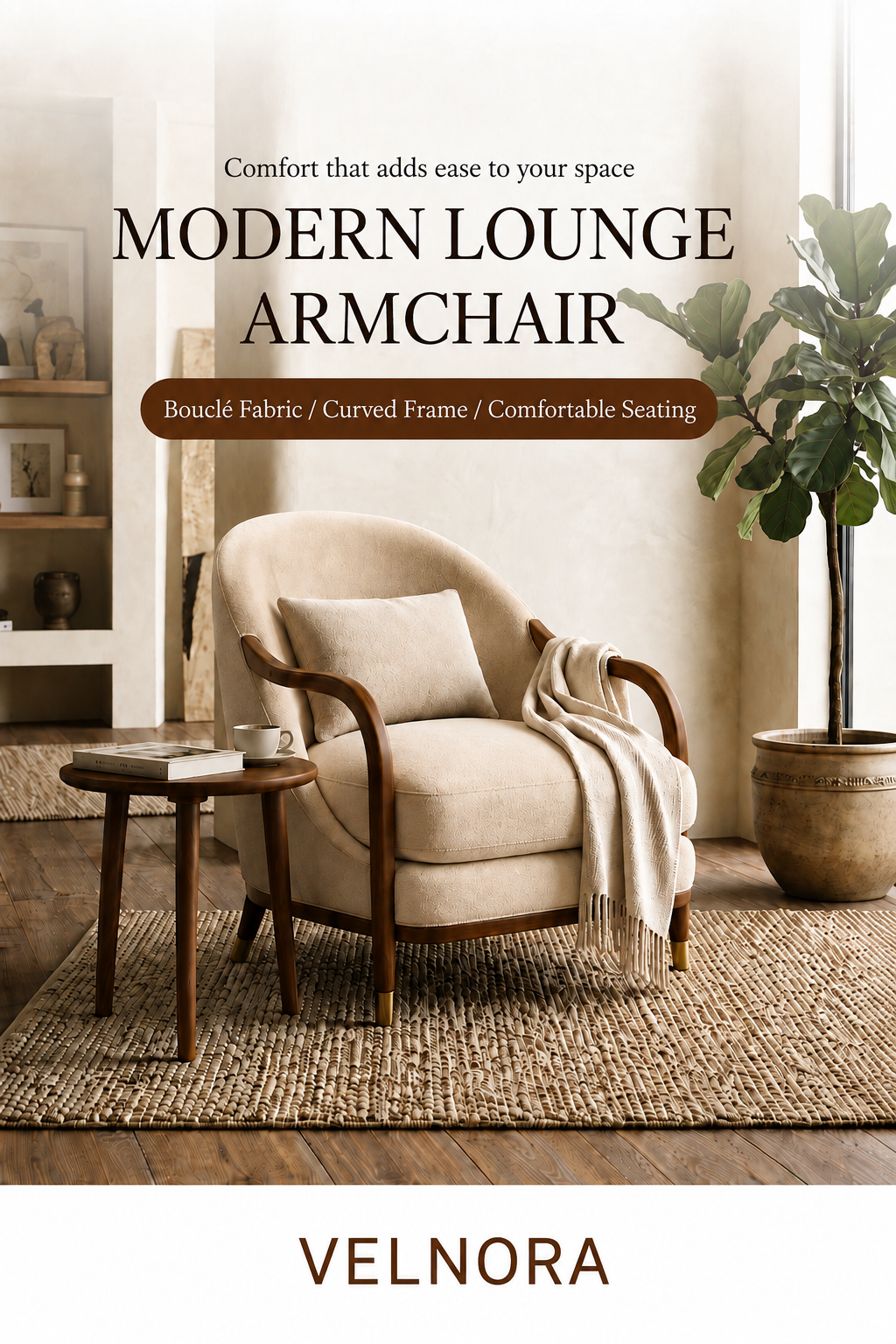
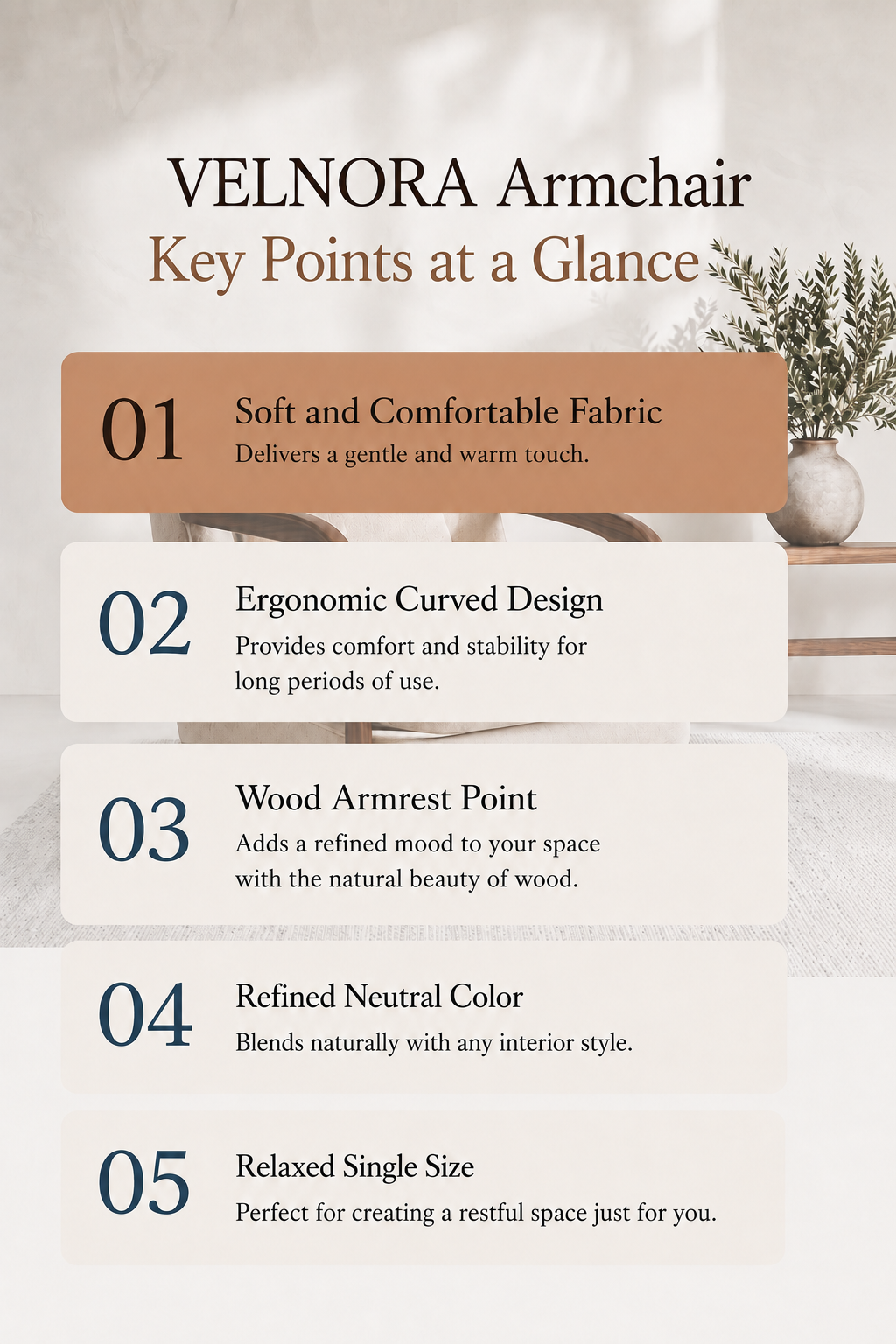
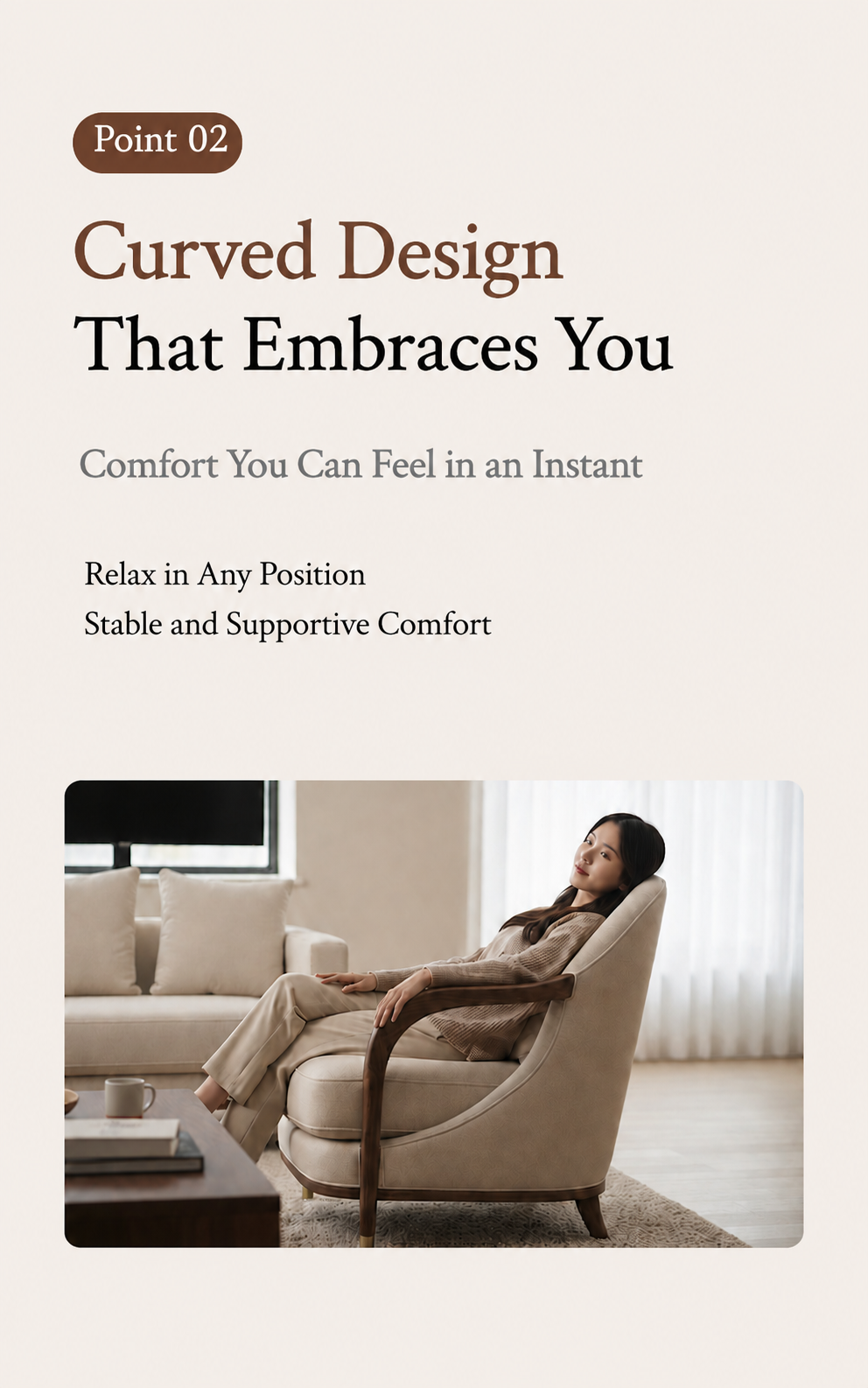
At the end of the day, the whole process doesn't force you to go through a bunch of complicated steps in a strict order. Instead, you just start making your AI product page with your original product photo and basic info, and then keep working on your images all in one place. If you run an online store and constantly need to list new furniture items, this helps cut down on doing the same boring tasks over and over—like making images, writing sales copy, and setting up product pages separately.
💡 Frequently Asked Questions (FAQ)
Q1. What kind of product photos do I need to start making furniture images?
A1.Photos that clearly show the whole shape, color, and key design of your product work best. It's especially helpful to have images where the product's structure isn't cut off—like sofa armrests, chair legs, or table edges—so you can easily turn them into main images or room shots.
Q2. Do I need to get all my product images ready before making a furniture product page?
A2. Nope, you don't have to. With Draph Art, you can start making your AI product page right away using just your existing product photos and basic info. Once you check out the generated product page, you can just use AI MIX or the image editing tools to fill in any gaps where you need room shots or extra product images. This saves you from having to make main images, room shots, and detail shots all separately from scratch.
Q3. How long does it take to make a furniture product page with Draph Art?
A3.Just upload a clear photo of your furniture, pop in some basic product info, and you can get furniture room shots, sales copy, and a draft of a completed product page in about 3 to 10 minutes. The actual time might vary depending on how many images you make, your page content, and how much tweaking you do afterward, but it's way faster than shooting rooms, writing product copy, and designing pages all separately.
.png&w=1920&q=75)
.png&w=1920&q=75)