목차
- Reading Hookable Reviews to Learn How AI Can Help? Here's How It Works in Draph Art
- 1. Not Enough Photos? Start with One Original Shot
- 2. Stuck on Planning? Start with Your Customer and Use Scene
- 3. Can't Find the Words? Turn Product Info into Copy
- 4. Design Feels Hard? Refine the Draft to Match Your Brand
- How to Create Your First Product Detail Page with Draph Art
- Product Detail Page Creation: See Your First Result in Draph Art
- Frequently Asked Questions (FAQ)

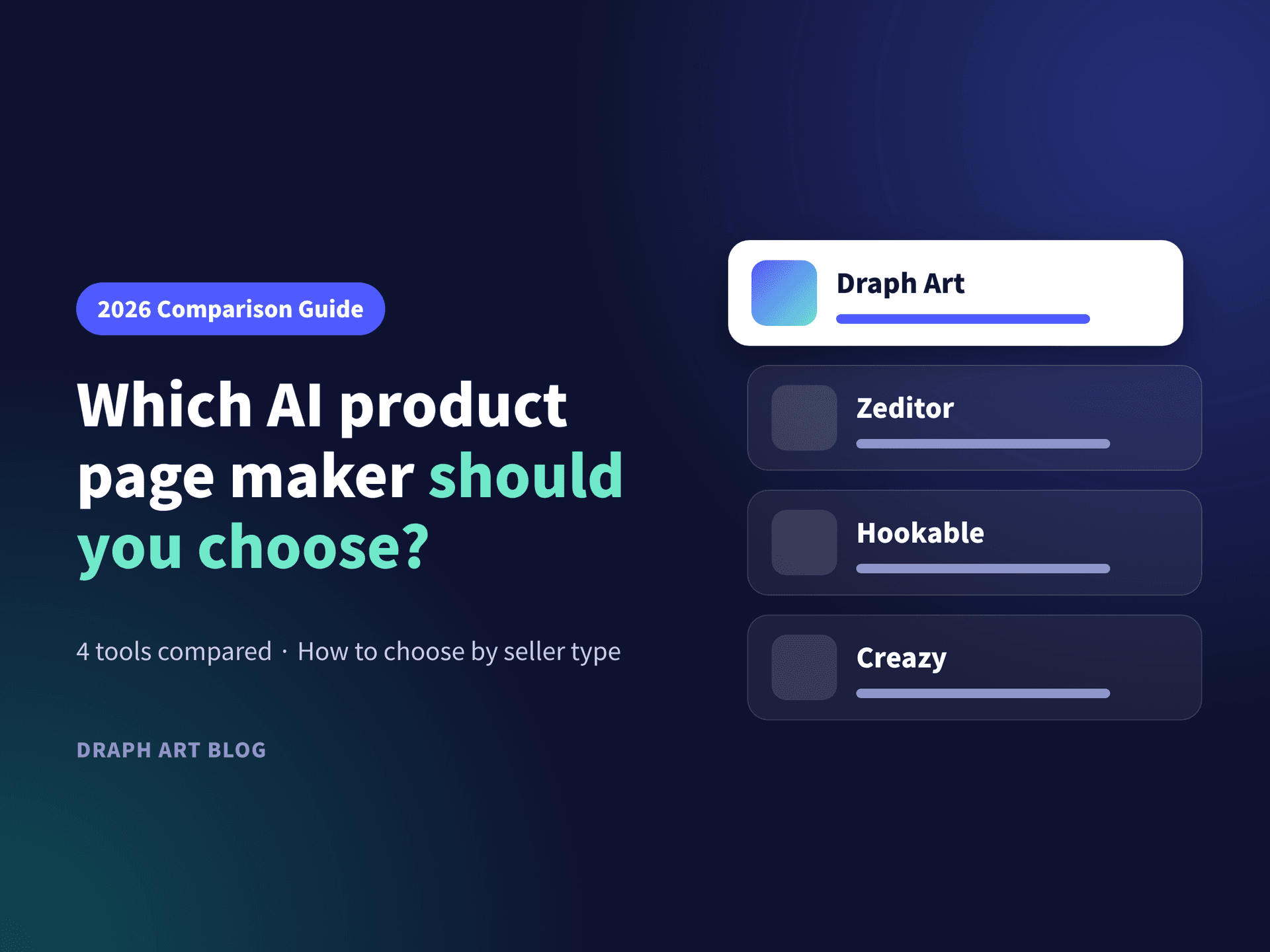
If you are reading Hookable reviews because product detail page creation feels overwhelming, the fastest way forward is an AI that builds the planning, copy, images, and layout together from your product photo and basic product info. Instead of starting copy and design on a blank screen, you review a generated draft and refine it for your product. If you have been searching for Hookable reviews, you are probably wondering how AI could actually work for your own products. In this post, we use that question as a starting point to walk through how to create a product detail page with Draph Art.
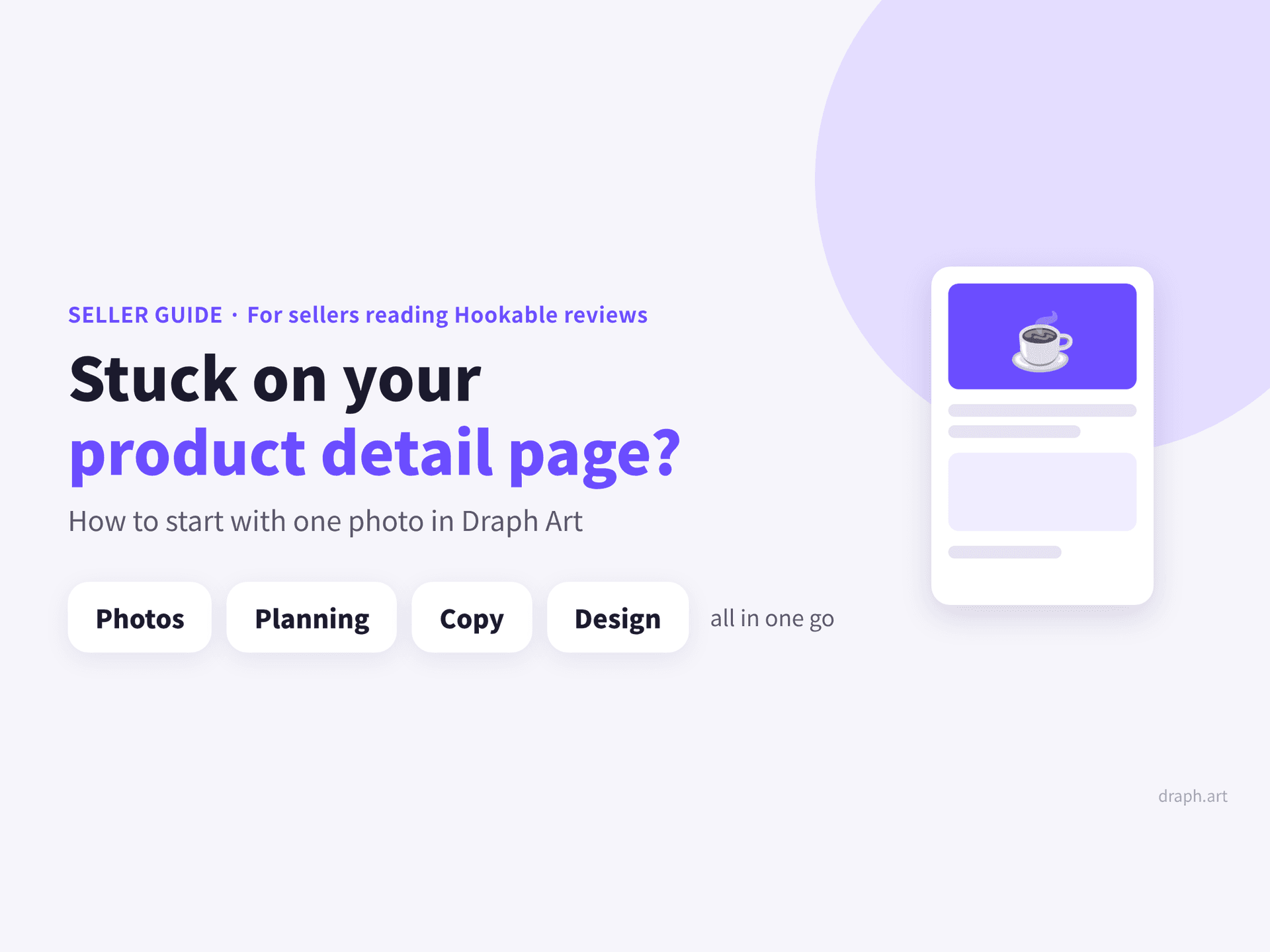
You have the product ready, but you can't write the first line. You add photos, but the page still feels empty. And by the time you get to design, your launch date keeps slipping. This isn't just a beginner problem — sellers who list new products often run into it too. Below, we show how Draph Art helps you get past it. Draph Art is an "AI product detail page generator for online stores" that creates everything from planning and copywriting to photo styling and layout design, starting from a single product photo and basic product info.
Quick Summary for Busy Readers (TLDR)
- Current state: To sell a new product, you need a product detail page where the description, photos, structure, and design all work together.
- Problem: When you tackle each task separately, it's easy to get stuck deciding on copy, images, and placement.
- Solution: Enter your product photo and basic info into Draph Art, then refine the AI-generated planning, copy, images, and layout to get your sales page ready.
Reading Hookable Reviews to Learn How AI Can Help? Here's How It Works in Draph Art
When people hear "AI product detail page creation," they often picture tools that write copy or swap backgrounds. But there are now tools that generate the page structure and design from your product information. The Hookable official website also introduces AI planning and copywriting, image generation, and editing features.
When you read Hookable reviews to compare tools, start by identifying which part of your work you need help with. If summarizing your product's strengths in words is hard, look at copy. If you don't know where to place photos and text, look at planning and layout together.
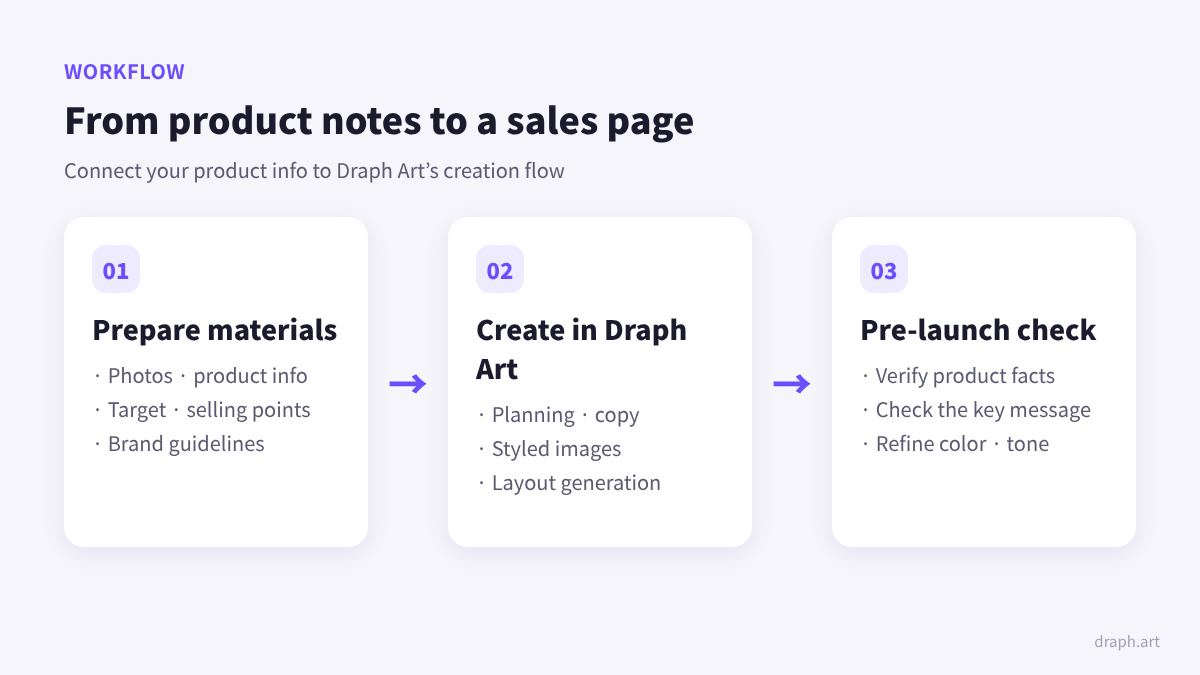
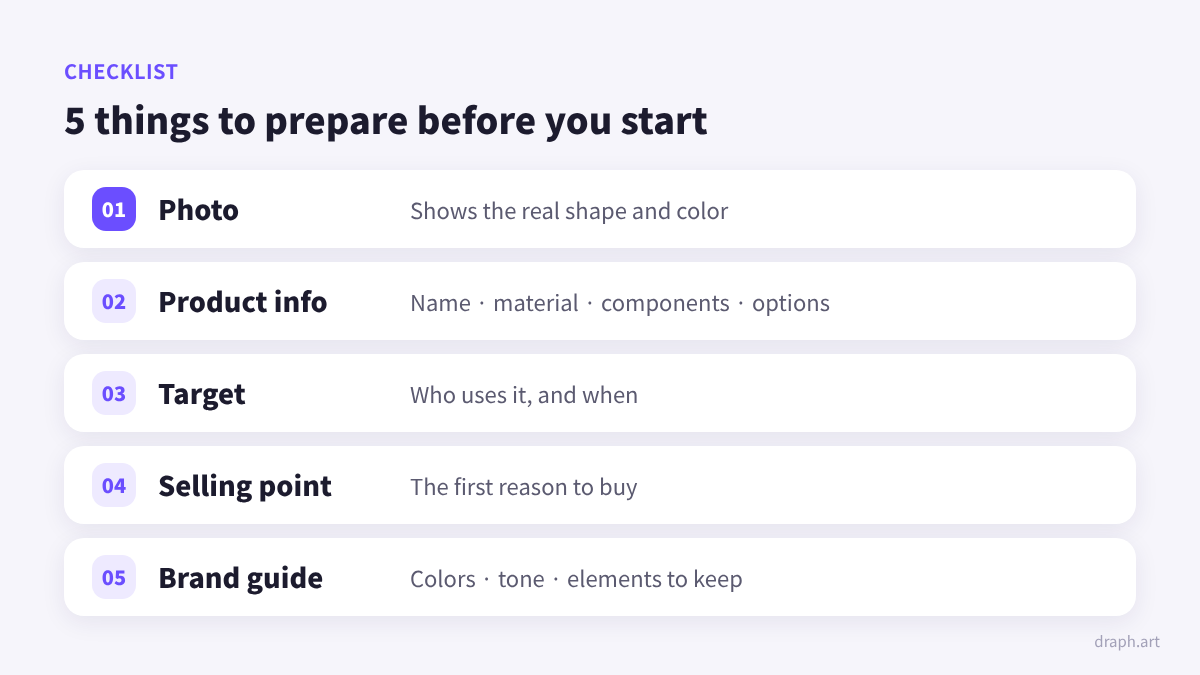
In Draph Art, planning, copy, styled images, and layout generation are connected in one creation flow. Rather than preparing a finished plan and design mockups first, you can enter your product photo and info and check the first result right away. Before you start, just organize the following:
- A photo that shows the real shape and color of the product
- Verified product info such as name, material, size, components, and options
- A description of who uses it and in what situation
- The product benefit you want customers to see first
- The tone of voice and visual mood your brand wants to keep
1. Not Enough Photos? Start with One Original Shot
"Do I need a new photo shoot before I can make a product detail page?" If you don't have many product photos, it can feel like a burden before you even begin. Draph Art lets you start with 1 original product photo and basic product info, so you can create your first product detail page without preparing every styled shot in advance.
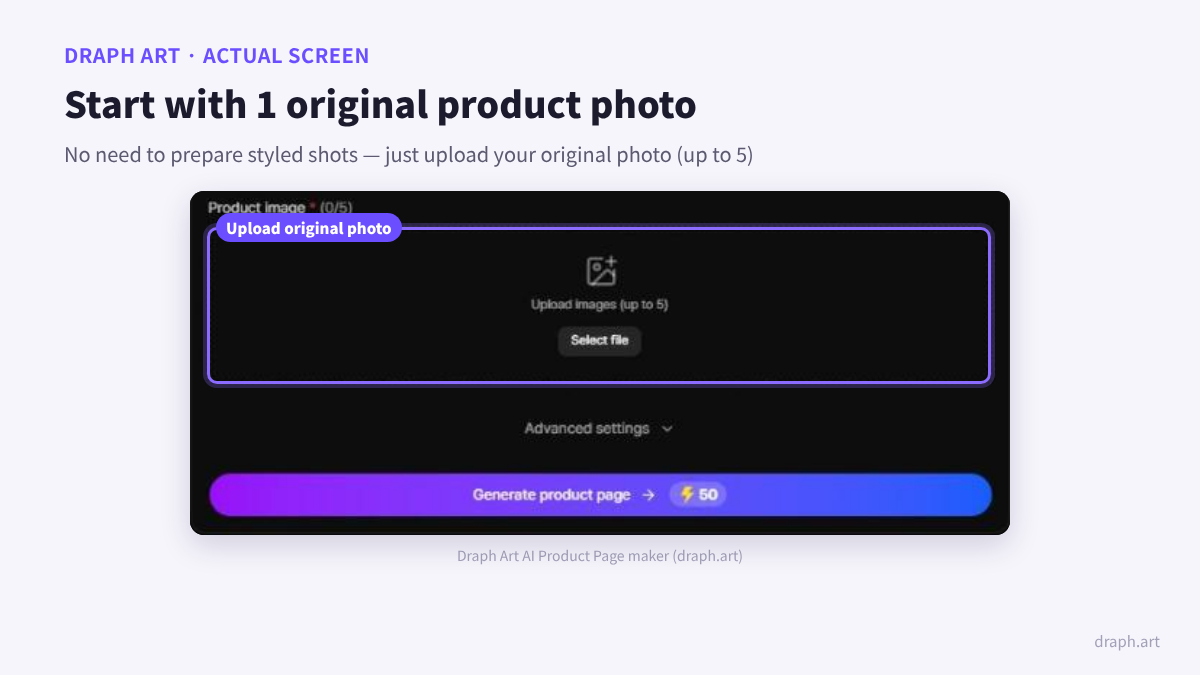
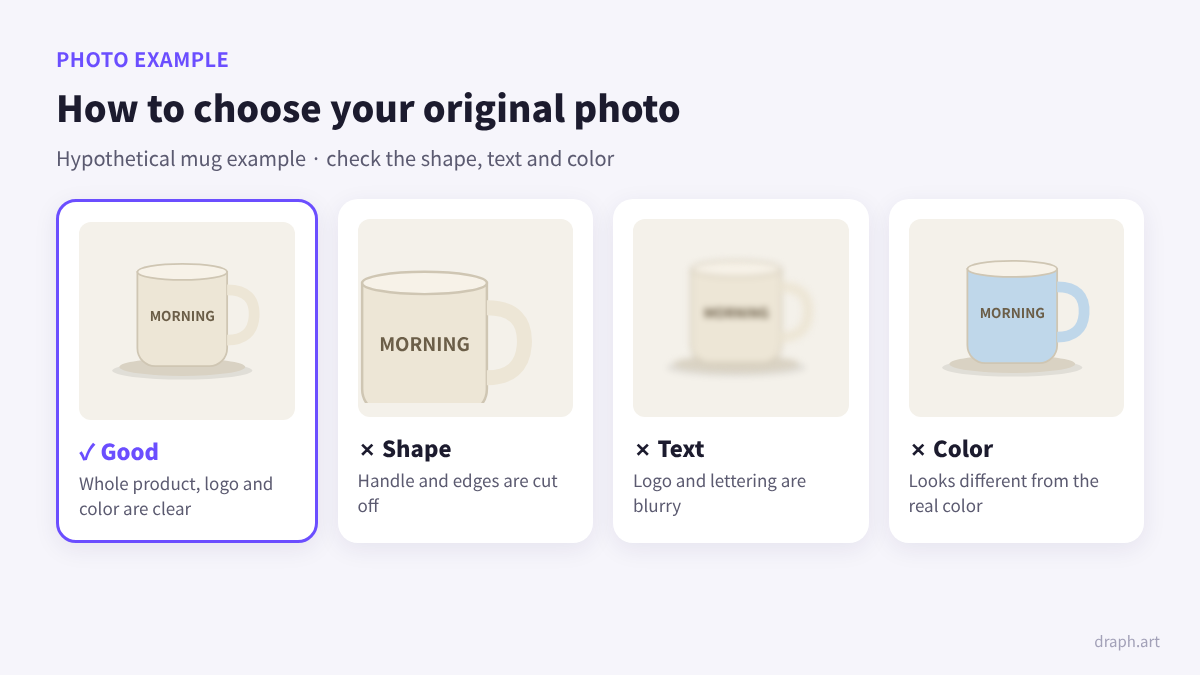
Choose a photo that shows the product accurately. Check that no part of the product is cut off, the logo or packaging isn't too blurry, and the color is close to the real thing. The idea is to prepare a photo that conveys what the product really looks like, then confirm those details are preserved in the generated images.
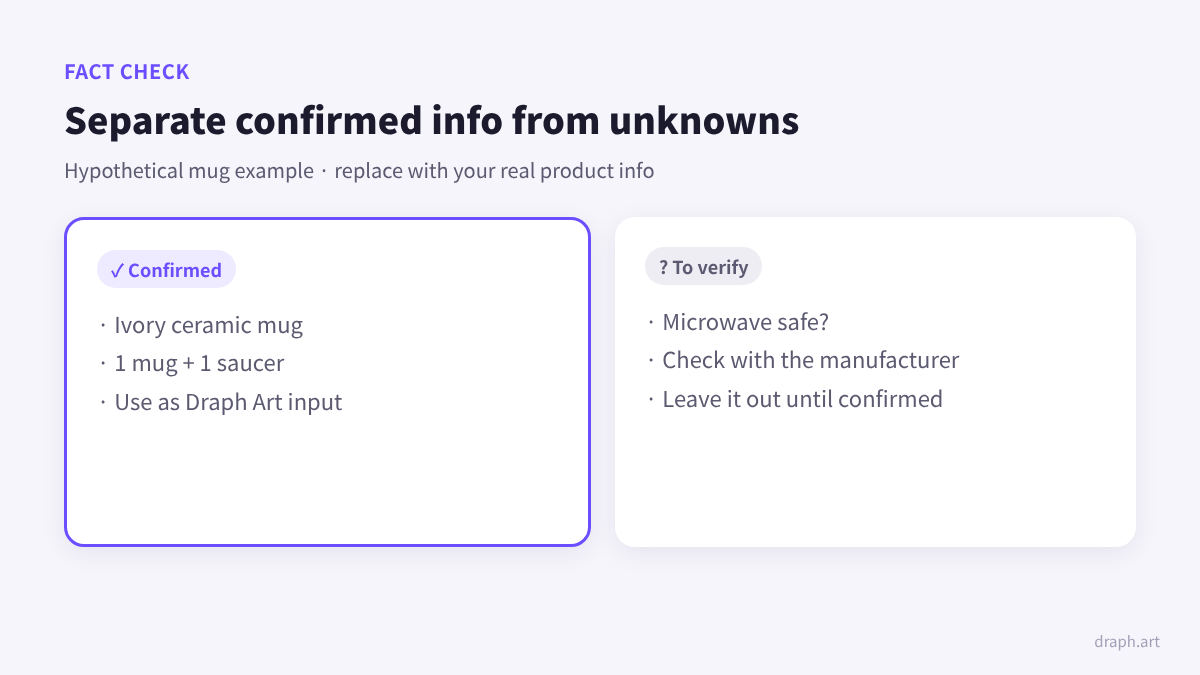
Fill in anything the photo can't show. A photo can show the shape of a mug, but not its exact capacity or how many pieces are included. Enter only facts you have confirmed as the seller into Draph Art. Getting the information right matters more than writing a beautiful description.
Google Merchant Center's product data specification also explains why accurate product info, images, and option data matter. It's written for Google product listings, but it's a useful reference when checking that the product name, images, and options on your own page match.
2. Stuck on Planning? Start with Your Customer and Use Scene
If you have a good product but can't think of what to say, think about how customers will use it rather than listing more features. Even for the same mug, someone shopping for a housewarming gift may care about packaging and what's included first, while someone looking for an everyday cup may want to know the size and how to care for it.
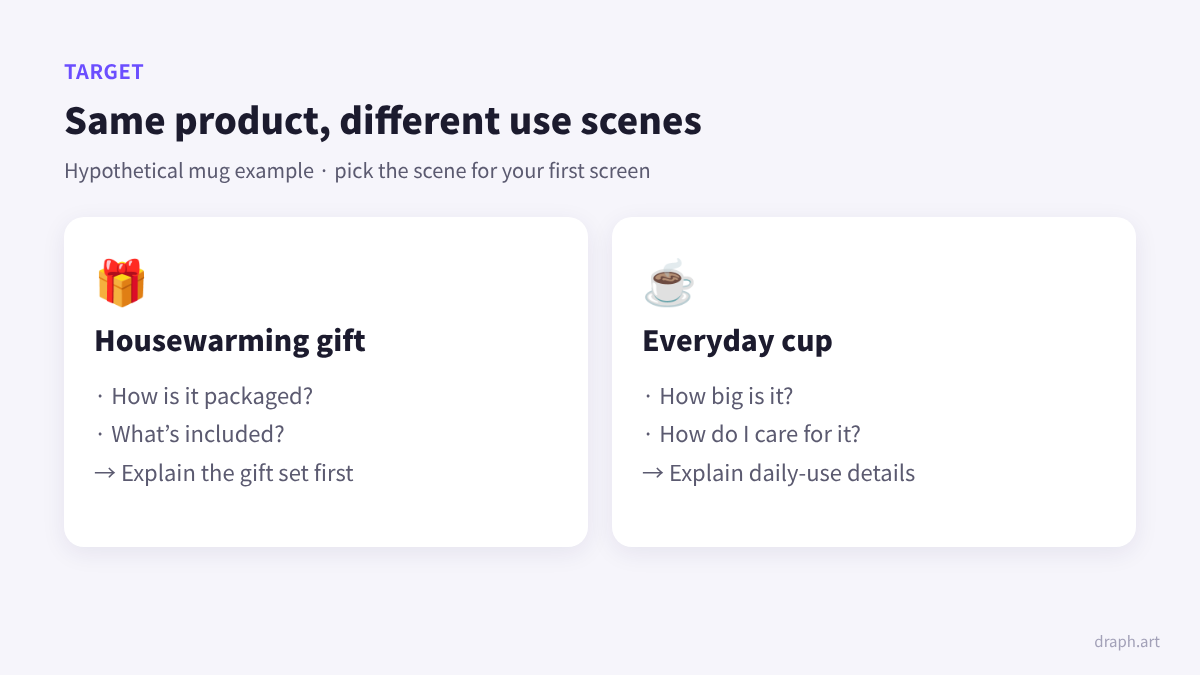
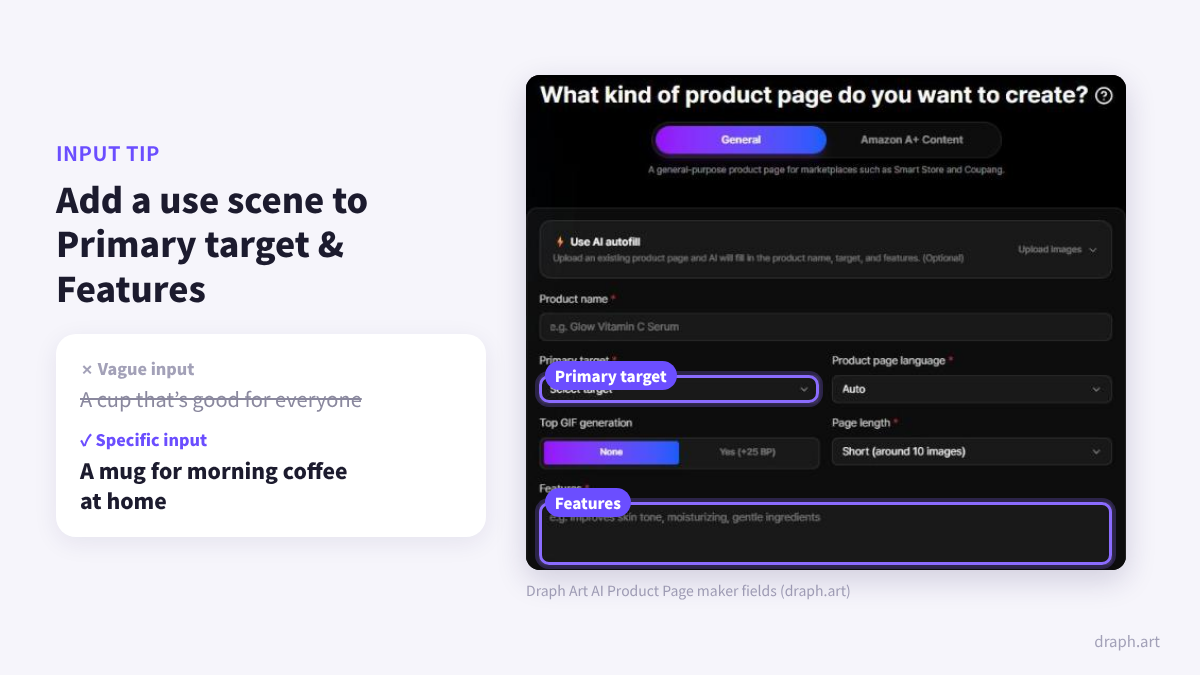
This is where Draph Art's Primary target and Features fields come in. Instead of writing "a cup that's good for everyone," enter a specific situation like "a mug for morning coffee at home." When you review the AI-generated plan, check whether this use scene comes through on the first screen and in the body.
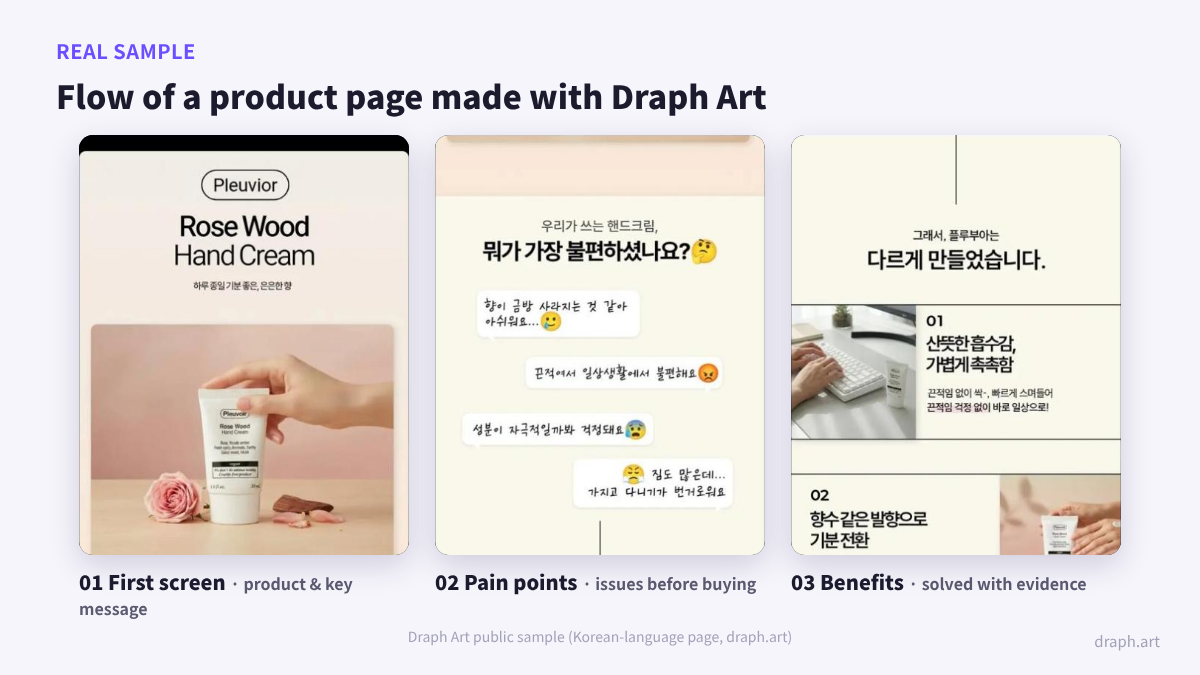
If it's hard to sketch the structure from scratch, use the draft Draph Art creates as your starting point. Check whether the flow grabs attention on the first screen, explains the product's benefits, and then shows what to confirm before buying. You can learn more about the role of each section in the product page design structure guide.
3. Can't Find the Words? Turn Product Info into Copy
When phrases like "luxurious design" and "superior quality" are all you repeat, it's hard to tell what the product actually is. Product detail page copy becomes clearer when it describes what the customer will receive and how they'll use it. Apply the same standard when reviewing the copy Draph Art generates.
For example, if you sell a mug and saucer together, you could connect the set and the situation with a line like "Your morning coffee, with a mug and saucer." This is a hypothetical copy example for illustration, not a real product or generated result. Adapt the wording using features you've confirmed for your own product.

Draph Art's no prompts needed approach means you can start creating with set information fields instead of designing complex generation instructions yourself. Enter the product name, target, and features, then refine the parts of the generated copy you want to emphasize. As the table below shows, turning vague requests into specific inputs and review criteria makes it easier to start AI product detail page creation.
| Where you get stuck | When you start vaguely | How to use Draph Art |
|---|---|---|
| Planning | Unsure what content to include first | Enter the primary target and product features, then review the generated structure |
| Copy | Describing it abstractly as "a great product" | Provide confirmed components and use scenes, then refine the generated copy |
| Images | Waiting until every styled shot is ready | Start with the original photo and check how the product is shown in generated images |
| Layout | Placing photos and text on a blank screen yourself | Review the auto-generated page and edit only what you need |
| Final review | Approving it based on overall mood alone | Check in order: product facts → key message → brand expression |
4. Design Feels Hard? Refine the Draft to Match Your Brand
Trying to decide fonts and placement yourself can drag out product detail page creation. In Draph Art, you can review the AI-generated layout and edit the copy or images you need. Once a finished screen becomes your starting point, it's easier to see exactly what's missing.
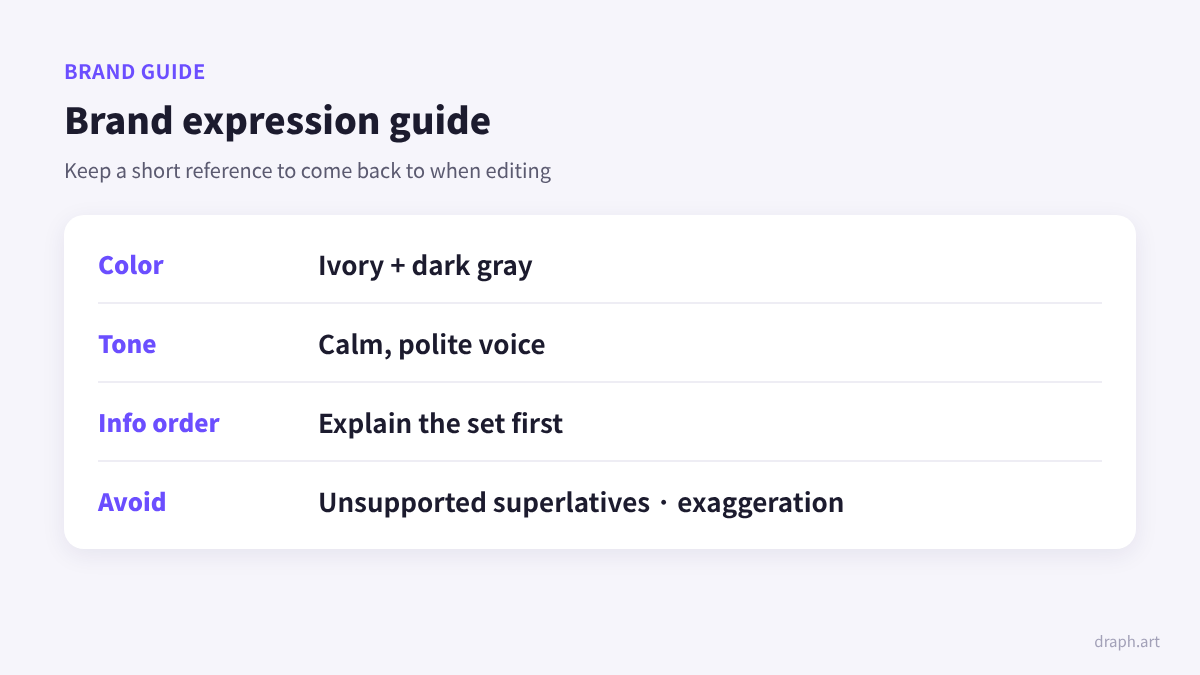
When editing, set short brand guidelines — for example, "ivory and dark gray," "calm, polite tone," and "explain the product set first" to define color, tone, and information order. Rather than vaguely asking to change the mood, request a specific change like "Shorten the first line and explain the components first."
In the end, people reading Hookable reviews want a sales page that explains their product. In Draph Art, you can turn your photo and product info into real copy, images, and layout, then keep editing as you review the results. Follow the steps below to prepare the first page for your product in Draph Art.
How to Create Your First Product Detail Page with Draph Art
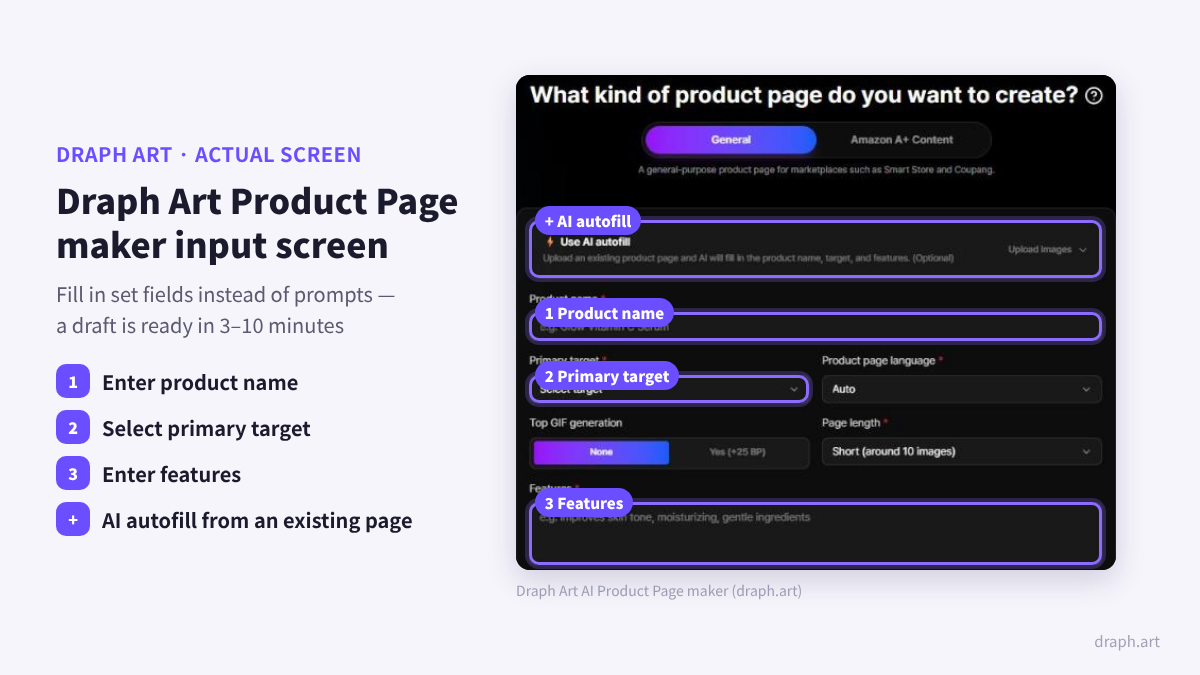
Getting started is simple. Open the Draph Art Product Page maker, upload your product photo, and enter the product name, primary target, and features. If you already have a product detail page image, you can also try the feature that fills in product info with AI. Once you finish entering the info, review the product details and wording on the generated page.
In its official production guide, Draph Art describes technology built on 4.6M+ commerce data points and pages ready in 3–10 minutes. Because planning, copy, images, and layout are generated together, it's a good fit for sellers who want to skip creating separate drafts for each task. This time range is the official guideline, so allow extra time for checking product info and making final edits.
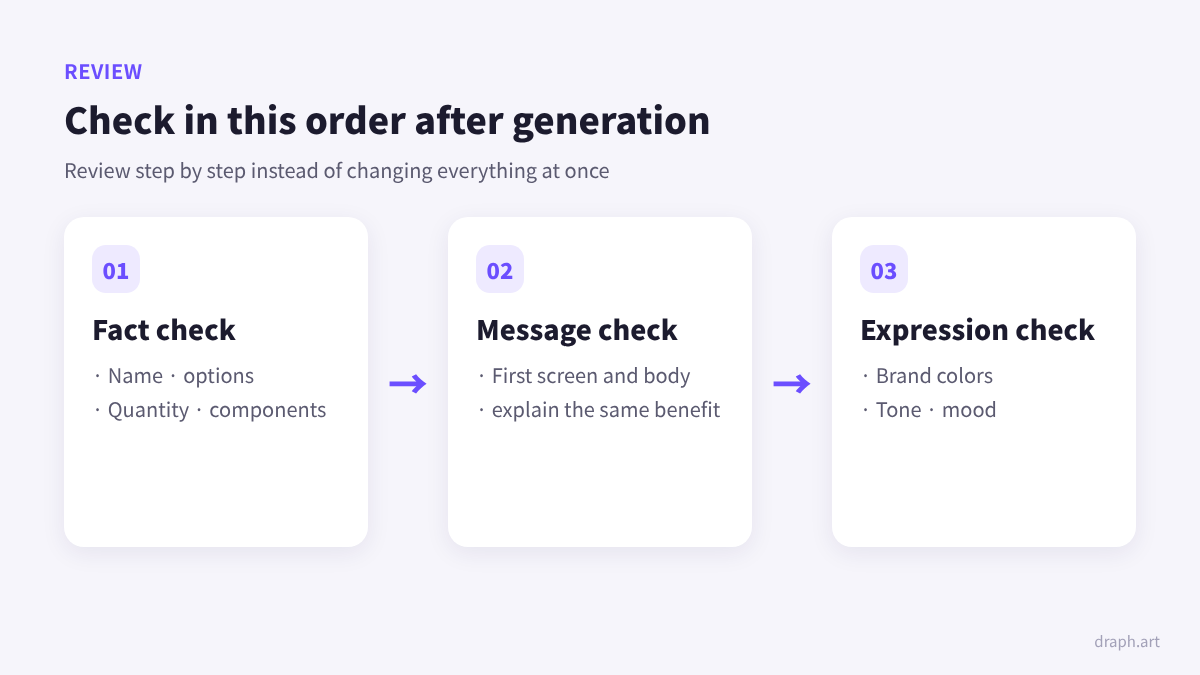
After generation, check just three things in order: first confirm the product name, options, and components are correct; then check that the first screen and body explain the same benefit; and finally refine the colors and tone. For the detailed workflow, continue with How to Automate Your Product Page with AI.
Product Detail Page Creation: See Your First Result in Draph Art
If your product page worries started with searching for Hookable reviews, try solving them with a real product in Draph Art. You don't need a perfect plan and design from the start. Enter one photo and verified info, then refine the benefits you want to highlight in the generated result.
Draph Art is an AI product detail page generator for online stores that helps turn your product description into a real sales page. If planning was hard, photos were few, and design felt overwhelming, connect those tasks in Draph Art. See your product's first result at Create a Draph Art product page from one photo.

Frequently Asked Questions (FAQ)
Q1. I'm a beginner seller reading Hookable reviews. Can I make a product detail page with Draph Art without any design experience?
Yes, with Draph Art you can start creating a product detail page from a product photo and basic product info, even with no design experience. According to the official guide, it generates planning, copy, images, and layout from 1 original photo, and you then review the result and edit what you need.
Q2. Do I need to write long prompts to auto-generate a product detail page in Draph Art?
No, you can start with set product information fields instead of writing complex prompts. The current creation screen has 3 basic info fields — product name, primary target, and features — plus a product image upload field.
Q3. I only have one product photo. Can I still create a product detail page with Draph Art?
Yes, one original product photo and basic product info are enough to get started. The official guide describes generating planning, copy, images, and layout in 3–10 minutes; just confirm the actual product info and image details before publishing.
Q4. After AI product detail page creation, what should I check first to match my brand?
Check the accuracy of the product info first, then refine the message and brand expression. The order suggested in this post is a 3-step review — fact check, message check, and expression check — so review the generated copy and images against the guidelines you set at the start.