
목차
Summary
- AI Composition has completely evolved into AI Mix - Now even model synthesis is possible
- Magic where model poses change automatically - Transform from attention stance pose to pose holding products
- Outfit changing feature - Instantly change a model in a white tee to a model in a dress
- Custom pose generation for each product - Natural pose creation for cosmetics, clothing, and accessories
- Draph Art Model features now in AI Mix - Product wearing cuts and product using cuts made easier

Draph Art AI Composition has been upgraded to AI Mix!
Previously, you had to input complex image generation prompts to get the results you wanted, but AI Mix is much easier and more convenient since you just need to see and select with your eyes. Now it's possible not only to synthesize products into background images but also to synthesize products into model images. Plus, we now have model-product interaction synthesis where the model's pose automatically changes, so let's dive into the details of this new AI Mix feature.
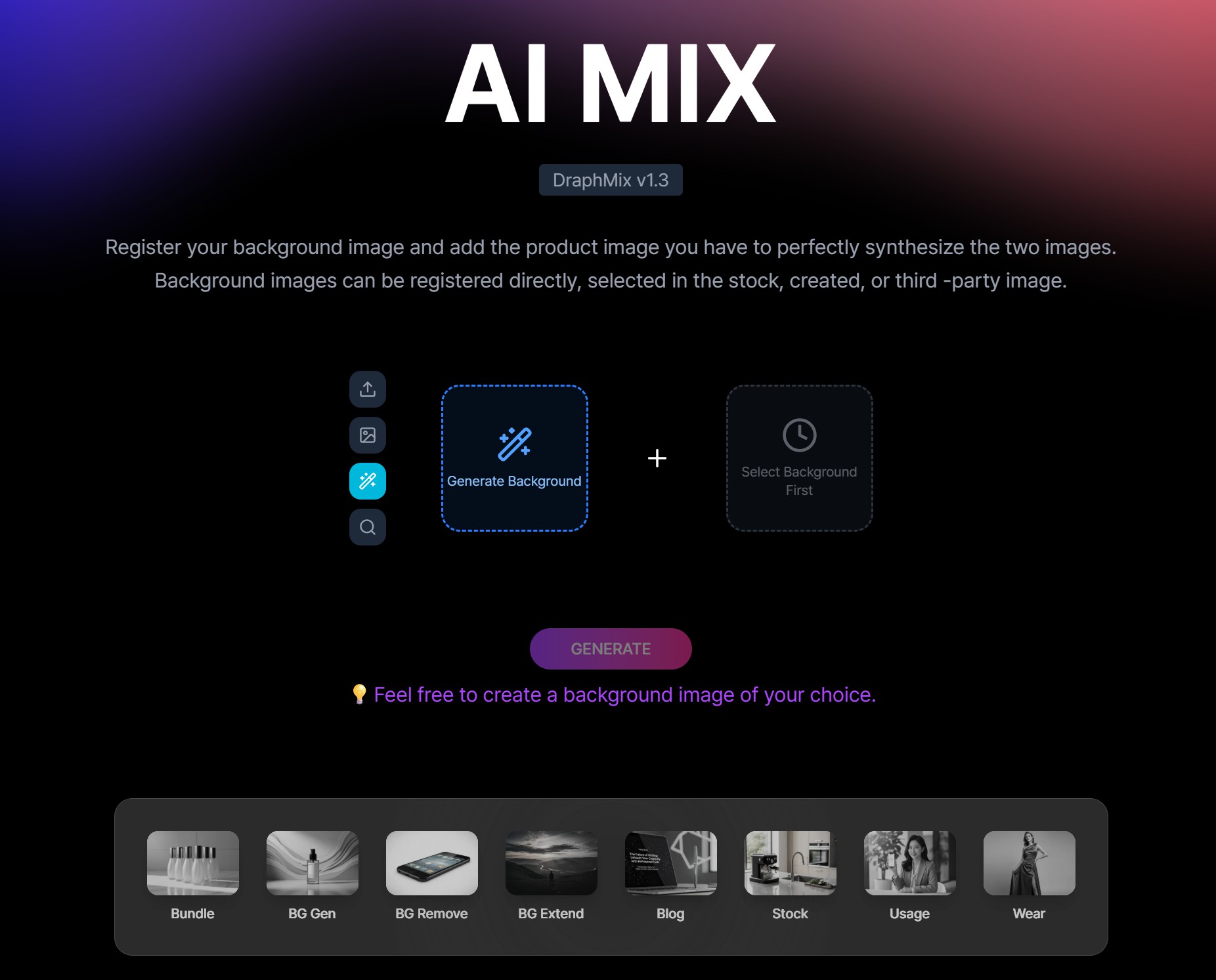
▶ Try the New AI Mix for Free Right Now
AI Mix? What's Different?
Model images have been added to stock
Model images have been added to Draph Art stock, so now you can select and synthesize images with people as background images too. But that's not all - it's really amazing that the model's pose even changes to match your product! Draph Art's AI Mix is a cutting-edge feature that uses the latest image generation AI technology to go beyond simple synthesis and naturally change the model's pose too.
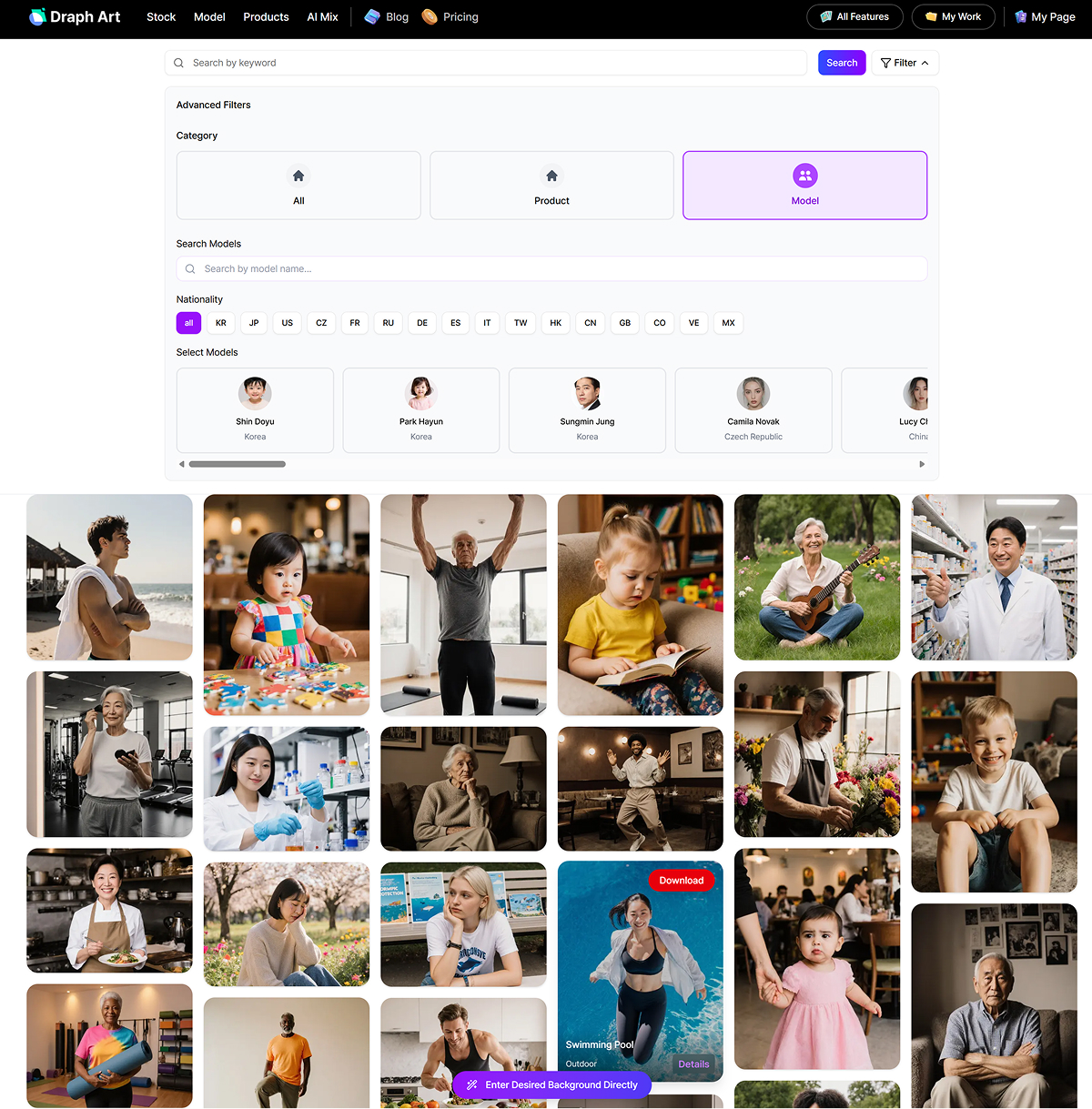
Draph Art Model features now in AI Mix too!
When synthesizing model images from stock with products, you can now change the model's pose or change their clothes just like the core 'wearing cut' and 'using cut' features that were previously separate in the Model function.
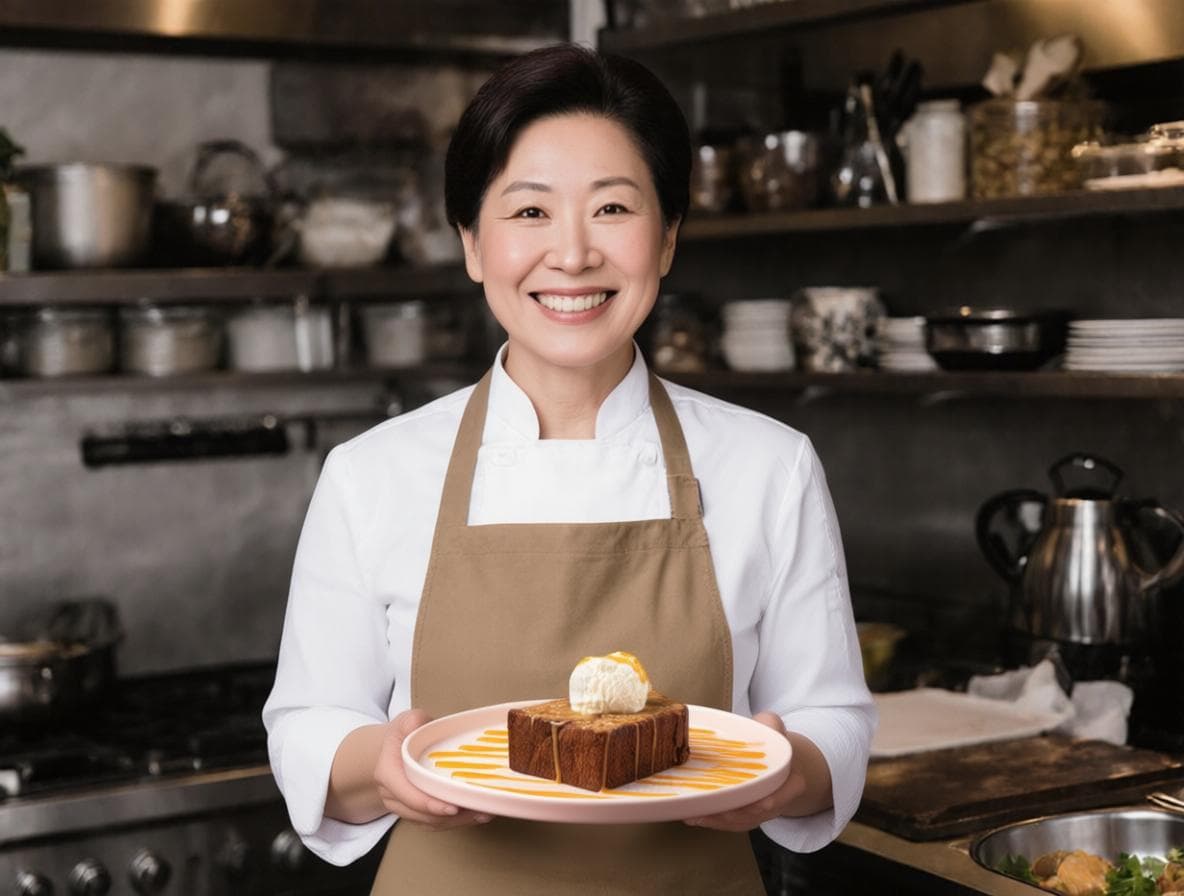
For example, when you synthesize a honey bread product image with the chef model image below, it naturally synthesizes into an image where the chef model is holding the honey bread with both hands.
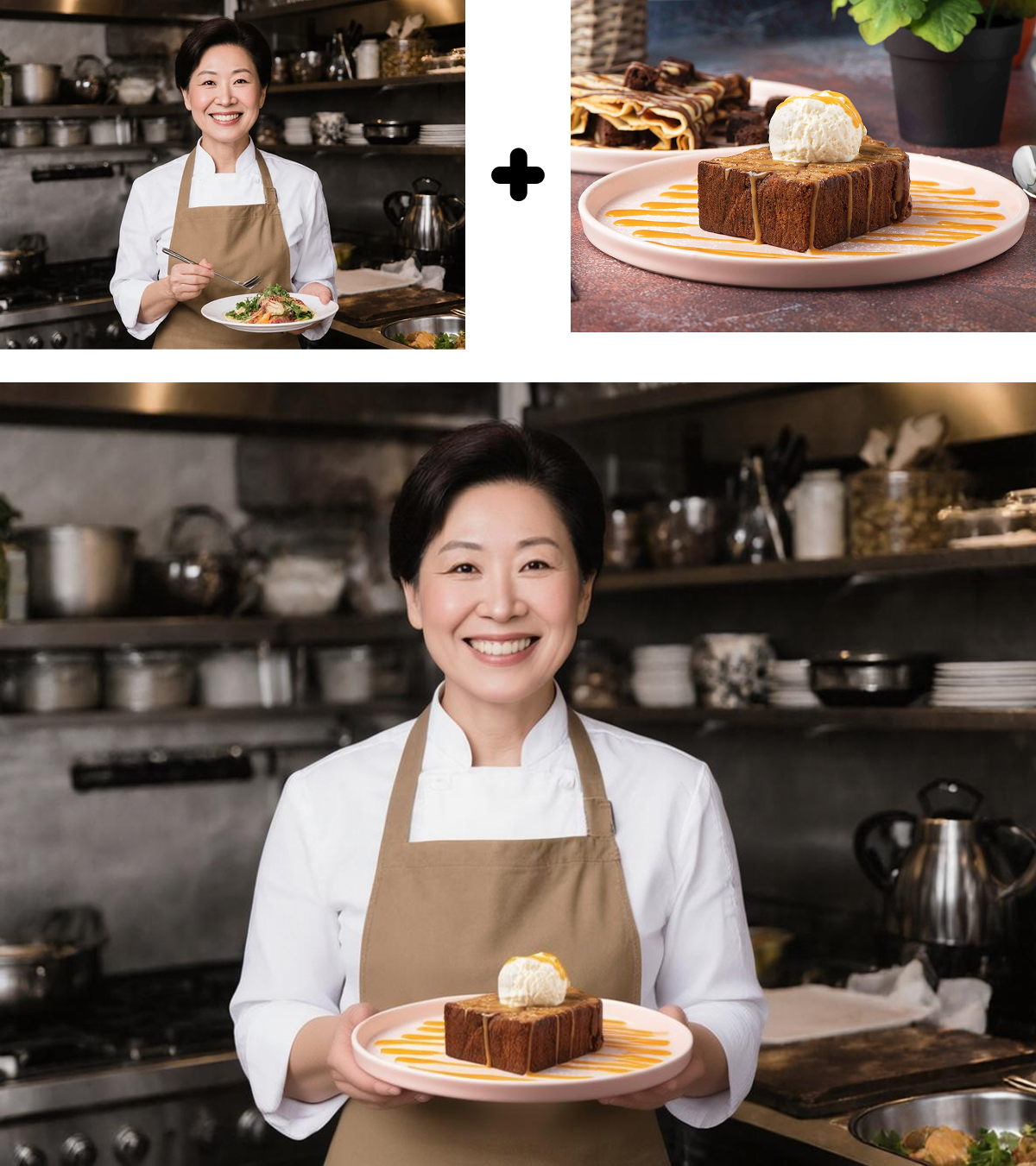
Creating Various Model Images with AI Mix Without Photoshoots
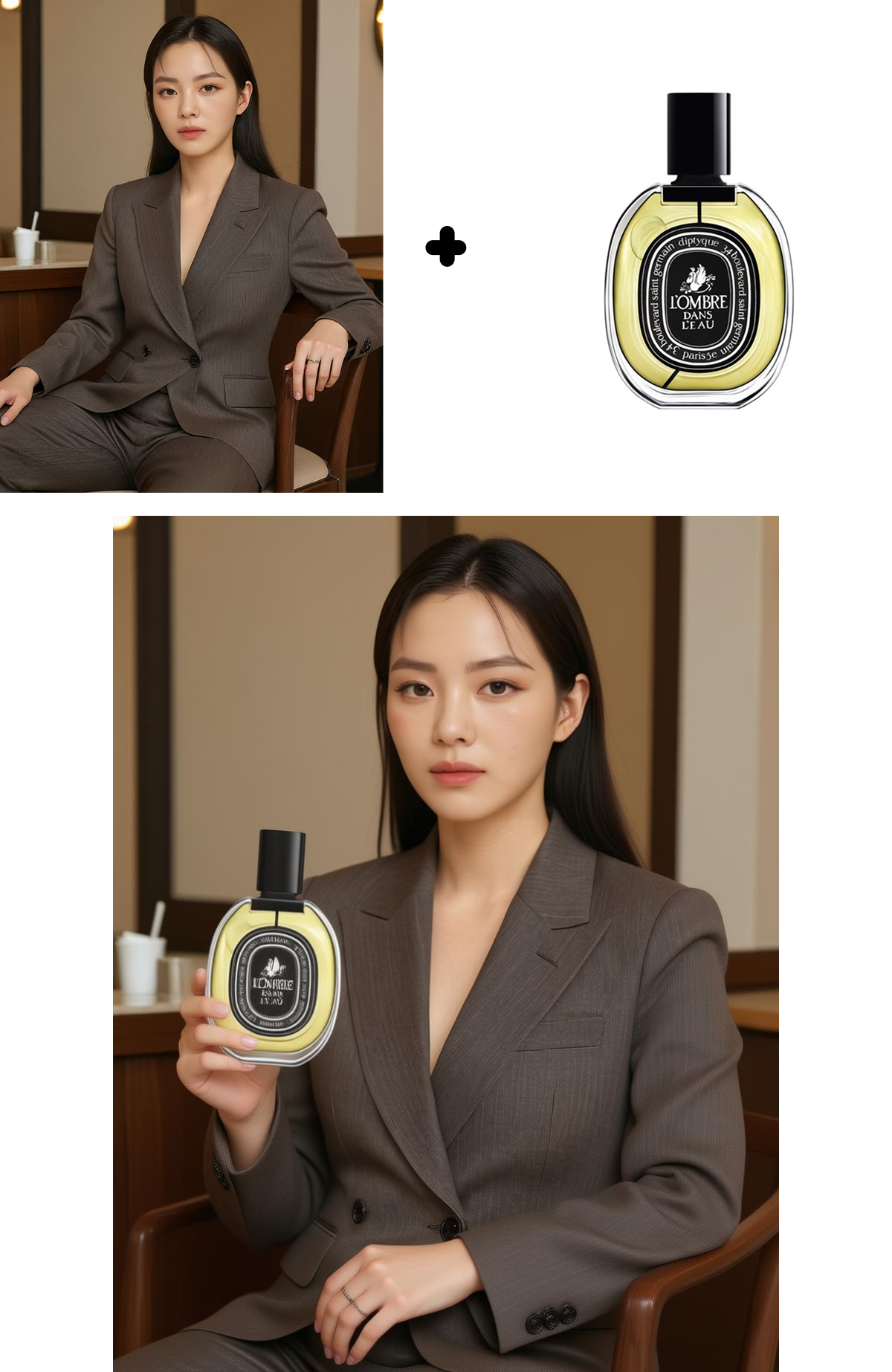
Creating cosmetics using cuts
When you place cosmetics near the hands of a model in attention stance, AI automatically changes it to a natural pose where that model is elegantly holding the cosmetics. It creates a perfect using cut as if the actual model posed specifically for that product.
Creating clothing wearing images
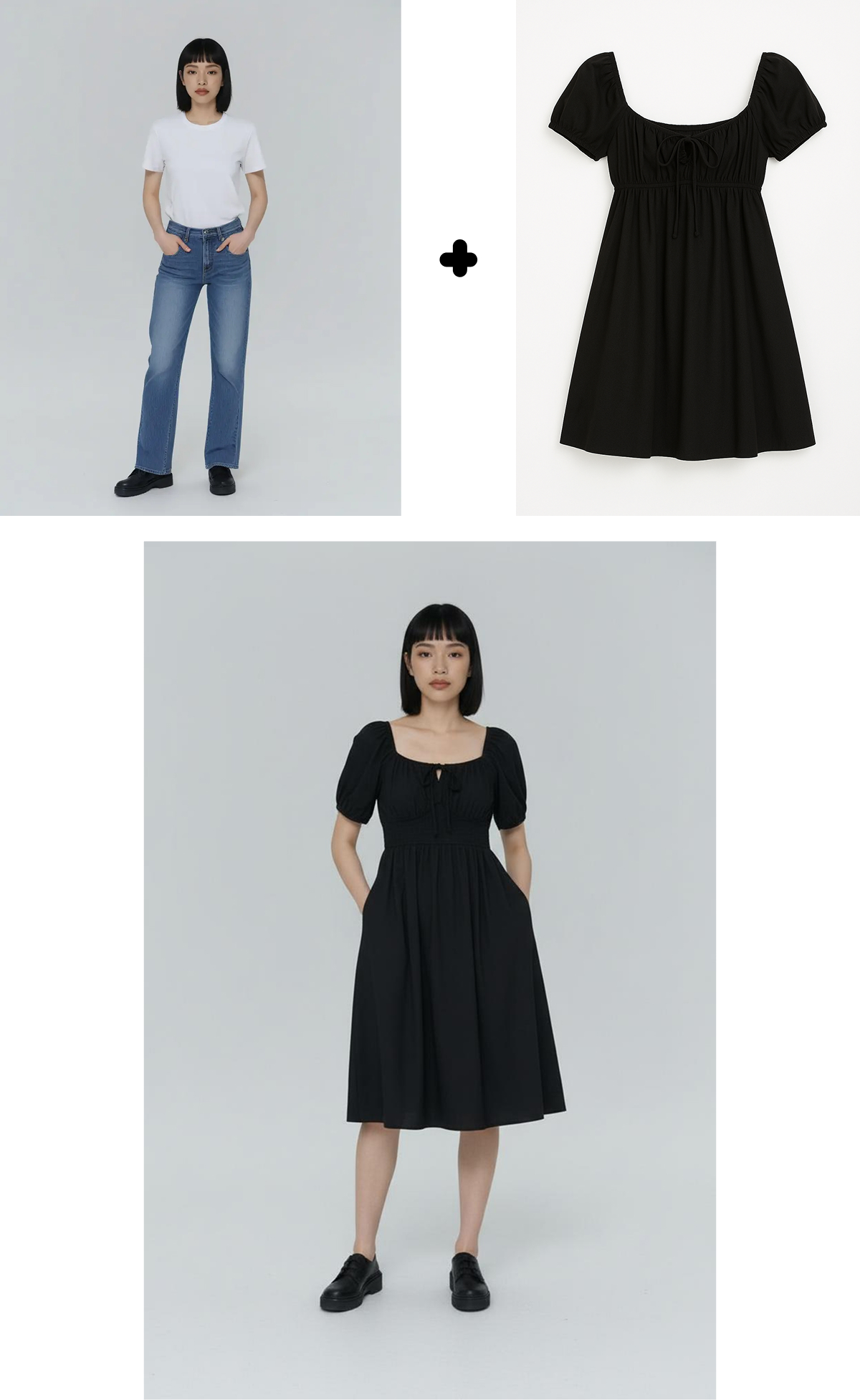
Select a model image wearing a white tee and jeans, then place a dress on top. The existing clothes disappear and it completely changes to show the model wearing the new dress. It's so natural that you can't tell the difference from an actual photoshoot of that model wearing those clothes.
How to Use AI Mix
Using AI Mix is exactly the same as using the existing AI Composition feature. Select a background image, upload a product image, and specify the product position and size. In this post, let's go into detail about how to do 'model image synthesis' using the newly updated AI Mix feature.
AI Mix Step 1: Select Background Image (= Model Image)
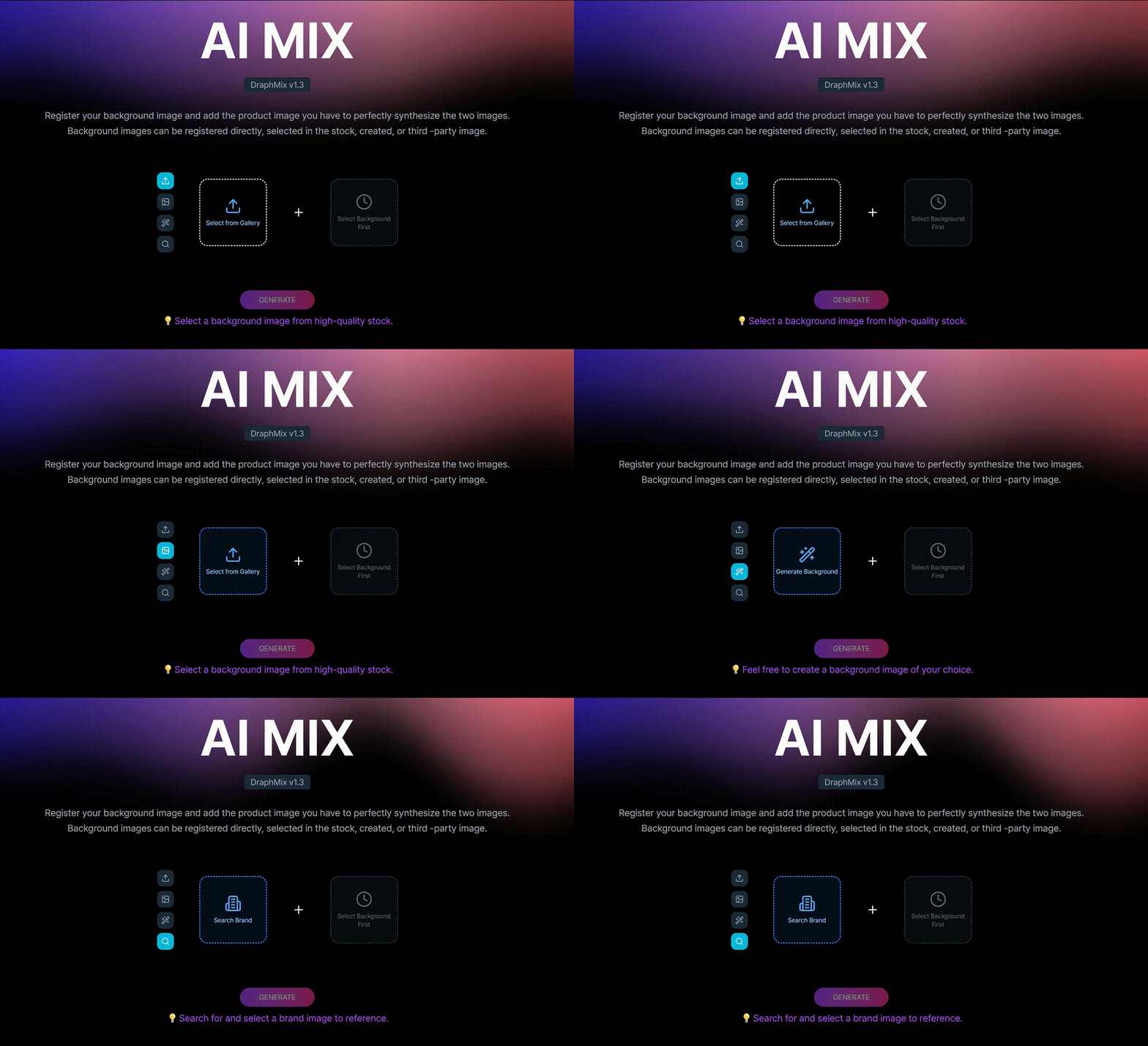
AI Mix is a feature that registers a background image and adds your product image to perfectly synthesize the two images, so you need a background image and product image to synthesize. You can register background images directly, select from stock, generate them, or search and use third-party images.
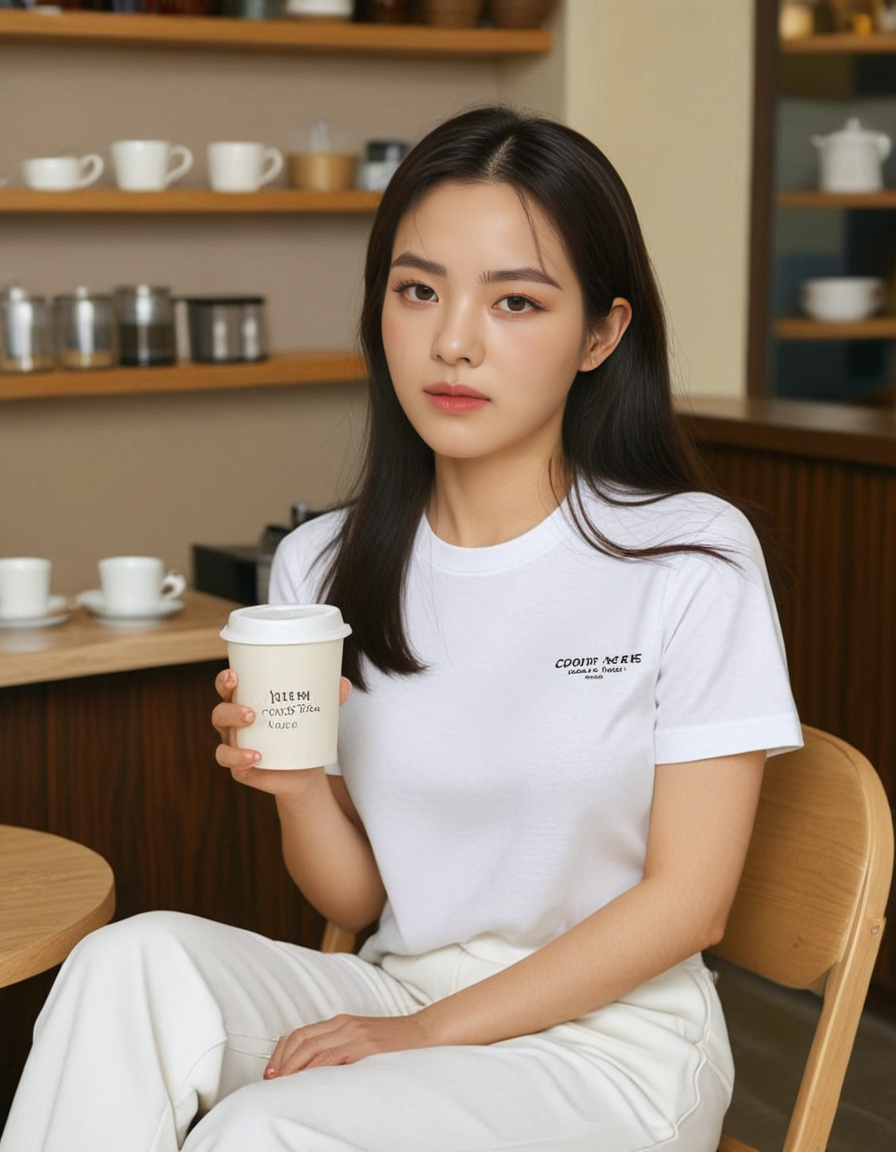
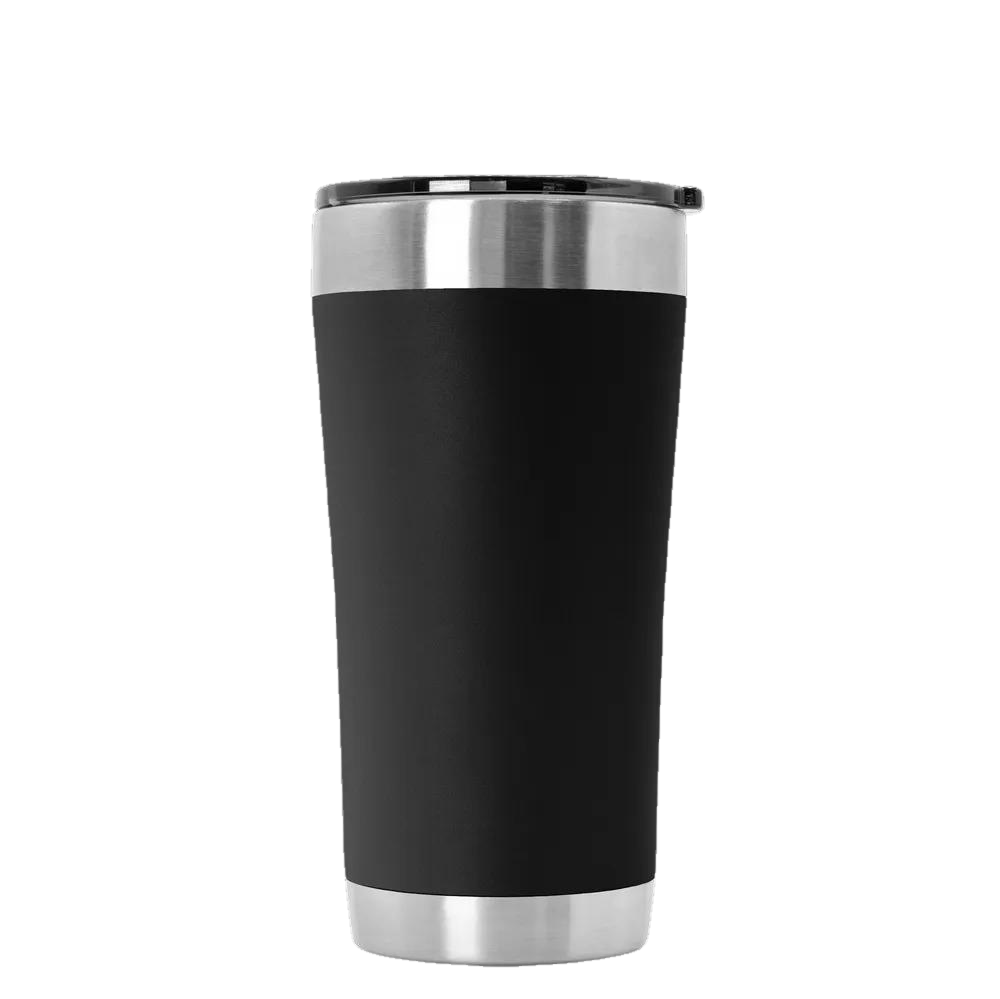
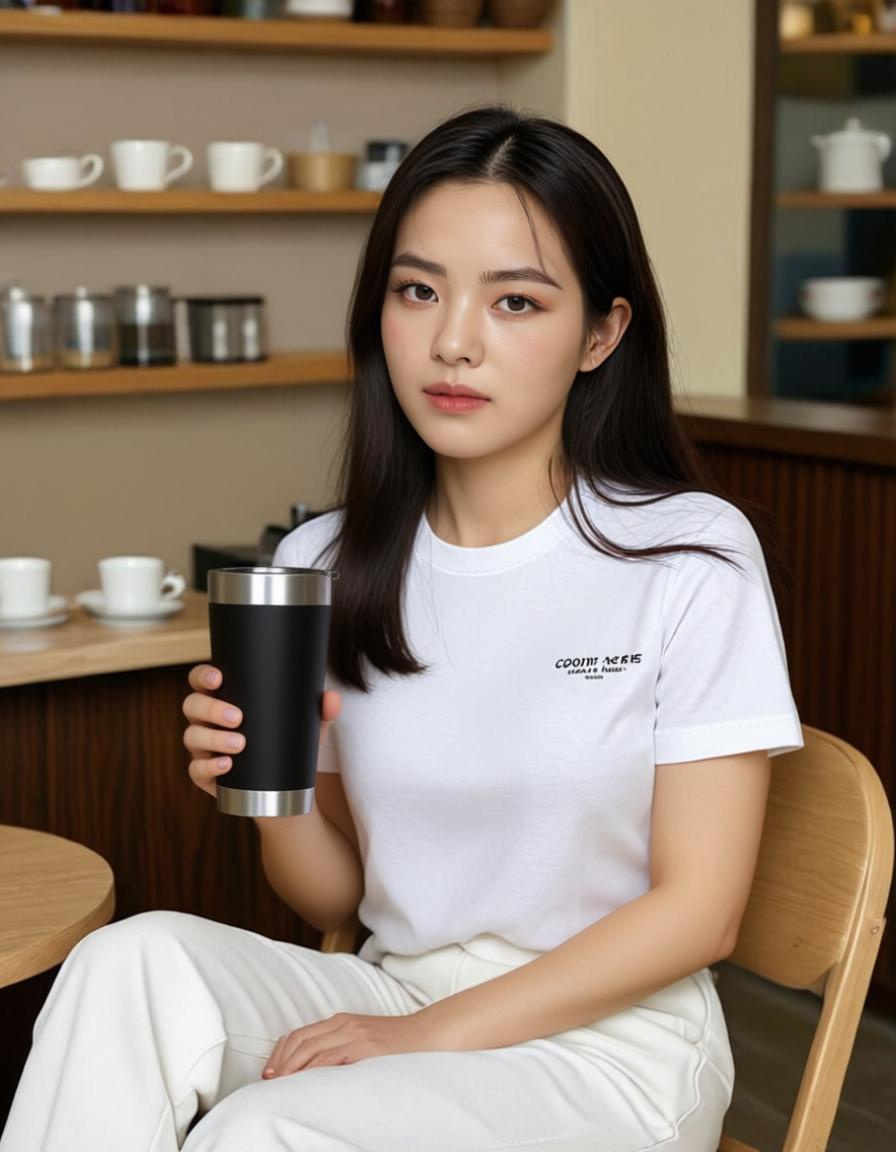
In this post, I selected a model image to use as a background image from Draph Art's stock. I'm going to replace what the model is holding in the left image with the tumbler image I sell on the right.
AI Mix Step 2: Upload Product Image and Adjust Position and Size
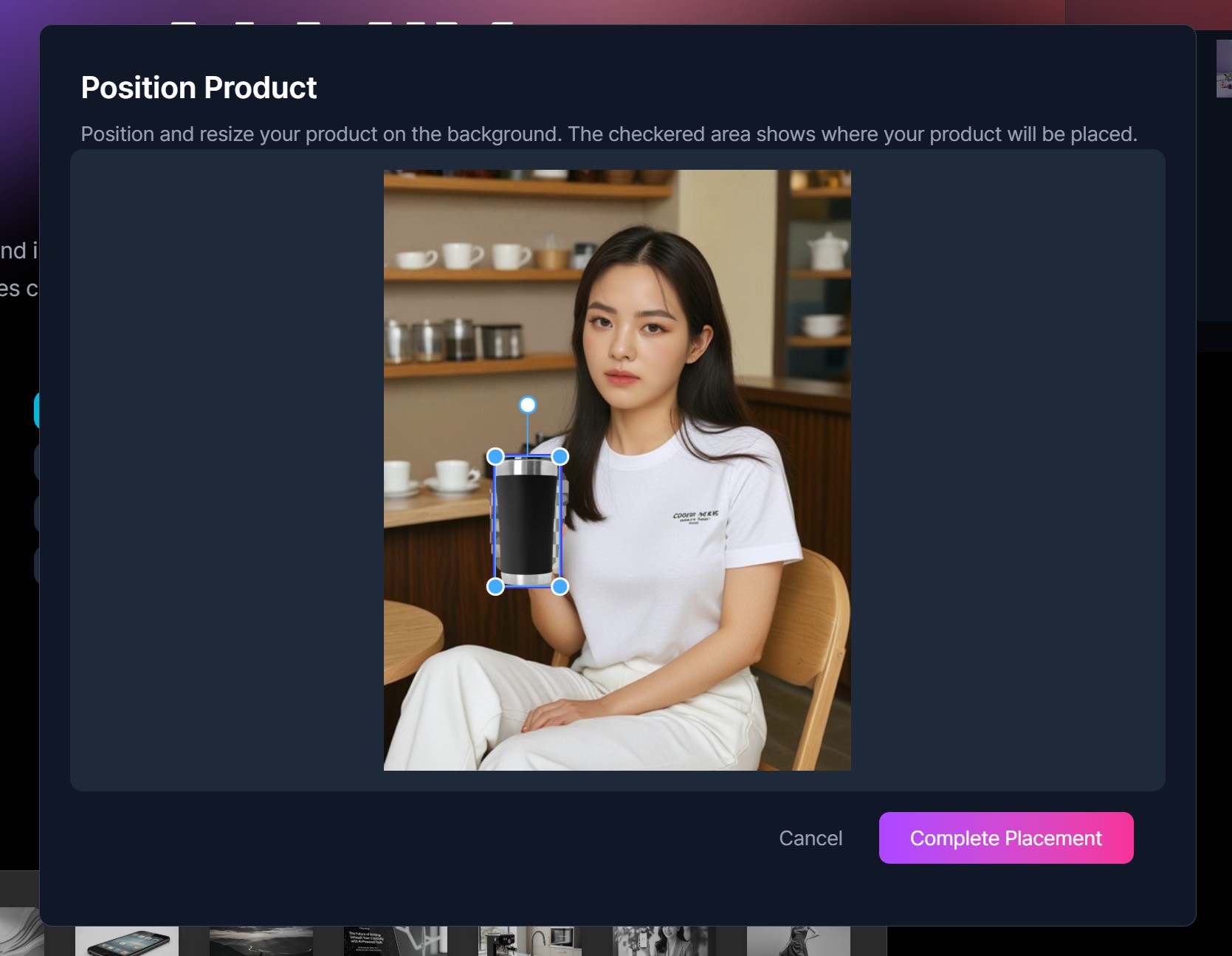
When you upload a product image, AI automatically does the background removal work and cleanly extracts just the product area. You can synthesize right away without complex background removal work. When you upload the tumbler product image, a popup for adjusting product position and size appears. Move the product image to where the product should go. Then click the placement complete button.
AI Mix Step 3: Start Generation
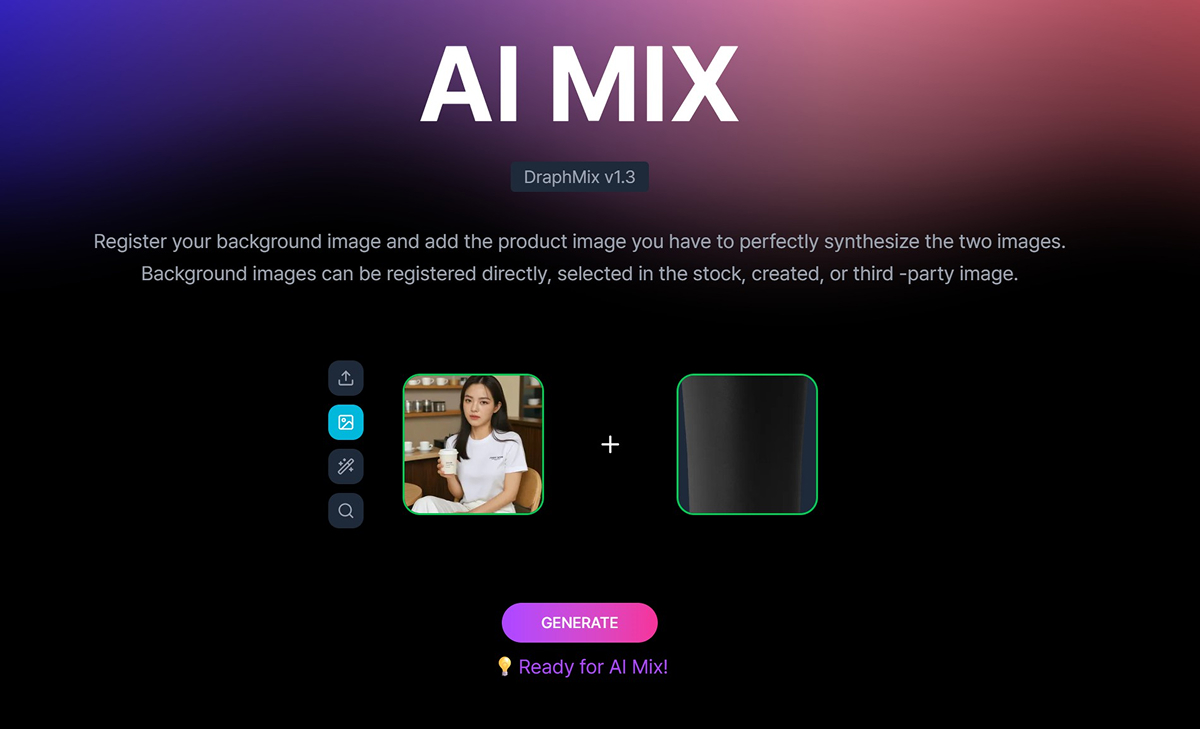
Once placement is all done, you'll see a screen like below. Click the generate button here to start generation.
AI Mix Step 4: Generation Complete
When generation is complete, the generated image shows on the right side of the screen. Draph Art's AI Mix feature produces 2 results, so choose and download the image you like from the 2 options.
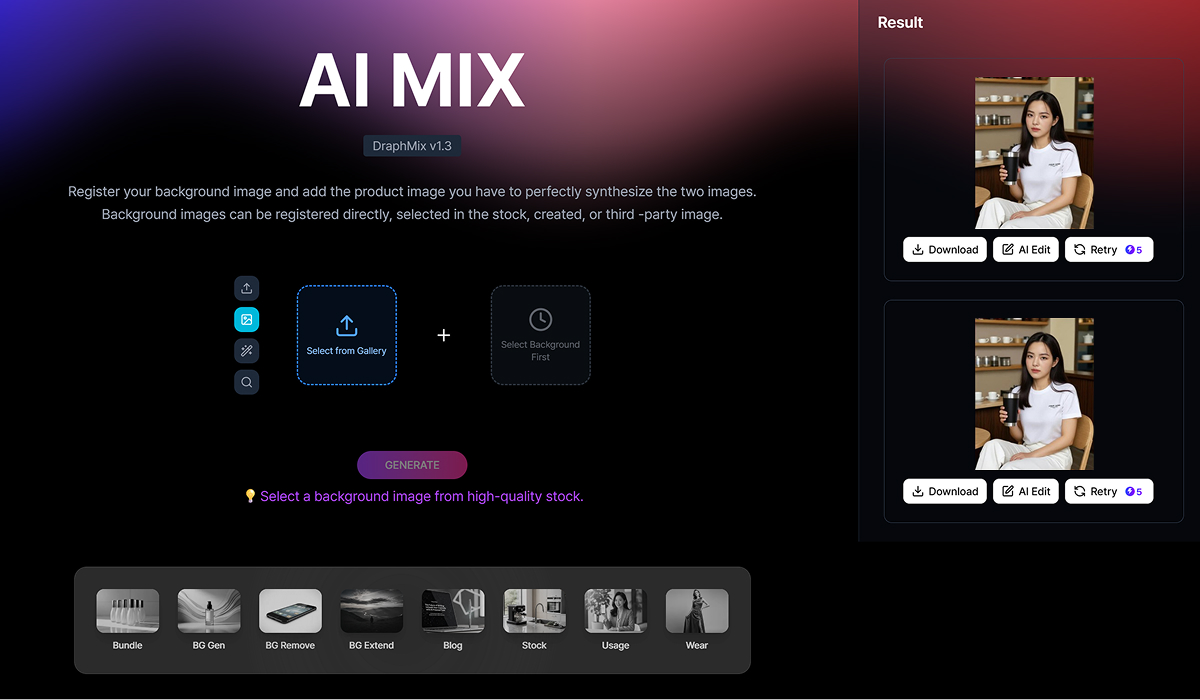
How about that? The model and product are synthesized perfectly, right?
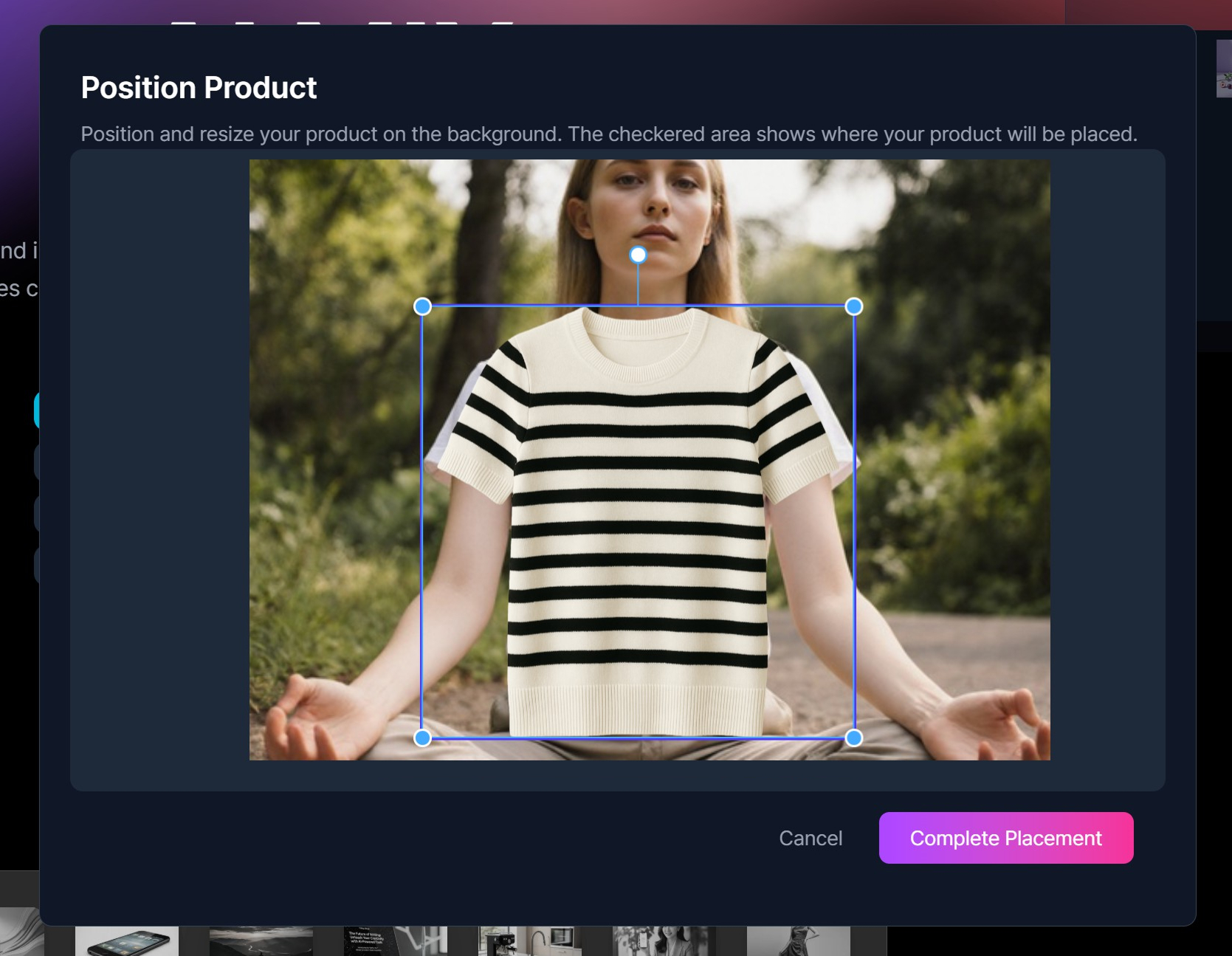
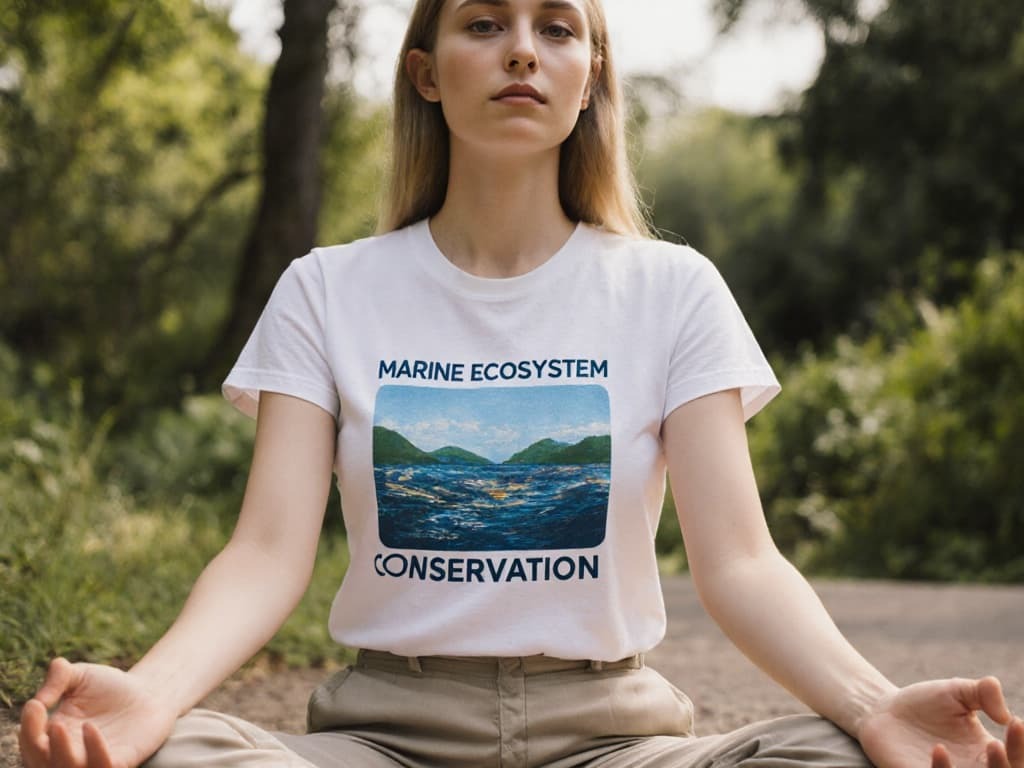
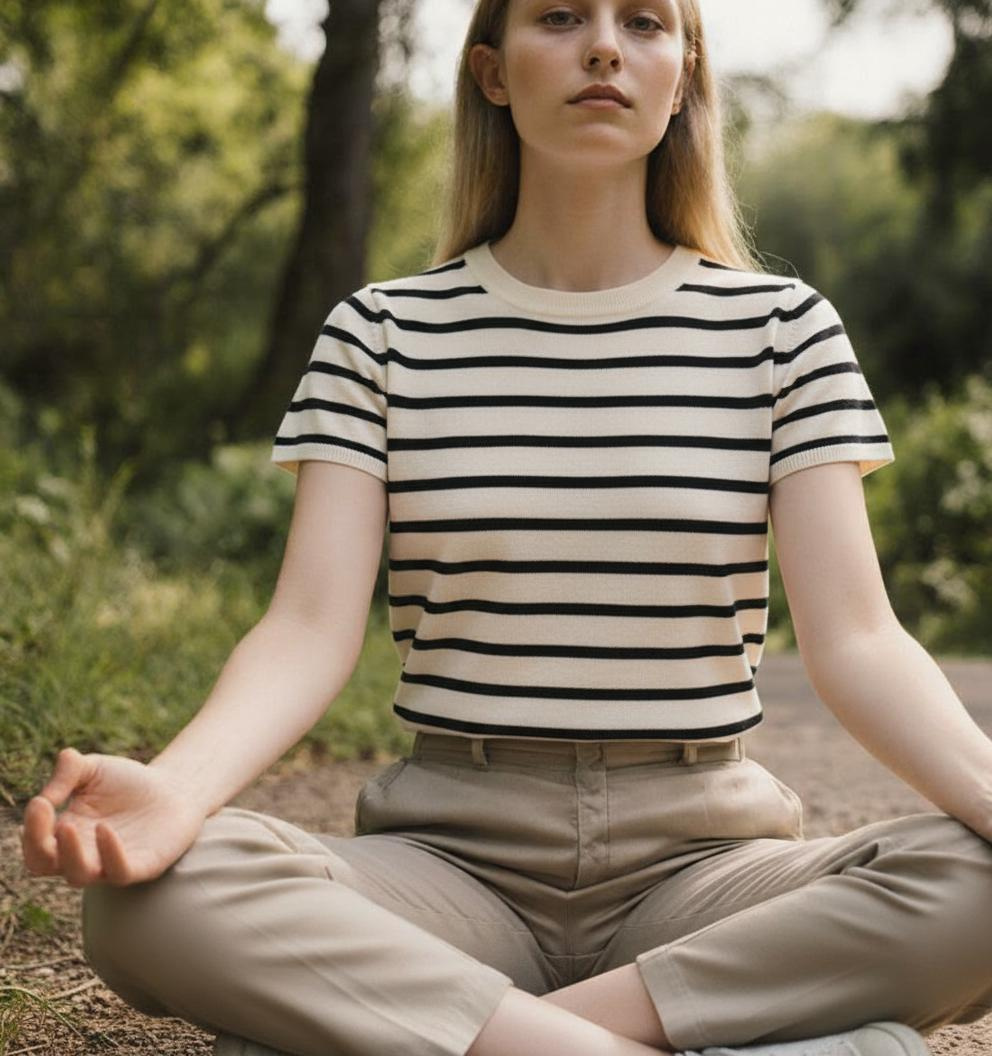
That's not all. Draph Art's AI Mix feature can also replace the model's clothes like in the image below. Select a model image from stock and place the clothes you want them to change into on the model like in the image below.
The model changed clothes perfectly, right?
This Draph Art AI Mix update focused on making AI image generation technology easier and more convenient to use! AI Mix goes beyond simple background synthesis to even change the model's pose! You can create unlimited images you want without having to do separate photoshoots!

