

목차
要約
- RunwayはGen-4まで発売されたAI動画生成プラットフォームで、一貫したキャラクターとオブジェクト生成が強みです。
- 無料プランから月額95ドルのUnlimitedプランまで様々な料金プランがあり、初めて使用するユーザーには625クレジットが提供されます。
- Gen-3、Gen-4、Gen-4 Turboなど複数のバージョンを提供しており、それぞれ速度とクオリティで差別化されています。
- References機能で1枚の画像だけで様々なシーンで一貫したキャラクターを生成できます。モデル動画が必要ならドラップアートのAI人物動画機能でもっと簡単に速く制作できます。

AI技術の発展で誰でも手軽に動画を作れる時代が来ました。特にAI動画制作分野で注目されているRunway(ランウェイ)は、動画を作ってくれるAIの中でもハリウッドの制作会社が実際に使用するほど認められているプラットフォームです。今日はRunwayのすべてを調べて、動画制作AIを効果的に活用する方法まで見ていきましょう。
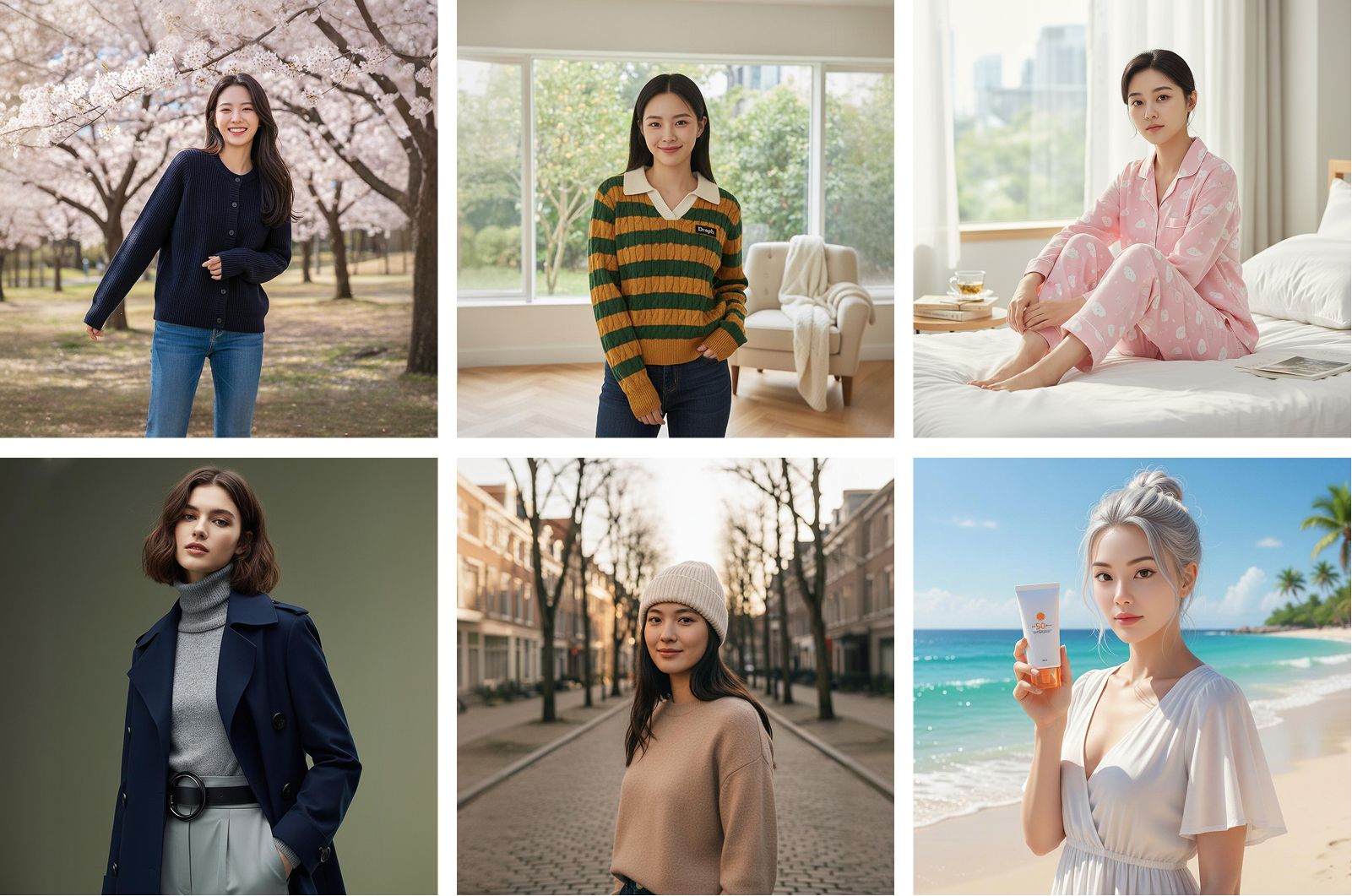
動画コンテンツが重要になる時代ですが、モデルをキャスティングして撮影することは依然として負担です。オンラインショップを運営しているならドラップアートに注目してみてください。ドラップアートはAIベースの商品画像およびモデル動画生成サービスで、プロのスタジオ撮影に比べて90%以上のコストを削減しながら高品質の製品プロモーションコンテンツを作ることができます。AI人物機能で100人以上の多様なAIモデルを活用して製品着用カットから使用カットまで30秒で制作でき、このように作った画像をすぐに動画に変換することもできます。プロンプト作成や複雑な設定なしでもクリック数回でモデル動画を完成できます。
1. Runwayとは?ハリウッドが注目するAI動画プラットフォーム
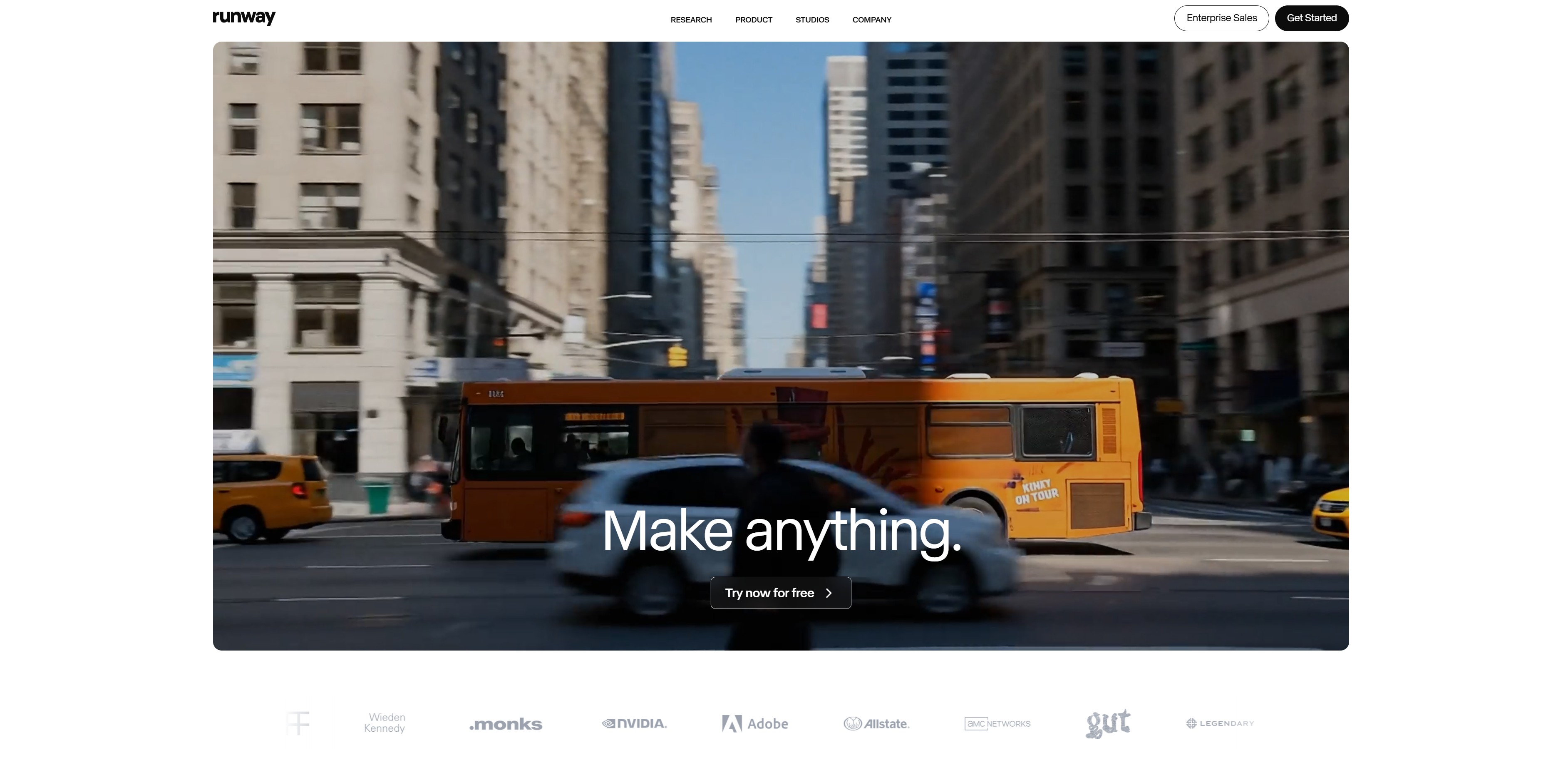
Runwayはアメリカの生成型AI開発会社が作ったAI動画制作サイトです。2024年9月にはハリウッド映画会社Lionsgateとパートナーシップを結び、映画制作にも活用されています。
Runway主要機能
- 画像を動画に変換: 1枚の画像があれば動画にしてくれます
- References機能: 1枚の参照画像で複数のシーンで一貫したキャラクターを生成します
- 最大10秒動画生成: Gen-4では5秒または10秒の動画を作ることができます
- 4Kアップスケール: 生成した動画を4K高画質にアップグレードできます
- Lip Sync機能: キャラクターの口の形を音声と自然に同期します

Sora 2、Veo 3と比較したときのRunwayの長所は?
RunwayはSora 2やVeo 3と比較したときいくつかの確実な長所があります。無料プランで始められるので負担なくテストでき、会員登録時に125クレジットが提供されてサービスを体験できます。特にReferences機能は1枚の画像だけで様々な照明、背景、カメラアングルでもキャラクターの一貫性を維持でき、ストーリーテリングに強力です。
2. Runway価格および料金プラン総まとめ
Runway価格は使用量によって4つのオプションがあります。すべての料金プランは月間または年間で購読でき、年間購読時は約20%割引が適用されます。
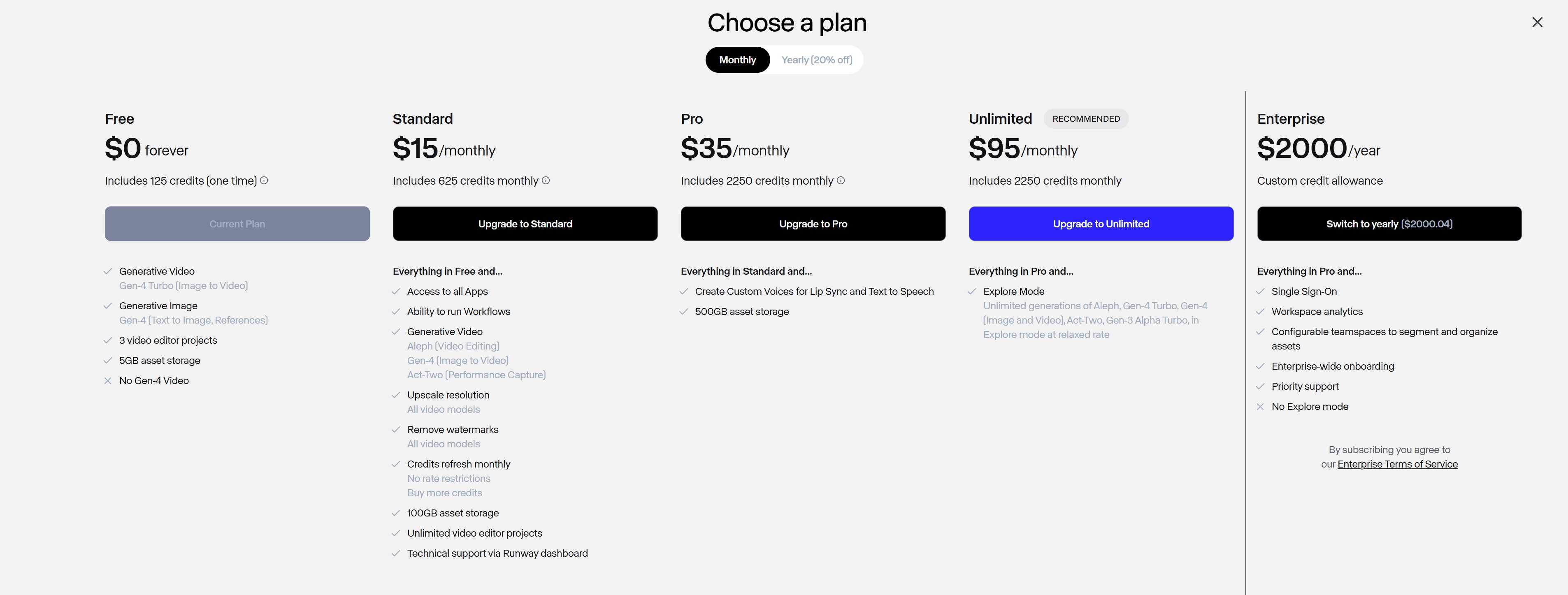
無料プラン(Free)
- 価格: 無料
- 提供クレジット: 月125クレジット
- 主要機能: Gen-4、Gen-4 Turbo、Gen-3 Alpha Turbo使用可能
- 制限事項: ウォーターマーク含む、低い優先順位処理
Standardプラン
- 月間: $15 / 年間: $12(月換算)
- 提供クレジット: 月625クレジット
- 主要機能: Gen-4 52秒、Gen-4 Turbo 125秒、Gen-3 Alpha 62秒生成可能
- 最大5人まで使用可能
Proプラン
- 月間: $35 / 年間: $28(月換算)
- 提供クレジット: 月2,250クレジット
- 主要機能: Gen-4 187秒、Gen-4 Turbo 450秒生成可能
- Custom Voices生成可能
- 最大10人まで使用可能
Unlimitedプラン
- 月間: $95 / 年間: $76(月換算)
- 無制限生成: Gen-4 Turbo、Gen-3 Alpha Turbo無制限使用
- 優先処理: 待機時間約70%短縮
- 最大10人まで使用可能
無料AI動画制作サイトを探しているならFreeプランで始めることをおすすめします。毎月125クレジットが提供されるのでテスト用に十分です。本格的に動画をたくさん作る必要があるならProやUnlimitedプランがコスパが良いです!Runway価格の詳細は料金プランページを確認してください。
3. Runway使い方: 画像から動画を作る
Runway使い方は思ったより簡単です。画像を動画に変換する方法を段階別にお伝えします。
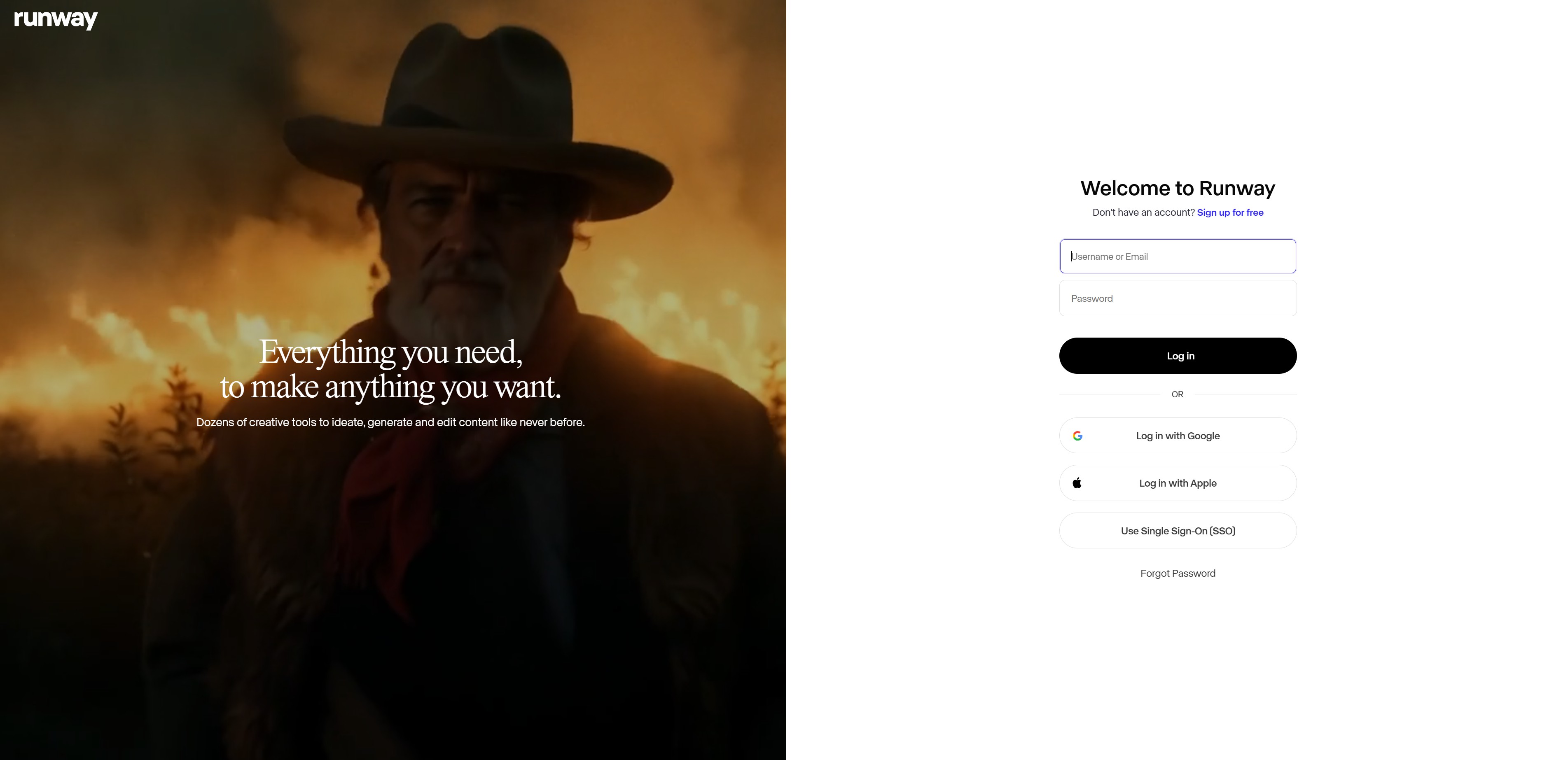
Step 1: Runwayウェブサイトアクセスおよびログイン
Runway公式ウェブサイトにアクセスしてメールで会員登録します。
Step 2: 新しいセッション開始
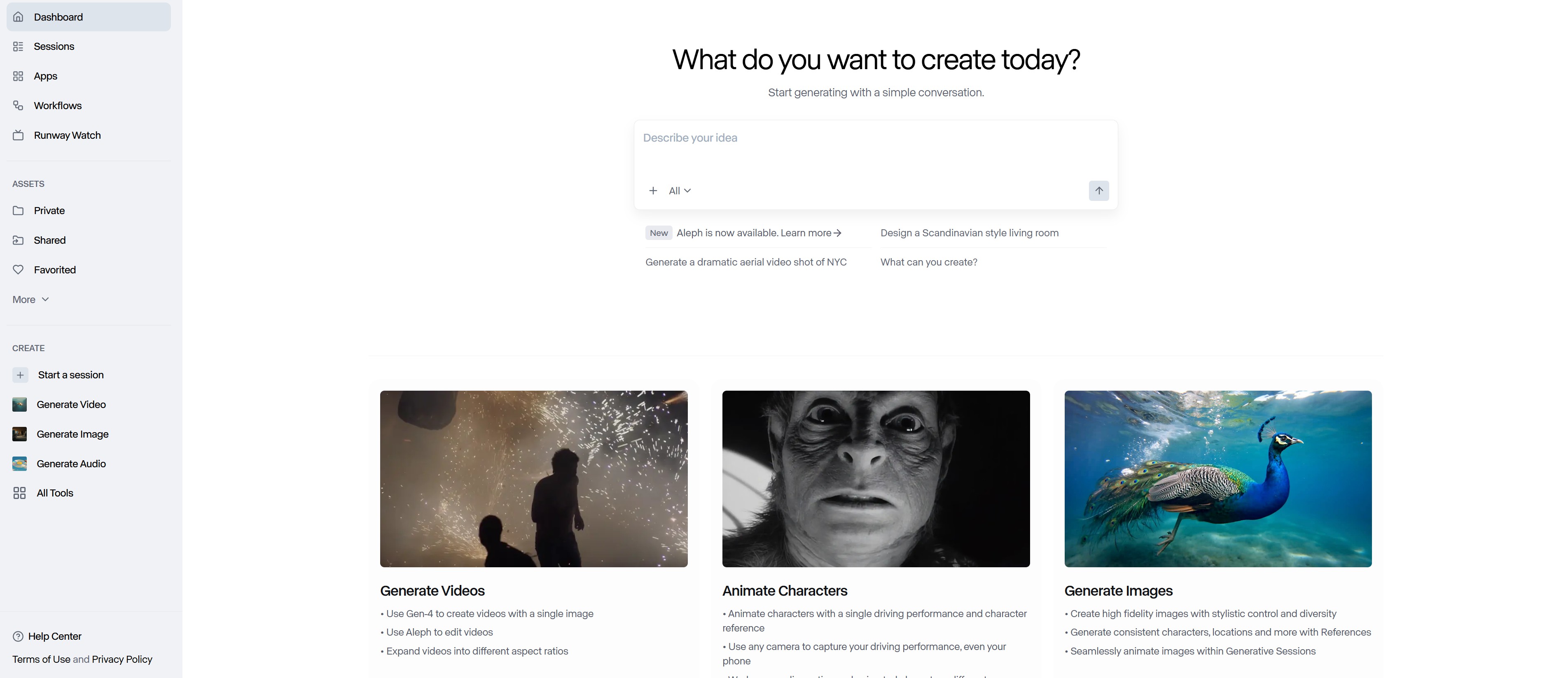
左側のメニューで「Sessions」をクリックした後、「New Session」ボタンを押して新しいプロジェクトを開始します。
Step 3: 動画生成方法選択
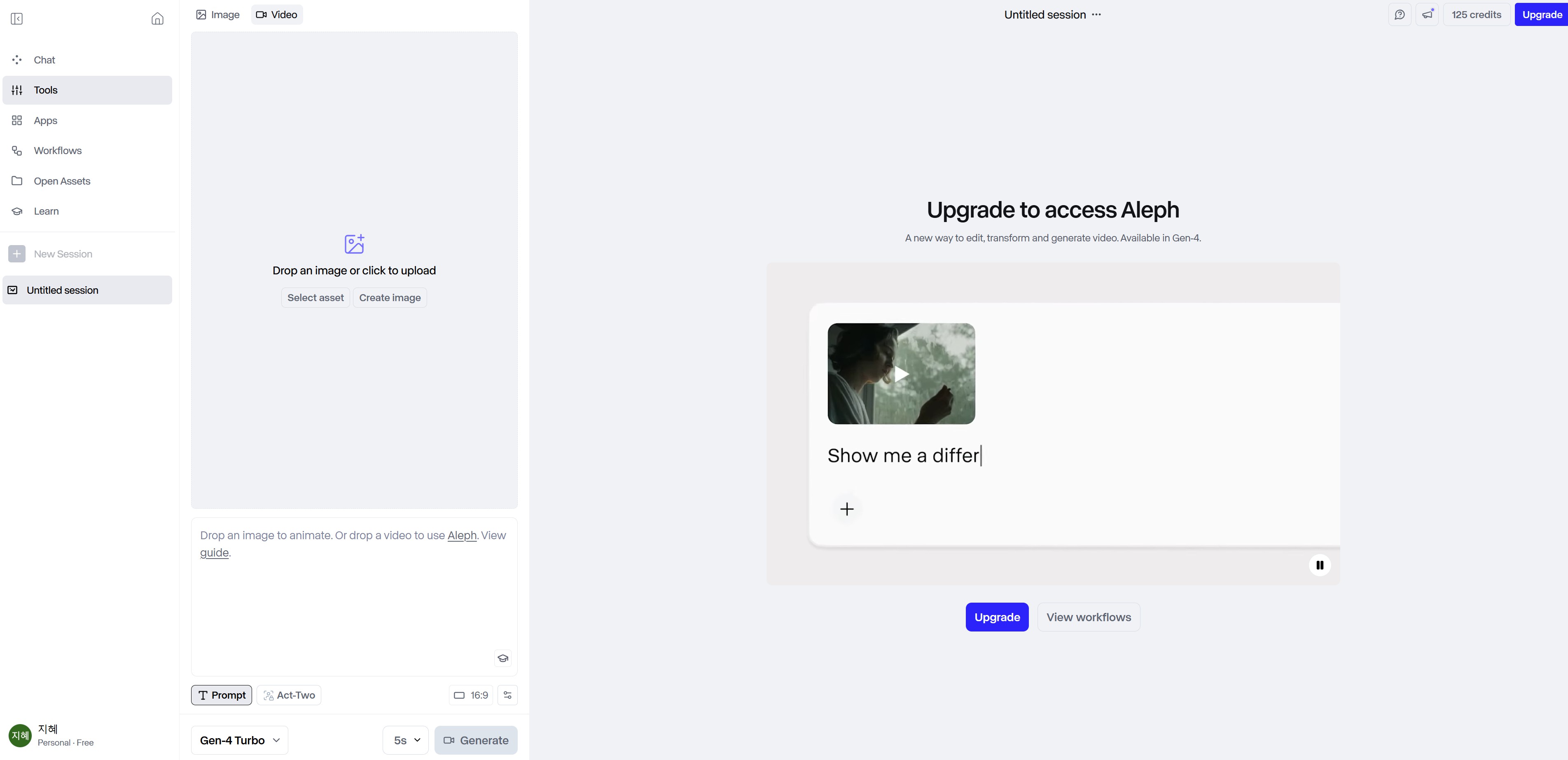
Chat、Tools、Appsの中から動画生成方法を選択します。私はToolsで画像をアップロードして動画にしてみます。
Step 4: 画像アップロードおよびプロンプト入力
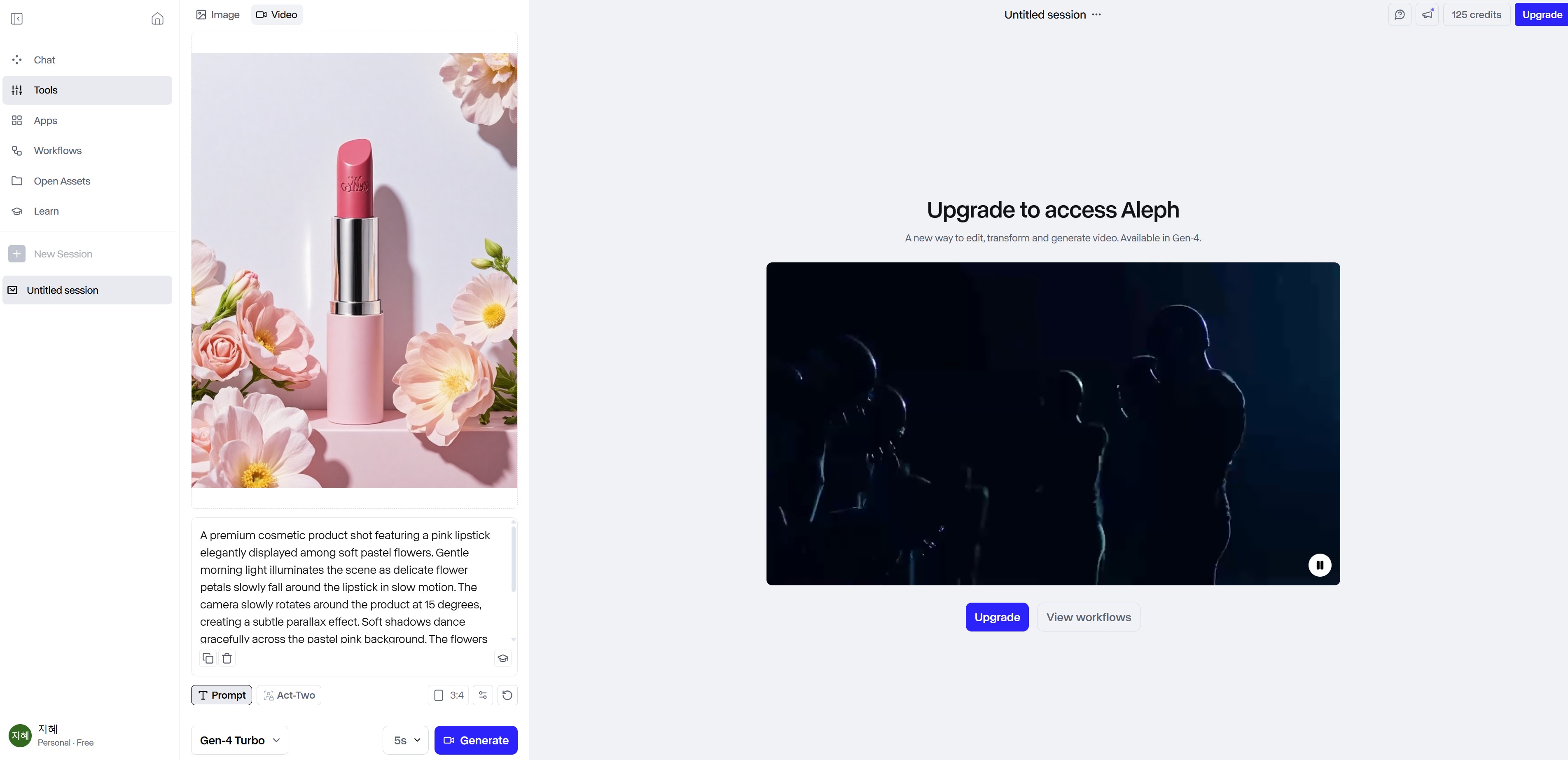
動画にする画像をアップロードし、どんな動きをつけるかプロンプトに作成します。例えば「カメラがゆっくり左側にパンして製品を強調する」のように具体的に書くと良いです。その次に画面比率、生成モデルなどを選択してください。
Step 5: 動画生成
Generateボタンを押すと約1〜3分後に動画が完成します!

동영상 서비스가 종료되어 해당 콘텐츠를 재생할 수 없습니다.
4. Gen-2 vs Gen-3 vs Gen-4、どのバージョンを使うべき?
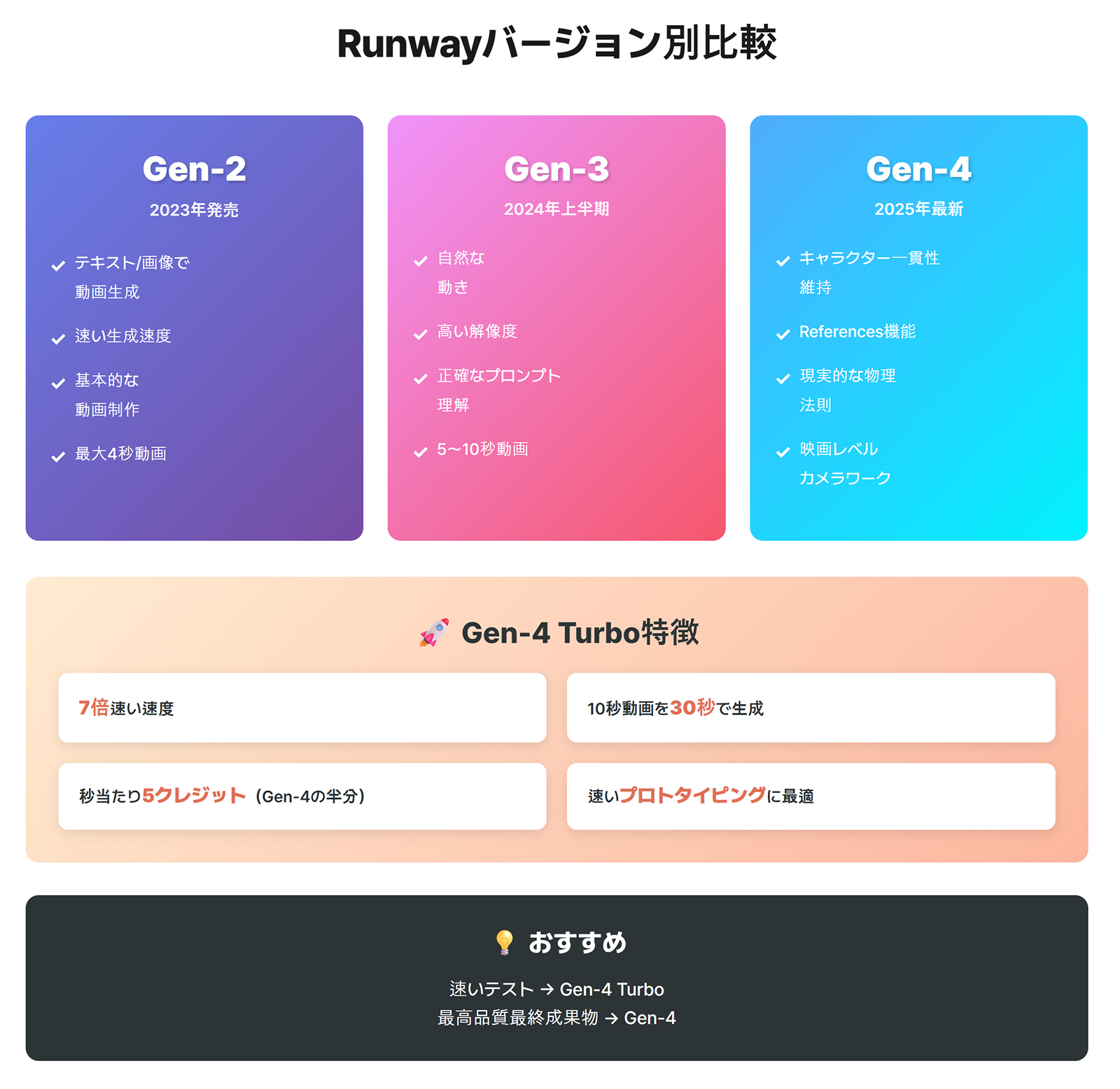
Runwayは継続的にアップデートされています。現在Runway Gen-2、Runway Gen-3、Runway Gen-4まで使用できますが、それぞれ長所と短所があります。
Runway Gen-2の特徴
- 2023年発売された最初の動画生成モデルです
- テキストと画像で動画生成可能です
- 相対的に速い生成速度を誇ります
- 基本的な動画制作に適しています
Runway Gen-3の特徴
- 2024年上半期発売されたモデルです
- Gen-2に比べてはるかに自然な動きと高い解像度を提供します
- 複雑なプロンプトも正確に理解します
- 5秒または10秒動画生成が可能です
Runway Gen-4の特徴(2025年最新)
- 2025年4月発売された最新モデルです
- References機能でキャラクターとオブジェクトの一貫性を維持します
- 複数のシーンでも同じキャラクターを正確に再現します
- 現実的な物理法則シミュレーションが可能です
- 映画レベルのカメラムーブメントを実現します
Runway Gen-4 Turboの特徴
- Gen-4と同じ機能を提供しますが速度が7倍速いです
- 10秒動画をわずか30秒で生成します
- クレジット費用がGen-4に比べて半分以下です(秒当たり5クレジット)
- 速いプロトタイピングに最適化されています
おすすめ: 速いテストが必要ならGen-4 Turbo、最高品質の最終成果物が必要ならGen-4を使用してください!
5. Runwayプロンプト作成ガイドと例示
Runwayプロンプトをうまく書くことが良い動画を作る核心です。AIプロンプトサイトを参考にするか、下記のガイドに従ってみてください。
Runwayプロンプト作成ガイド
- 英語で作成してください: Runwayは英語プロンプトが最も正確です
- カメラの動きを明示してください: 「slow zoom in」、「pan left」、「tracking shot」など
- 照明と雰囲気を説明してください: 「golden hour」、「soft shadows」など
- 具体的に描写してください: 漠然とした表現よりは詳細を書きます
- 物理的に自然な動作: 現実で可能な動きで表現します
Runwayプロンプト例示
製品広告用
「A luxury watch slowly rotating on a marble table, soft studio lighting from above, camera slowly zooms in on the watch face, elegant and sophisticated atmosphere」(高級時計が大理石テーブルの上でゆっくり回転し、上から柔らかいスタジオ照明が照らし、カメラが時計表面にゆっくりズームイン、優雅で洗練された雰囲気)
ファッションブランド用
「A model walking down a city street in stylish outfit, confident stride, camera follows from behind, urban background with blurred lights, cinematic feel」(スタイリッシュな衣装を着たモデルが都市の通りを自信を持って歩き、カメラが後ろから追いかけ、ぼやけた照明の都市背景、映画のような感じ)
SNSショート動画用
「Close-up of hands holding a coffee cup, steam rising, morning sunlight through window, slow motion, cozy and warm atmosphere, 5 seconds」(コーヒーカップを持っている手のクローズアップ、湯気が立ち上り、窓から朝の日差しが入り、スローモーション、居心地の良い暖かい雰囲気、5秒)
Runwayプロンプトおすすめキーワード
- カメラ: close-up、wide shot、slow zoom、pan、dolly、tracking shot、aerial view
- 照明: golden hour、soft light、dramatic shadows、backlight、studio lighting
- 動き: floating、rotating、walking、running、slow motion
- 雰囲気: cinematic、elegant、energetic、peaceful、mysterious、dreamy
6. モデル動画が必要なら?ドラップアートAI人物動画機能
Runwayは強力なAI動画制作サイトですが、完璧な成果物を得るにはプロンプト作成の実力と何度もの試行が必要です。特にモデルが製品を着用したり使用したりする動画を作るときはさらに複雑です。画像準備からプロンプト作成、何度もの再生成まで思ったより時間がかかります。
もしオンラインショップを運営していてモデルが製品を着用した動画や製品を使用する動画が必要なら、ドラップアートのAI人物動画機能をおすすめします。Runwayのような汎用的な無料AI動画制作サイトとは異なり、ドラップアートはコマース用モデル動画制作に特化しています。
ドラップアートAIモデル動画制作機能の長所
- プロンプト作成不要: 複雑な英語プロンプトを書く必要なくクリック数回で完成します
- 30秒でモデル画像生成: 100人以上のAIモデルの中から選択して製品画像をアップロードするだけで終わりです
- 画像から動画へワンクリック: 生成されたモデル画像をすぐに動画に変換できます
- 自動ポーズ調整: 衣類は自動的に着用カットに、化粧品は使用カットに自然に変換されます
- 費用効率的: プロのモデル撮影に比べて90%以上のコストを削減できます
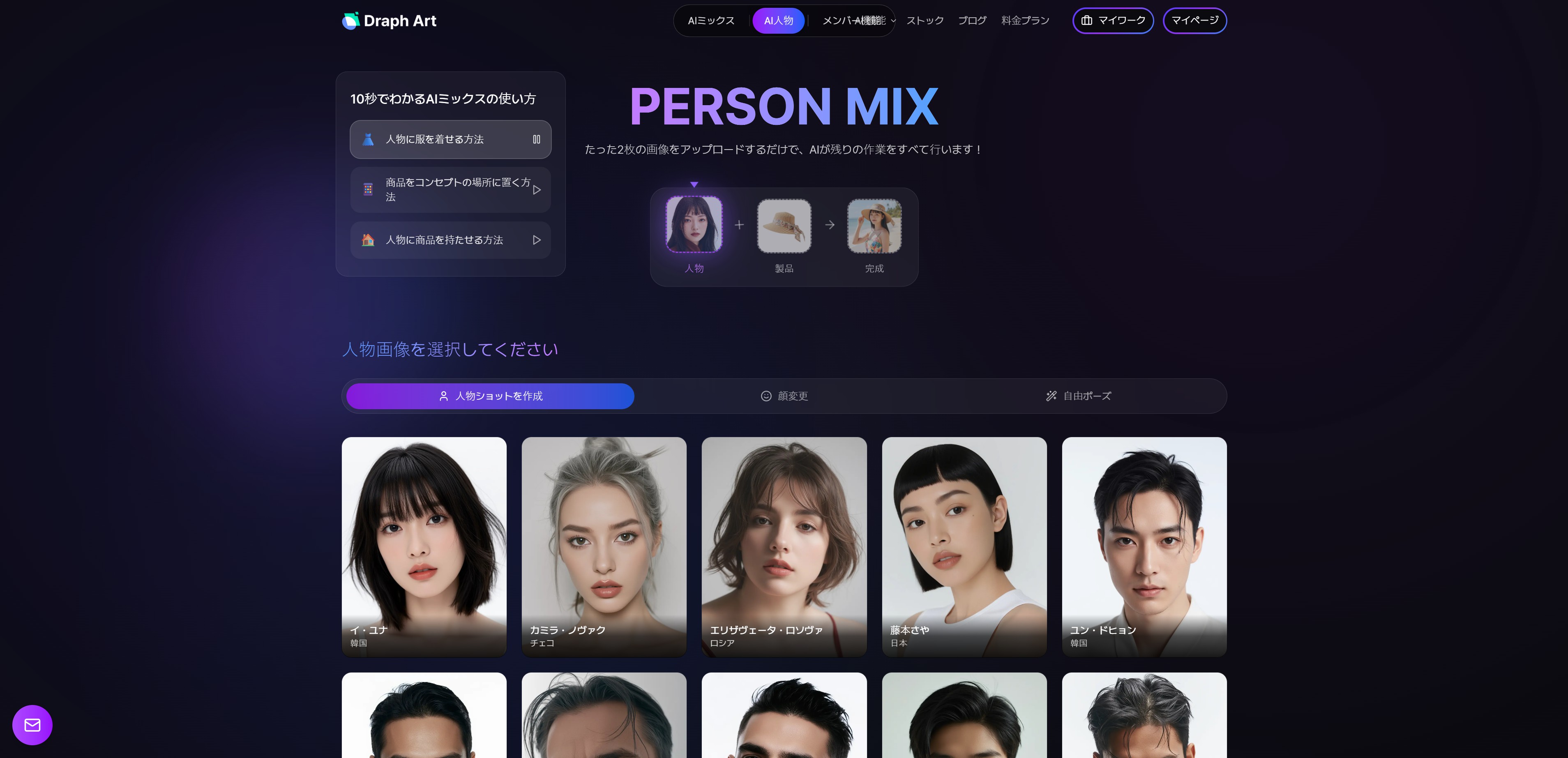
ドラップアートでモデル動画を作る方法
Step 1: AI人物選択
ドラップアートで「AI人物」メニューに移動して100人以上のAIモデルの中からブランドイメージに合うモデルを選択します。韓国、ロシア、フランス、日本など様々な国籍のモデルが準備されています。
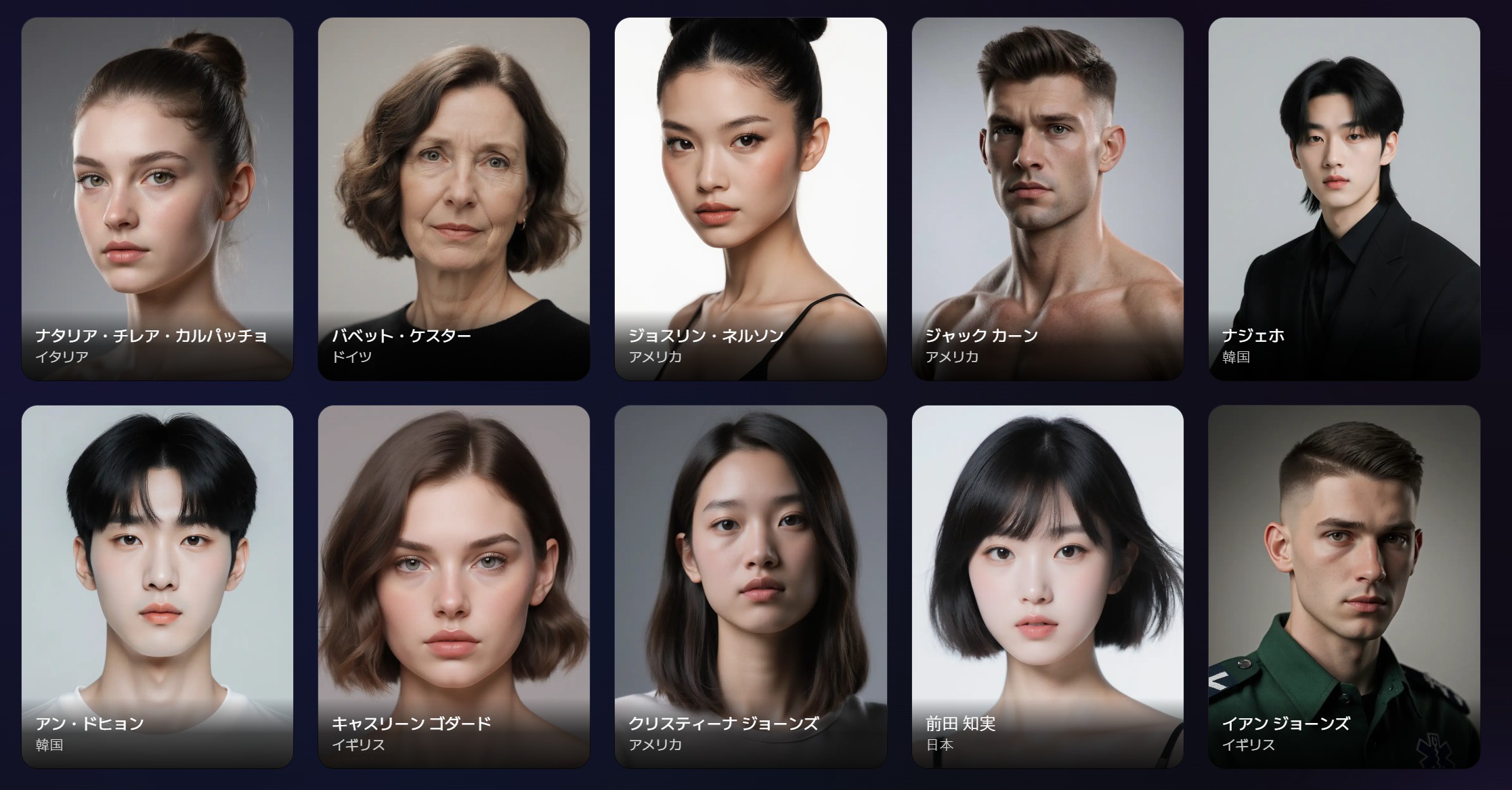
Step 2: 製品画像アップロード
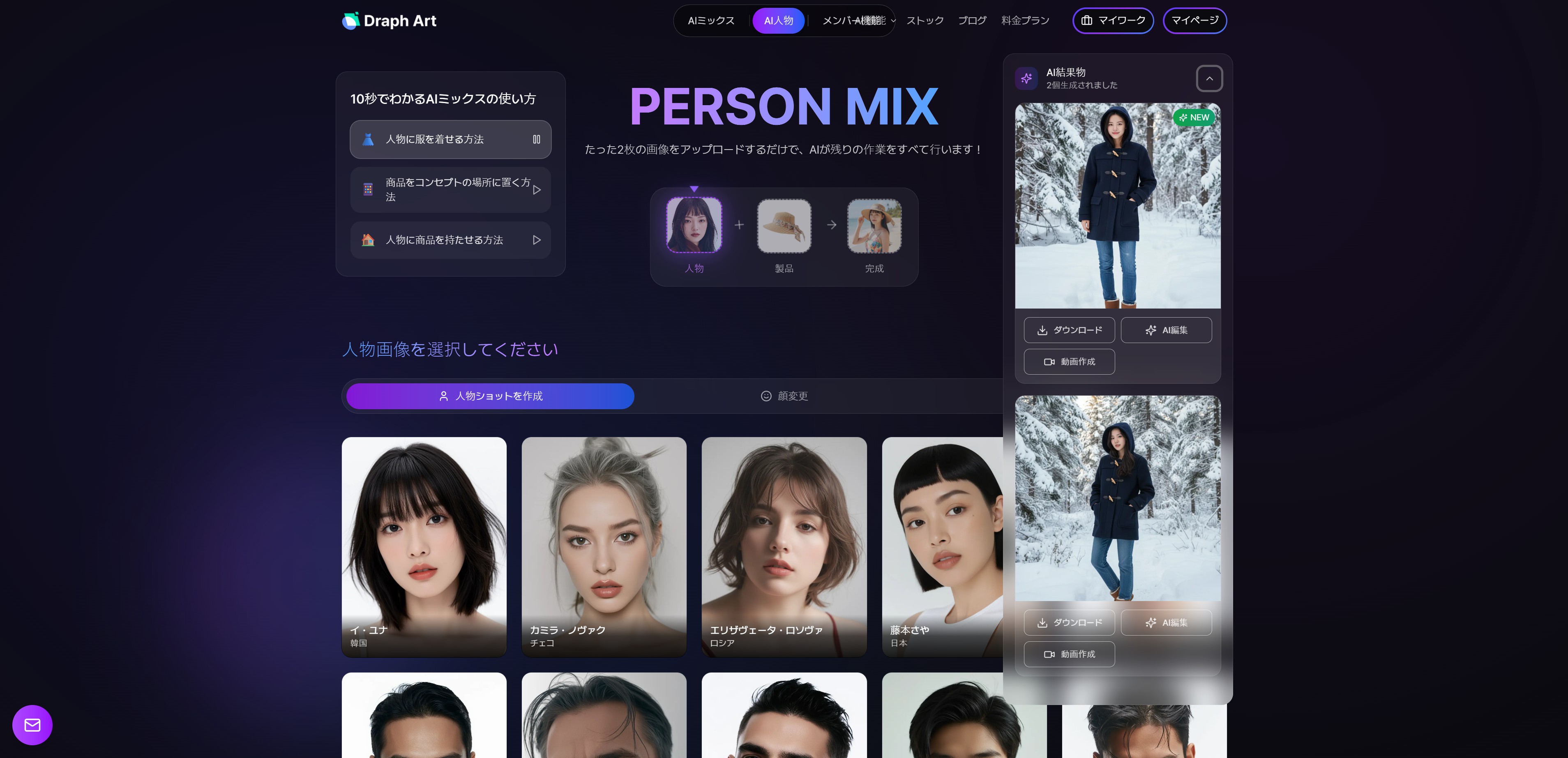
製品画像をアップロードするとAIが自動的にモデル画像を生成します。衣類ならモデルが着用した画像が、化粧品ならモデルが製品を持っている画像が作られます。


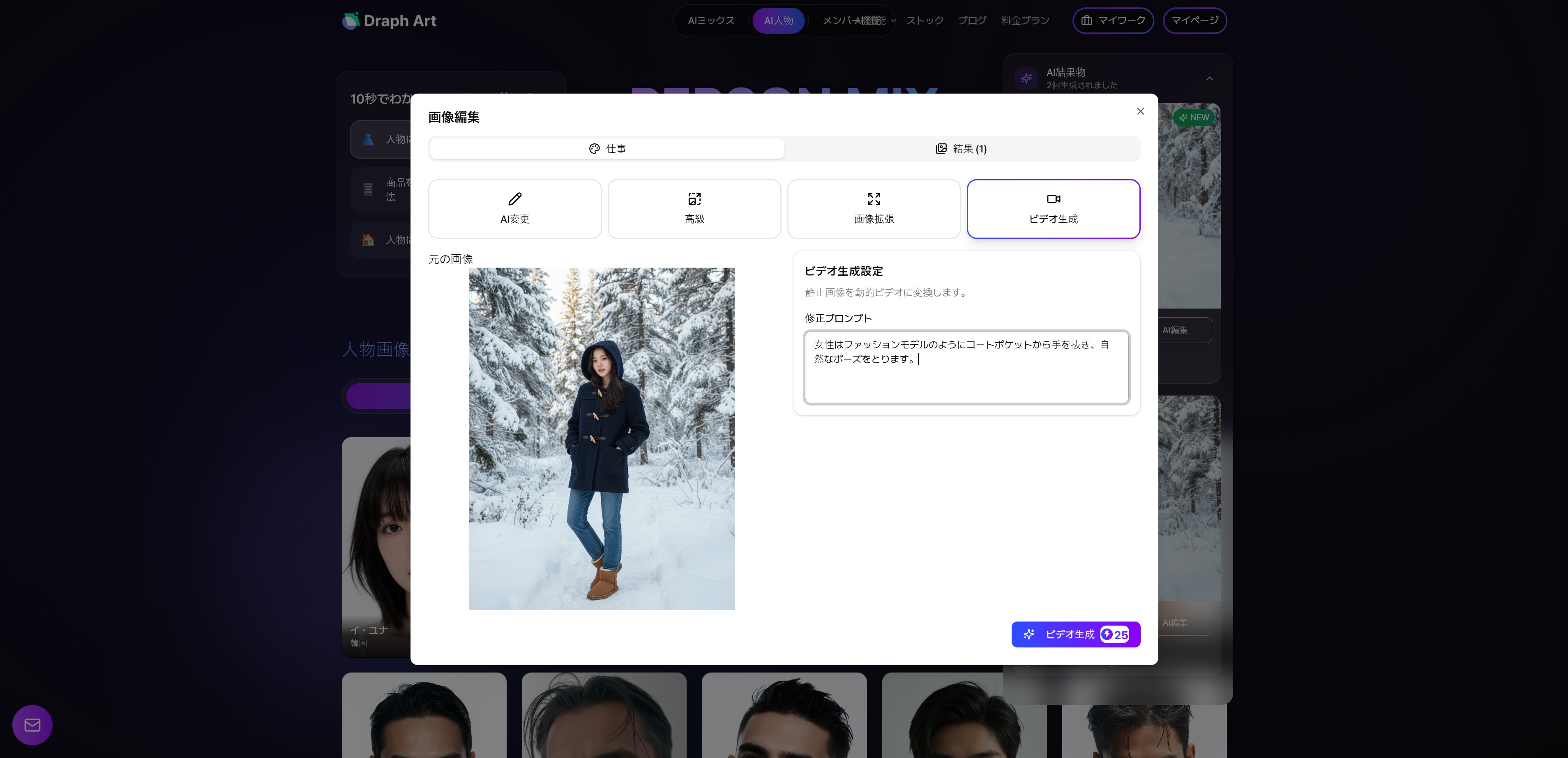
Step 3: 動画に変換
完成した画像下段の「動画生成」ボタンをクリックした後、「ビデオ生成」ボタンを押します。簡単なプロンプトを入力するとモデル画像が自然な動きの動画に変換されます。
동영상 서비스가 종료되어 해당 콘텐츠를 재생할 수 없습니다.
Runwayは創造的な動画制作に優れていますが、コマース用モデル動画が必要なときはドラップアートがはるかに効率的です。複雑なプロンプト作成なしでも製品プロモーションに最適化されたモデル動画を速く作ることができるからです。AI画像生成サイトの中でも製品とモデル画像に特化したドラップアートを活用すれば、無料画像サイトで探していた時間も節約できます。
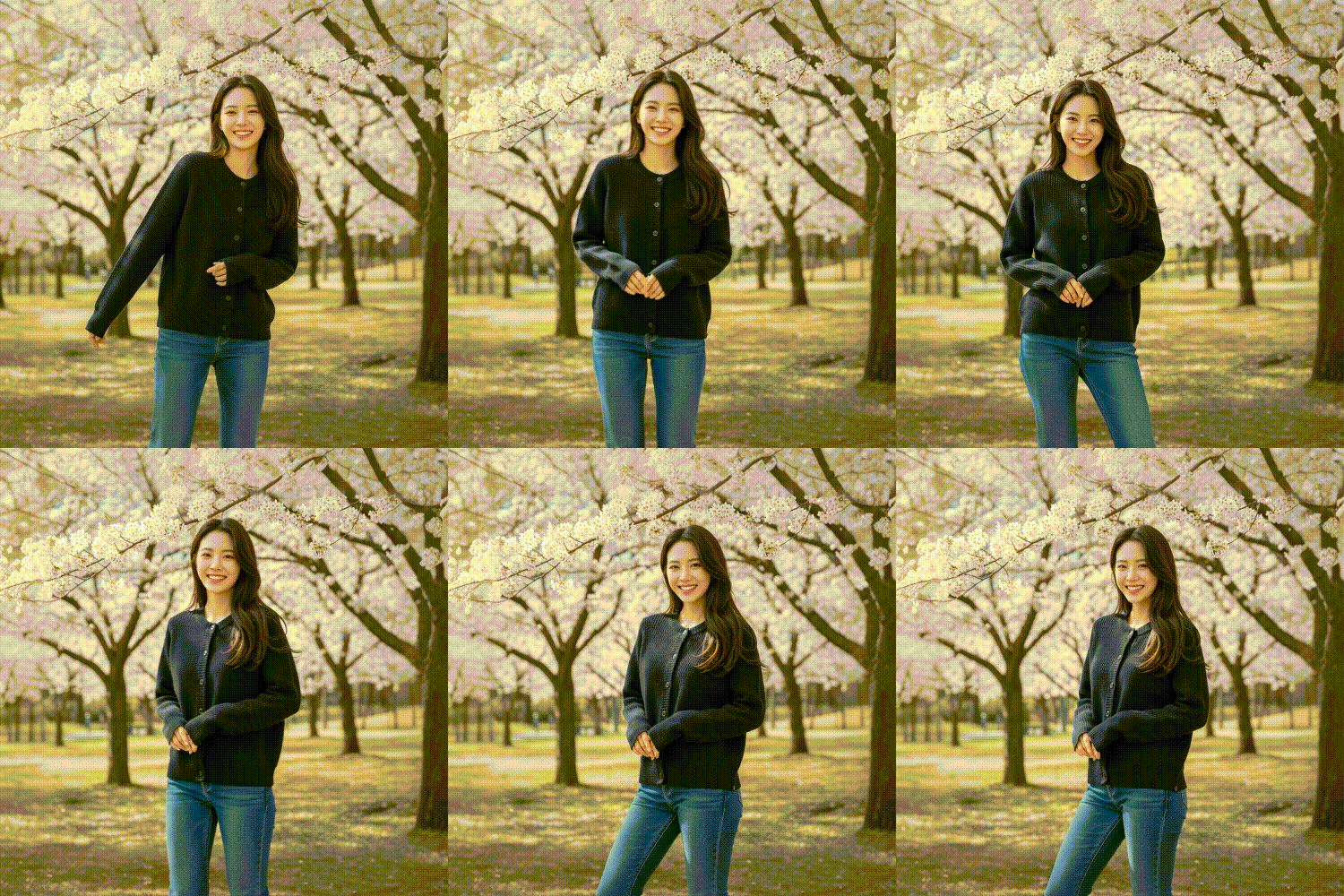

Runwayは無料で始められる強力な動画制作AIプラットフォームです。Veo 3やSora 2のように高い購読料を払わなくても高品質動画を作ることができます。特に創造的な動画制作やストーリーテリングが必要なときRunwayのReferences機能は本当に便利です。しかしオンラインビジネスをするなら用途に合ったツールを選択することが重要です。
モデルAI画像生成や動画が必要なときはドラップアートのAI人物動画機能を、創造的な動画制作が必要なときはRunwayを活用する戦略をおすすめします。汎用AIと特化AIを適切に組み合わせればはるかに効果的なコンテンツマーケティングが可能です!

